
Woodge System Update 26.04
The Woodge 26.04 update introduces a wide range of enhancements focused on improving manufacturing control, order change management, operator workflows, and data validation across the system. Key additions include system-wide task notifications, controlled editing of orders in manufacture with full audit tracking, improved quantity handling, enhanced scheduling and consignment tools, expanded product validation, and numerous usability and reliability improvements throughout the platform.
System Wide Notifications
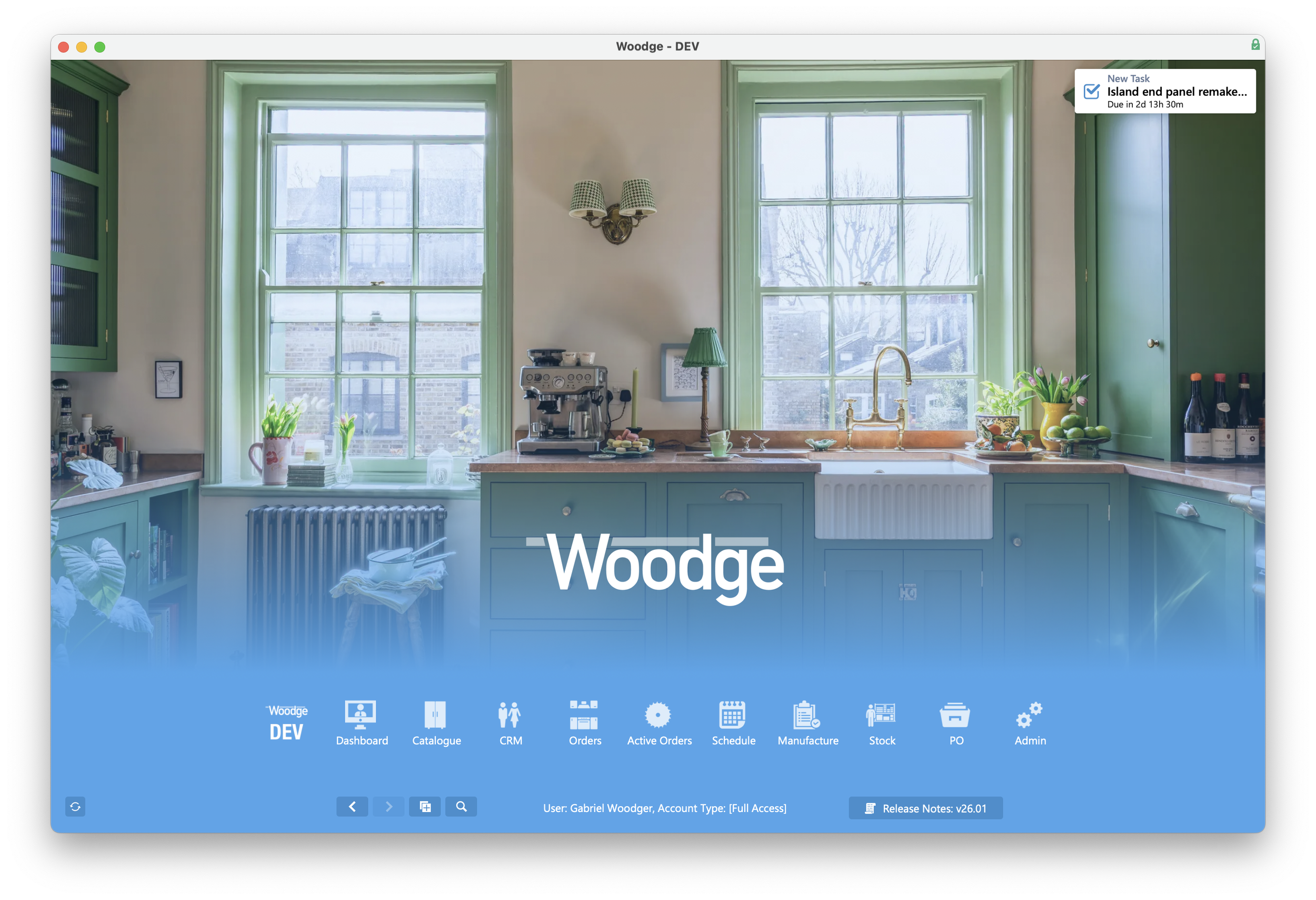
The Woodge system now has a new system wide notification feature. When a new task is assigned to an employee a notification will immediately display in the top right of the application.
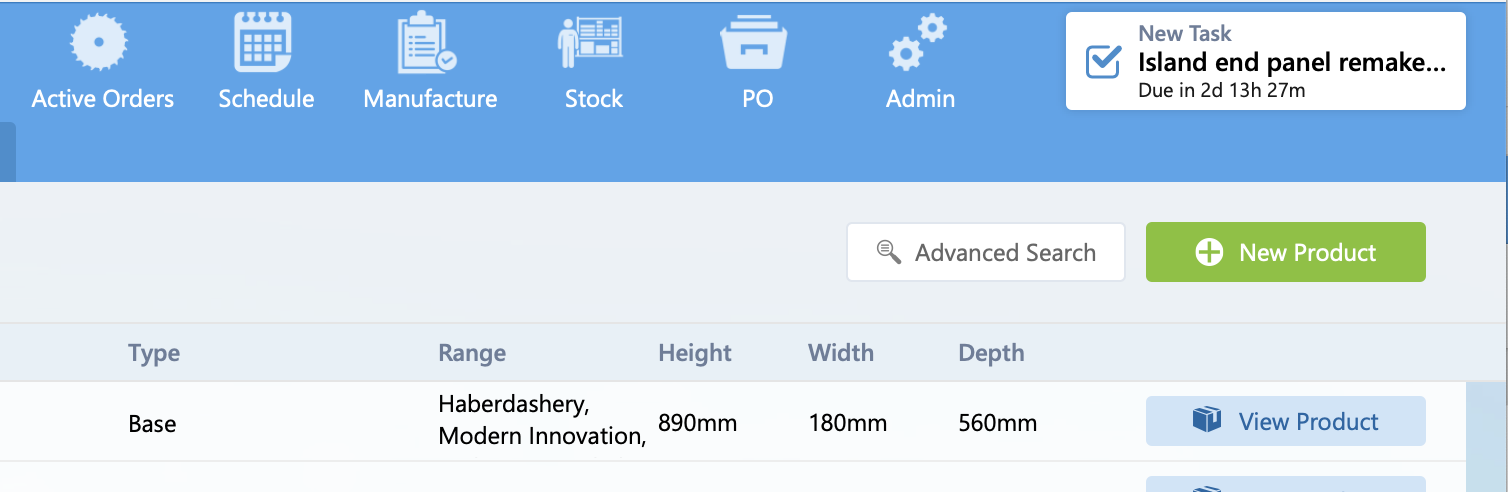
This notification will appear in all areas of the system, making it immediately clear there is an action to take.
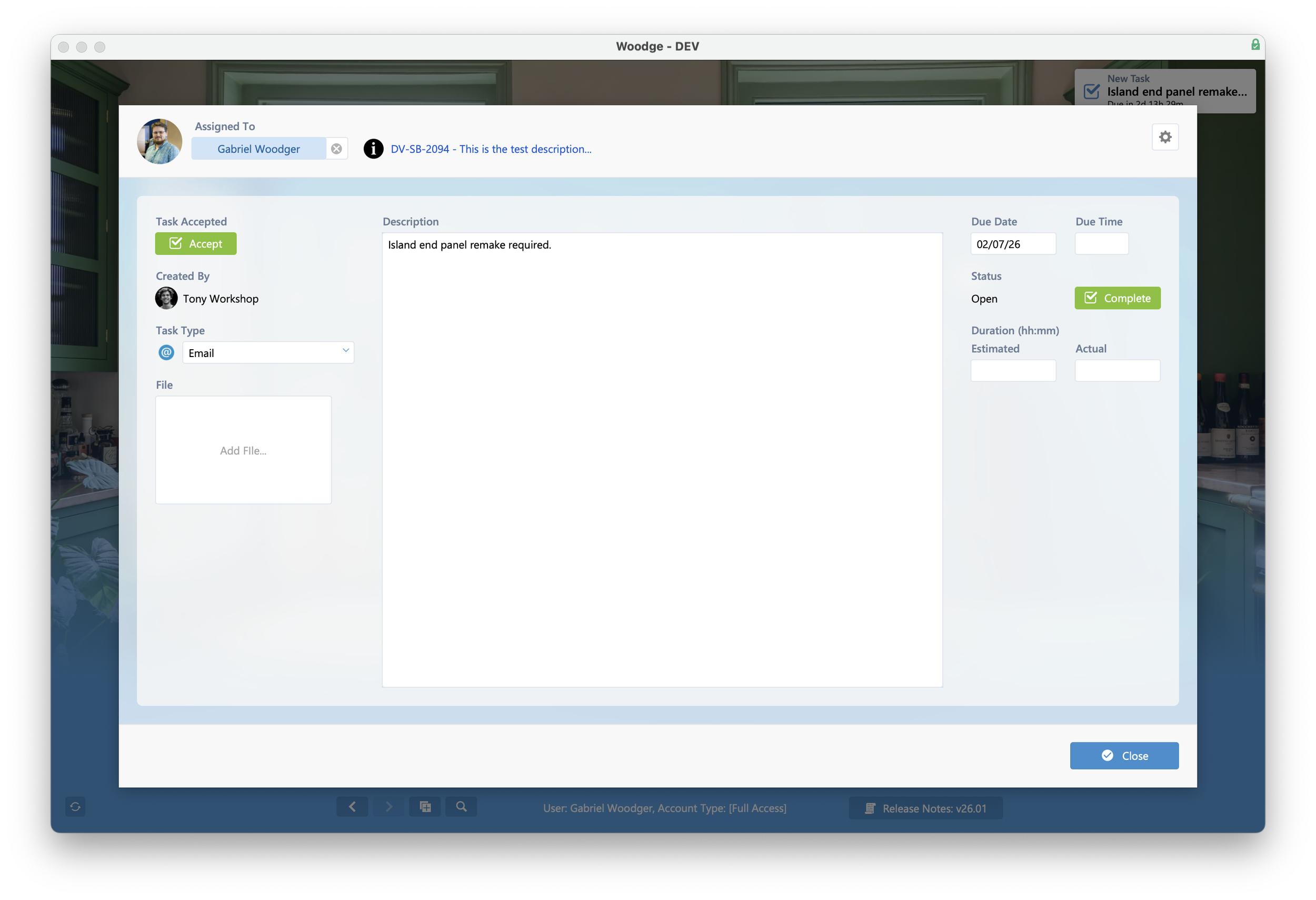
Clicking the notification will load the task card window. From here the user can accept or complete the task. This will then dismiss the notification.
View Schedule Filters
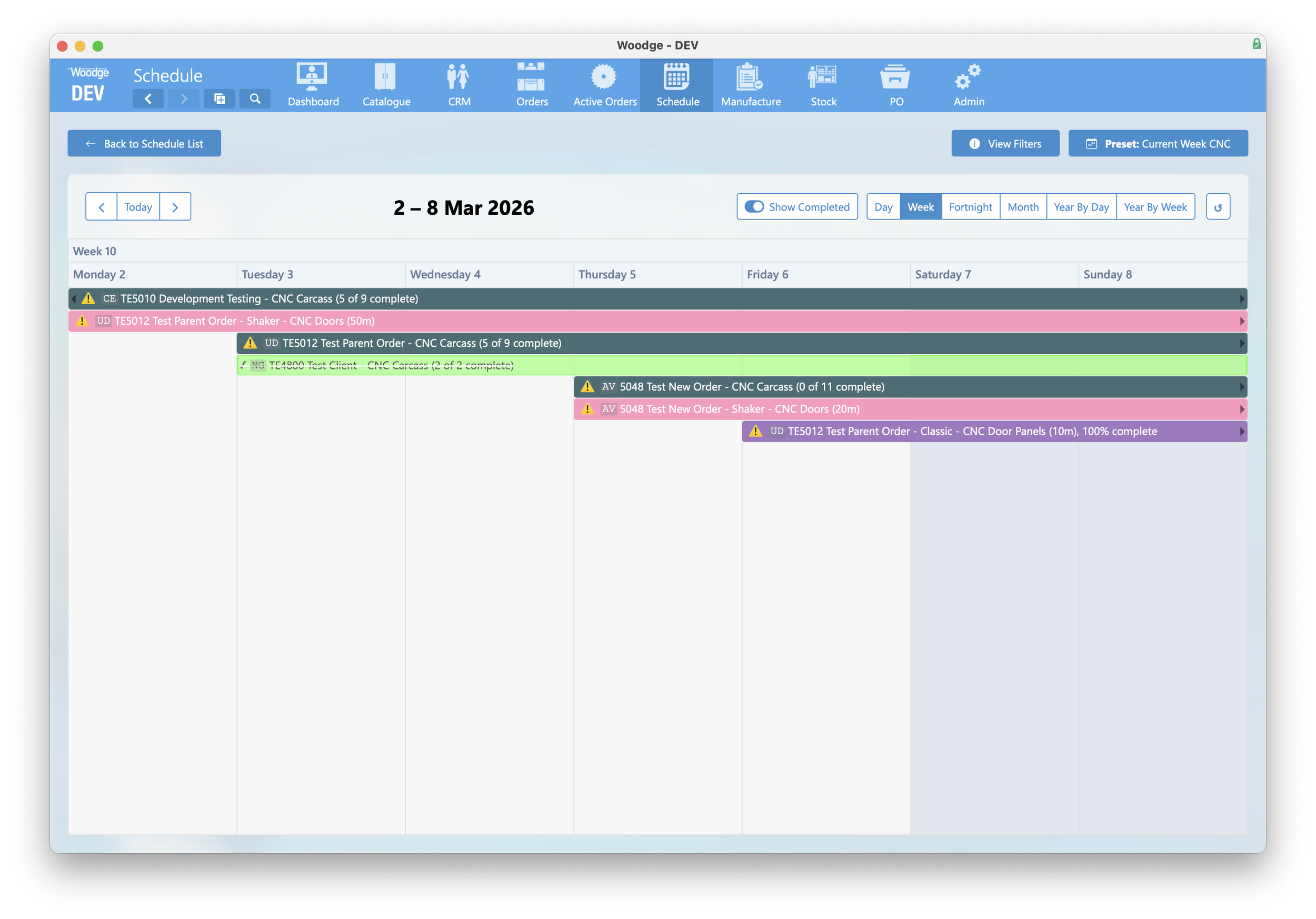
A new ‘View Filters’ button has been added to Schedule Views. This allows all users to quickly view which process and range combinations are shown on this schedule.
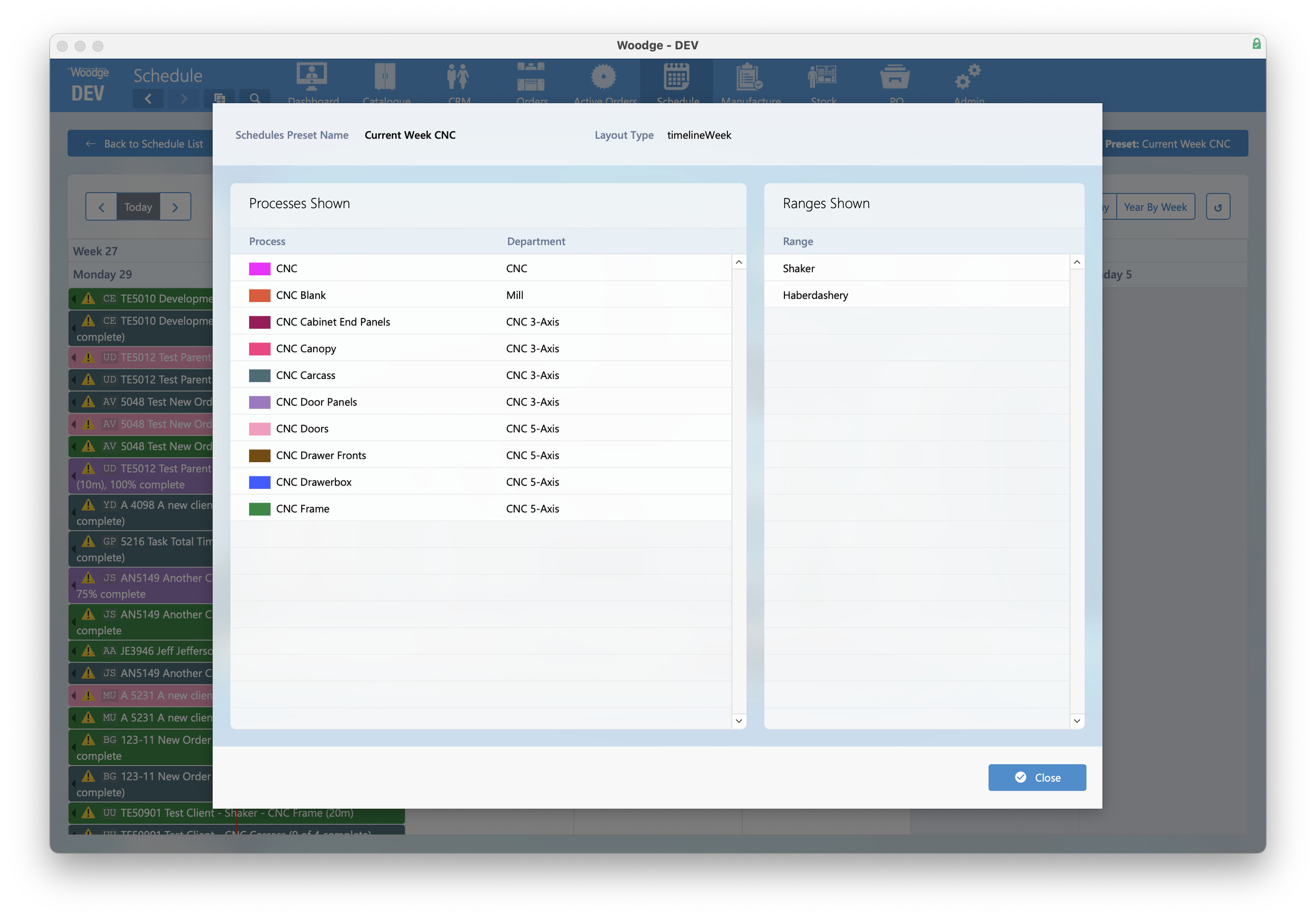
Clicking this button will open a card window displaying the processes and ranges that are included.
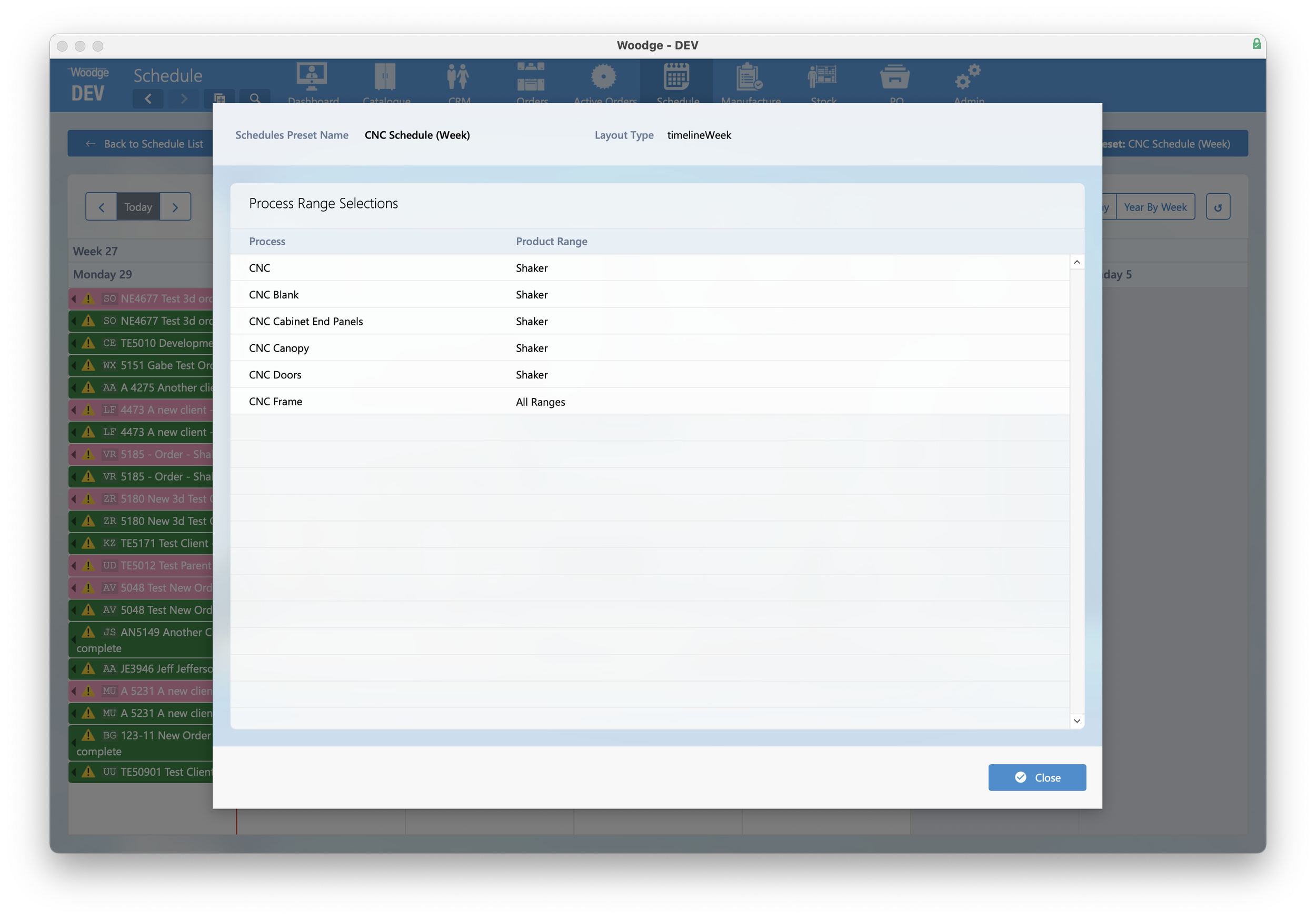
If the Schedule uses Custom Range Process combinations then these are shown. This read only window is also accessible to users who do not have access to edit the schedule presets.
Part Quantity Changes
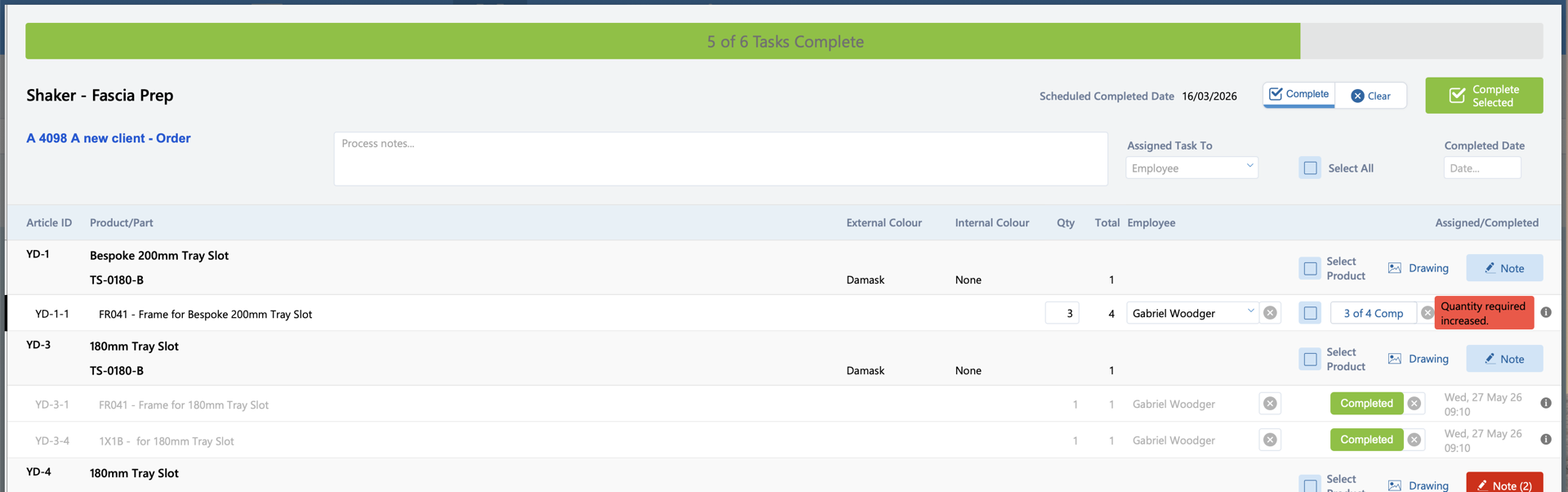
If the quantity of a Part required increases when the order is in Manufacture, the task will be flagged with an error 'Quantity required increased.' The previous amount made will remain and the total updated to show the new total.
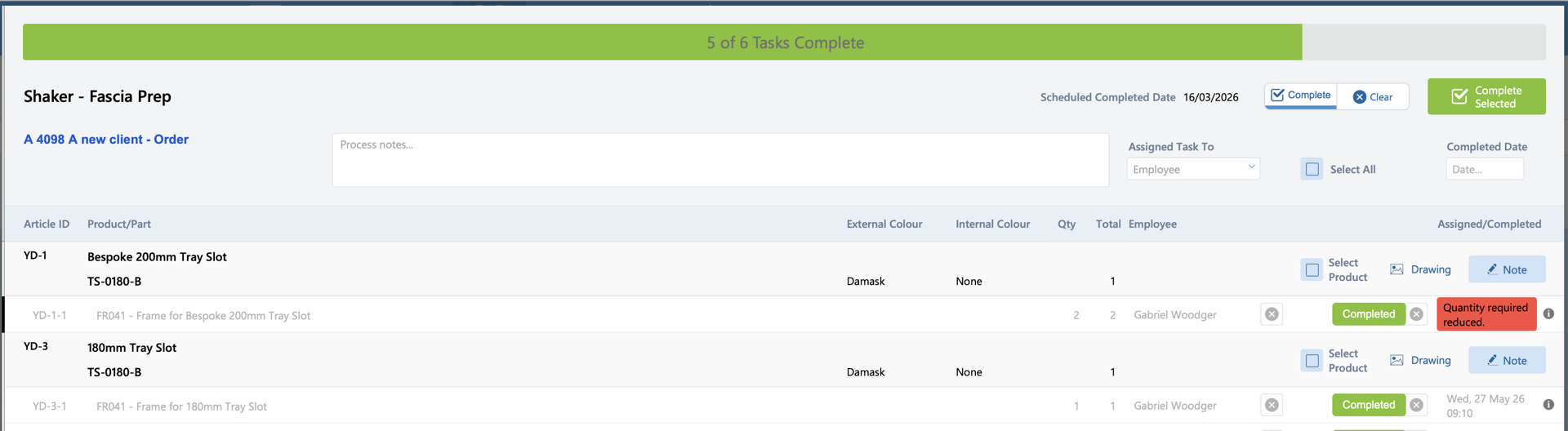
If the quantity required decreases, the task will be flagged with an error 'Quantity required reduced.' The existing number completed will be reduced to show the amount now required.
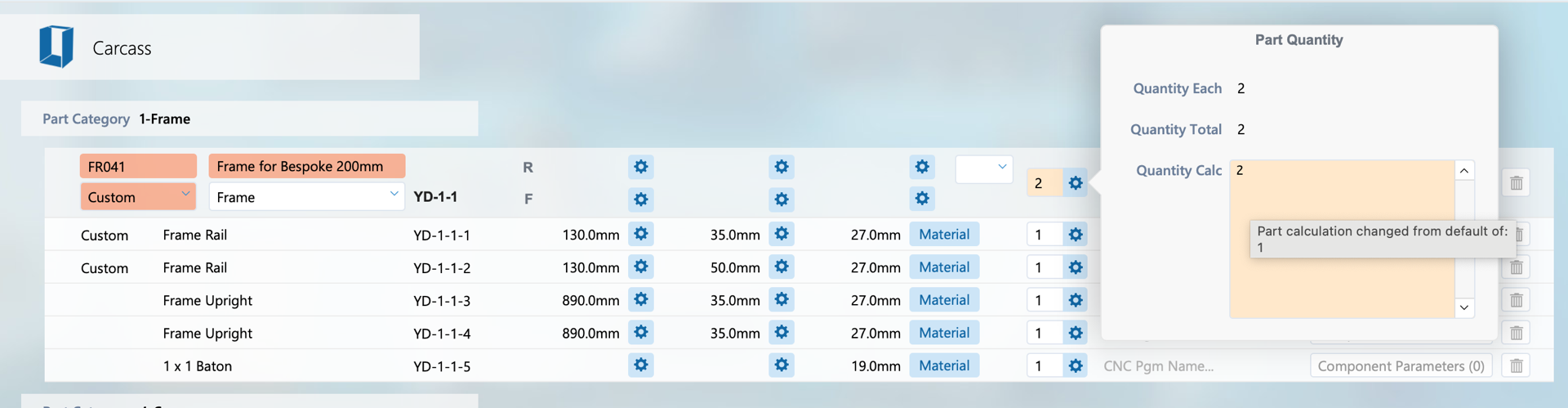
When a quantity is modified, this now overrides the default quantity calculation with the modified value. If this is different from the catalogue default then the field is highlighted in light orange. Hovering over the field will show the above "Part calculation changed from default of:" followed by the default number or calculation.
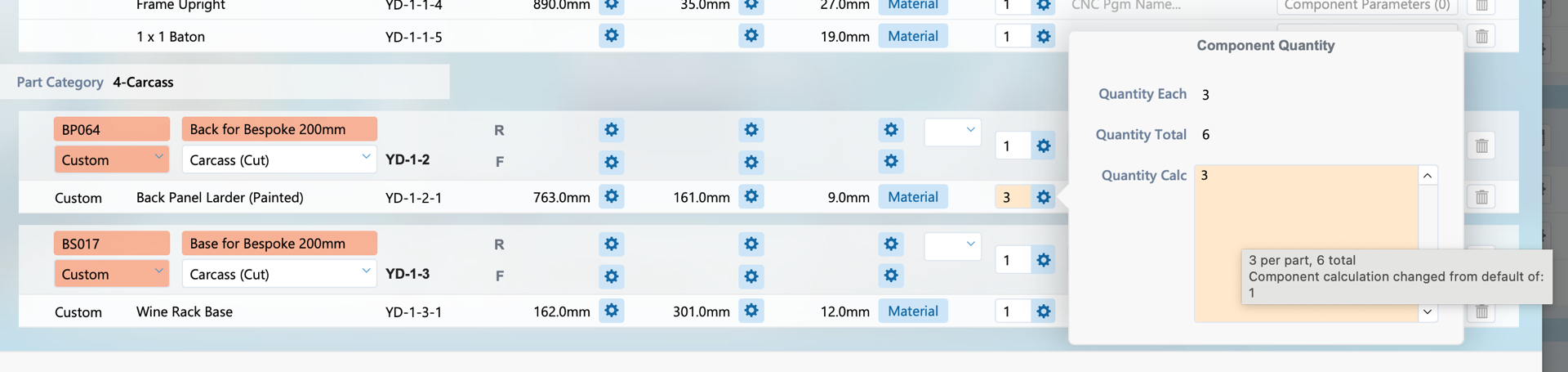
The same applies to component calculations. However this does not affect task completion.
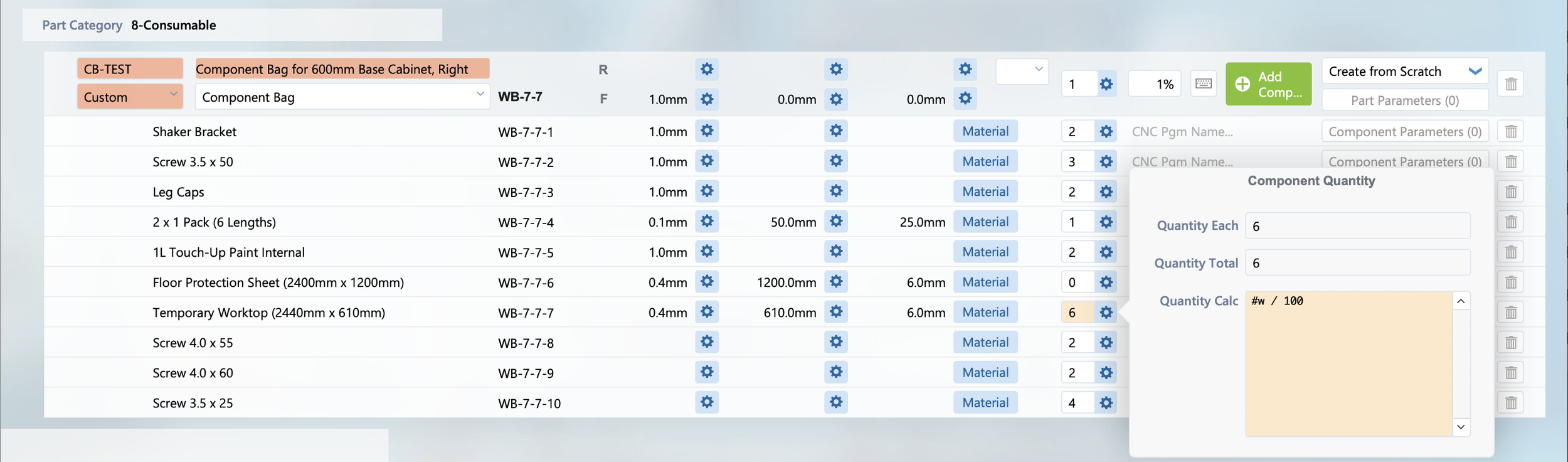
Quantity calculations for Parts and Components are saved into the manufacture records. This allows the quantity calculation to be changed from the default in the product catalogue.
Edit Orders In Manufacture
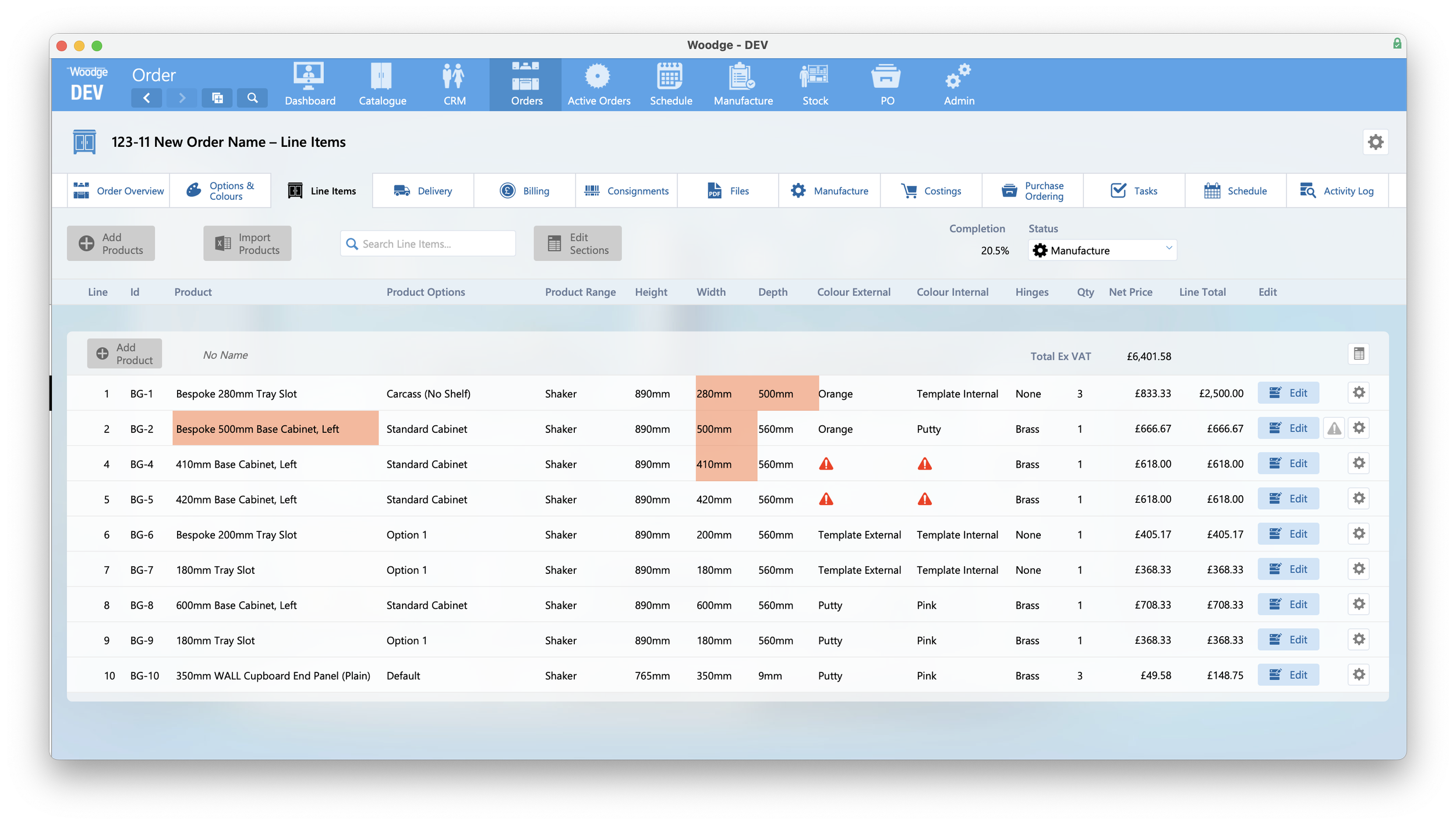
The Woodge system now enables orders to be locked when they enter Manufacture. When enabled this prevents modification to an order. This includes order dates, order options, and line items.
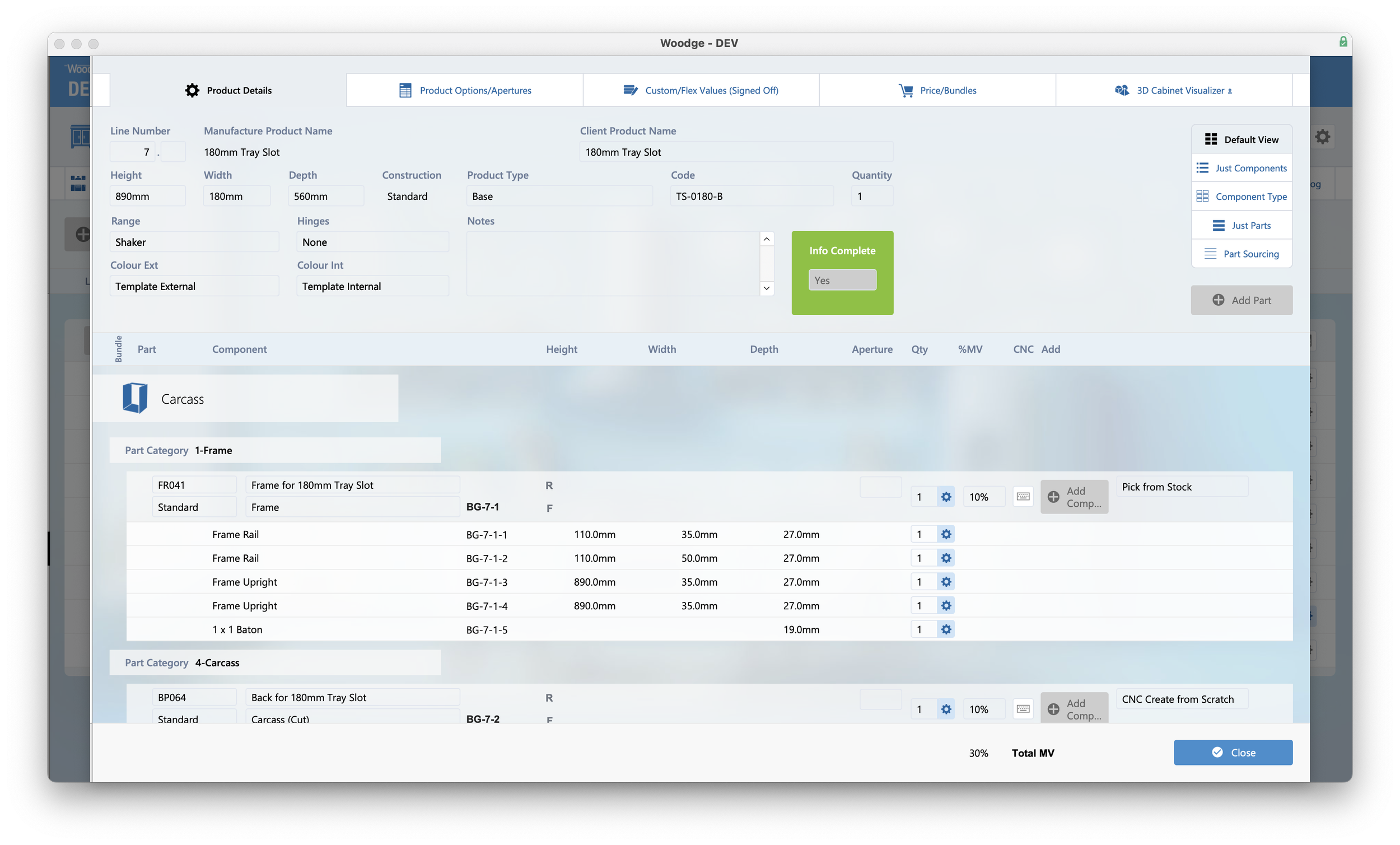
All buttons and fields are locked out to prevent modifications.
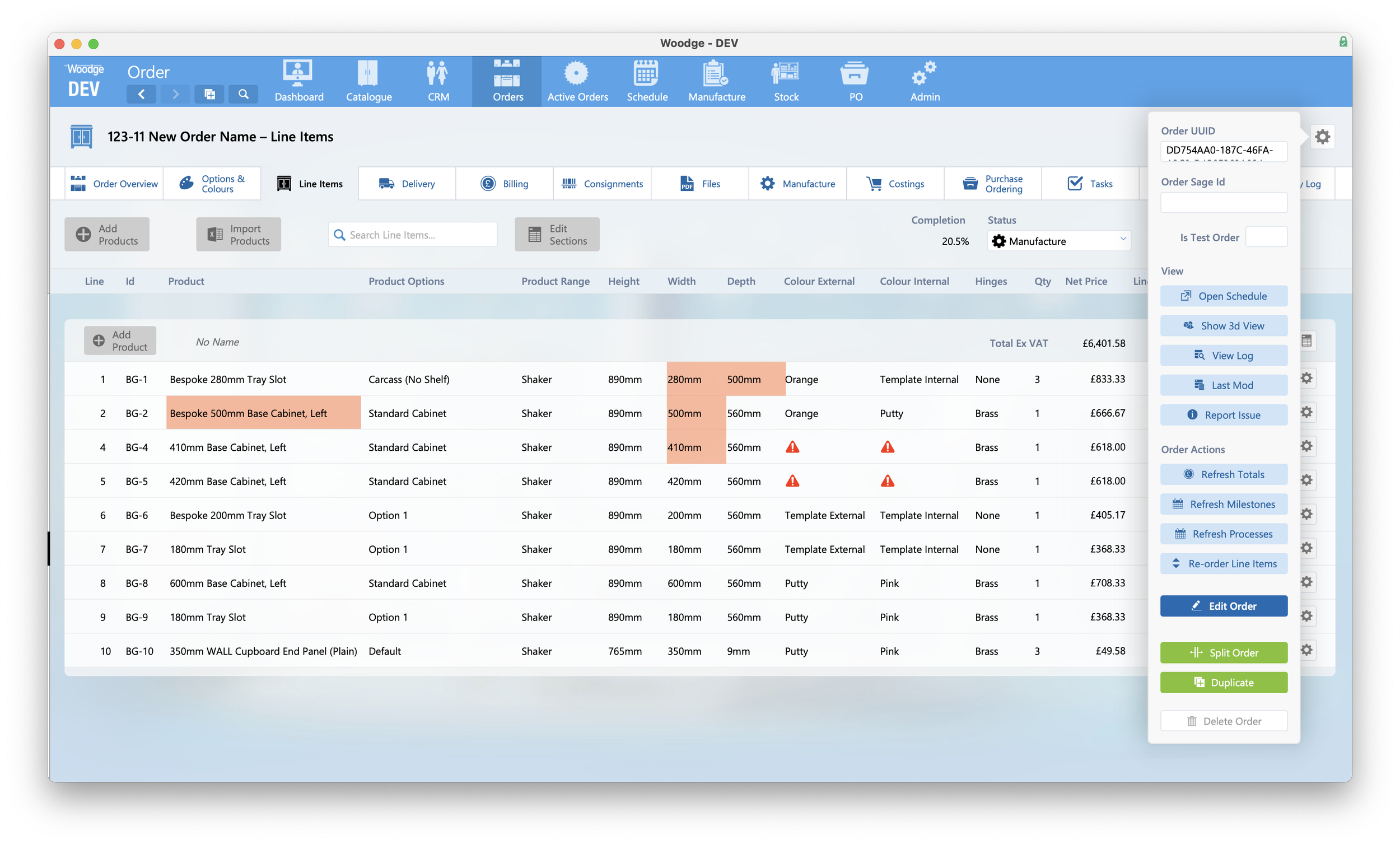
If changes are required to be made, then you must go to the cog in the top right of any of the order layouts and click the button ‘Edit Order’.
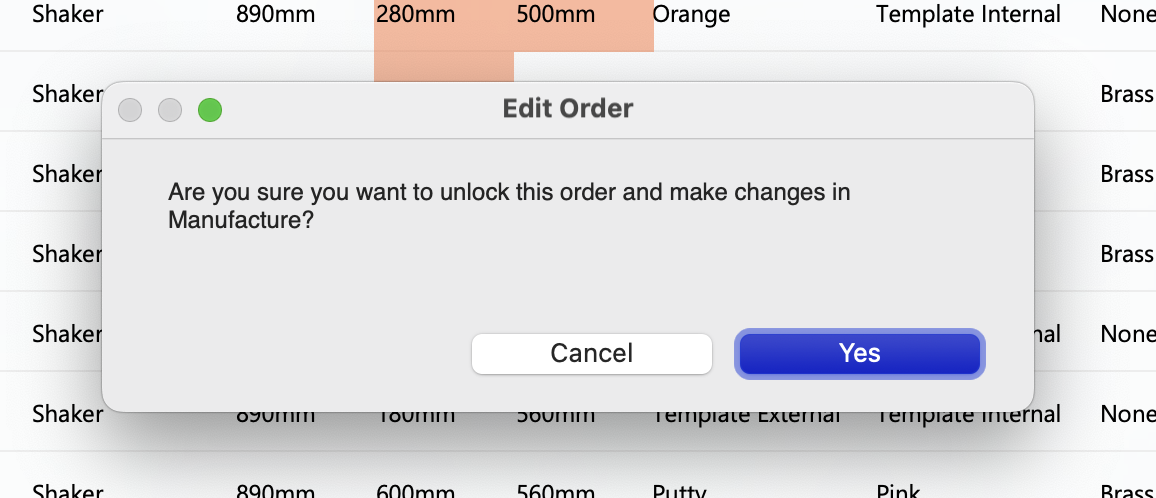
You will be asked to confirm unlocking and editing the order.
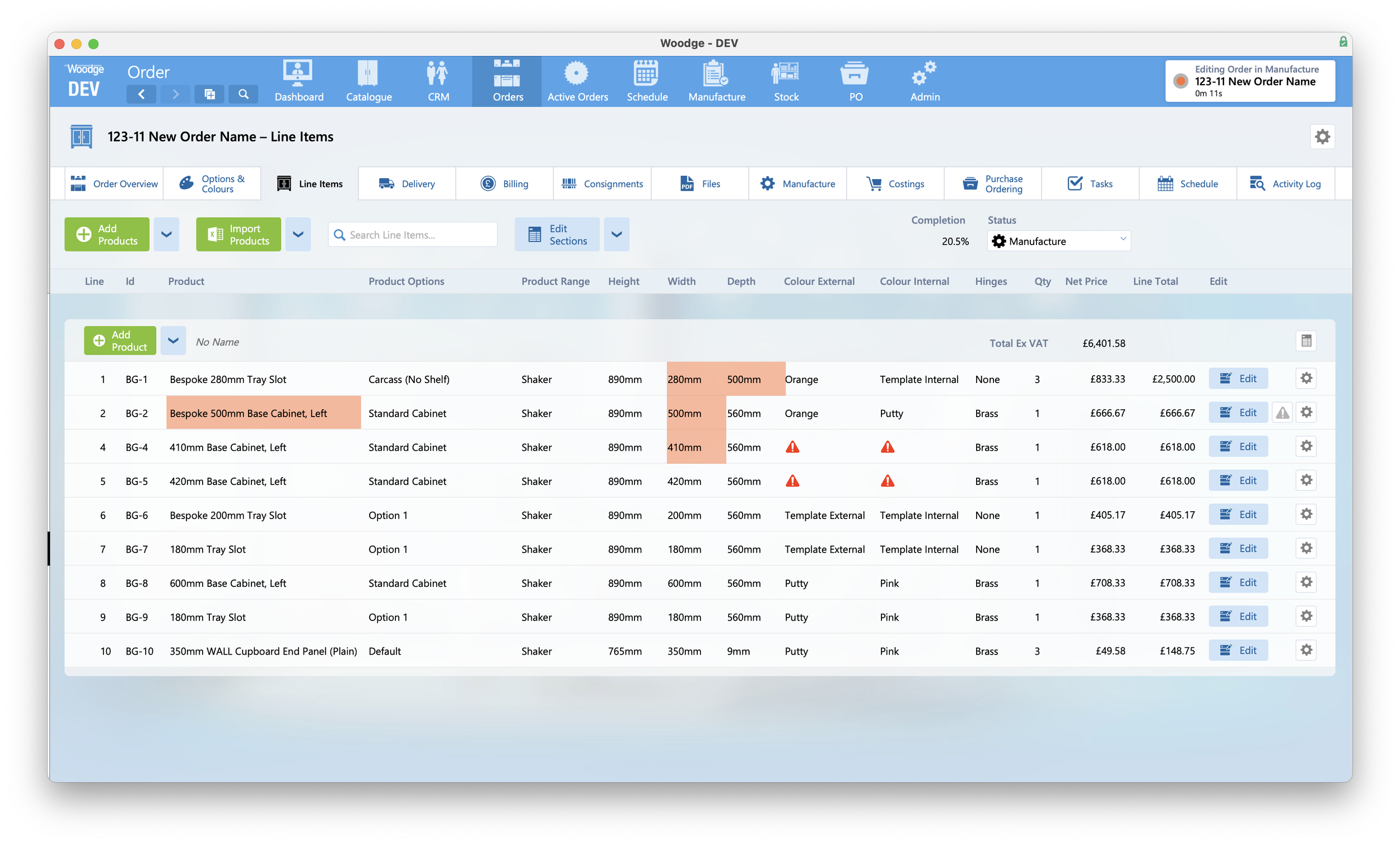
The system will then show a recording indicator in the top right notification area. All options to modify the order will be re-enabled. Now you can make the required changes to the order.
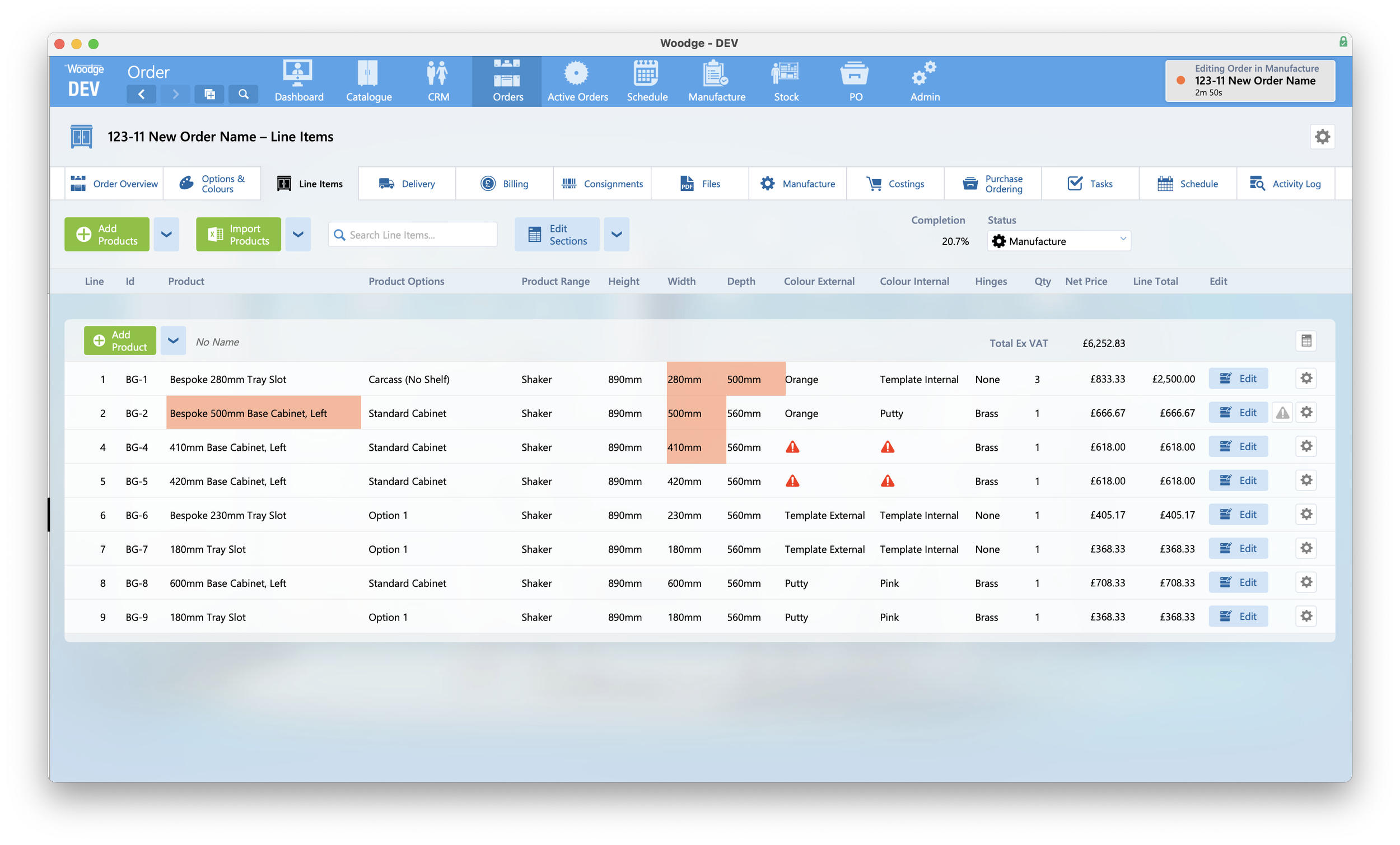
When you have completed making the required changes, click the recording notification in the top right.
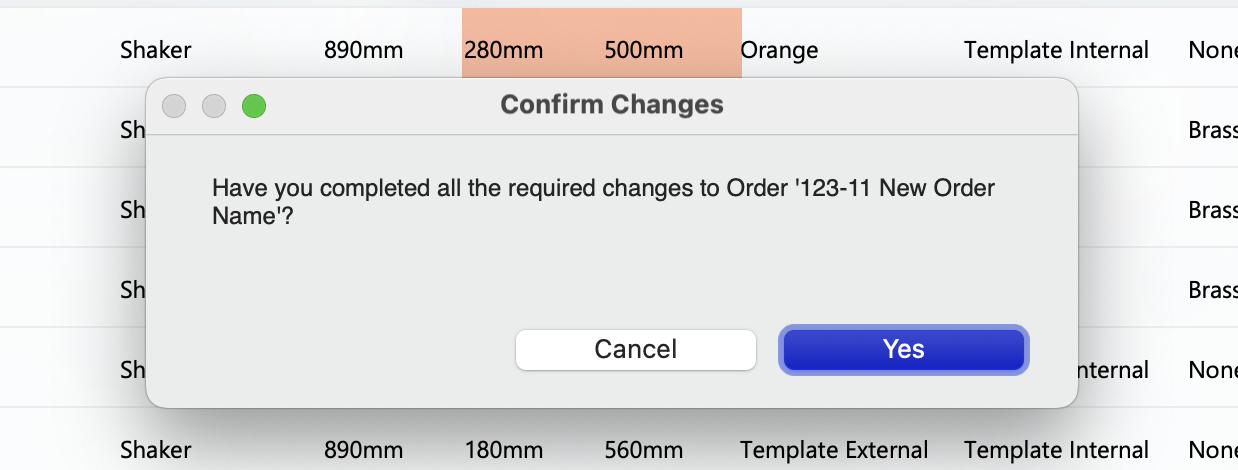
You will be asked to confirm you have completed making changes, or you can click ‘Cancel’ to continue making changes.
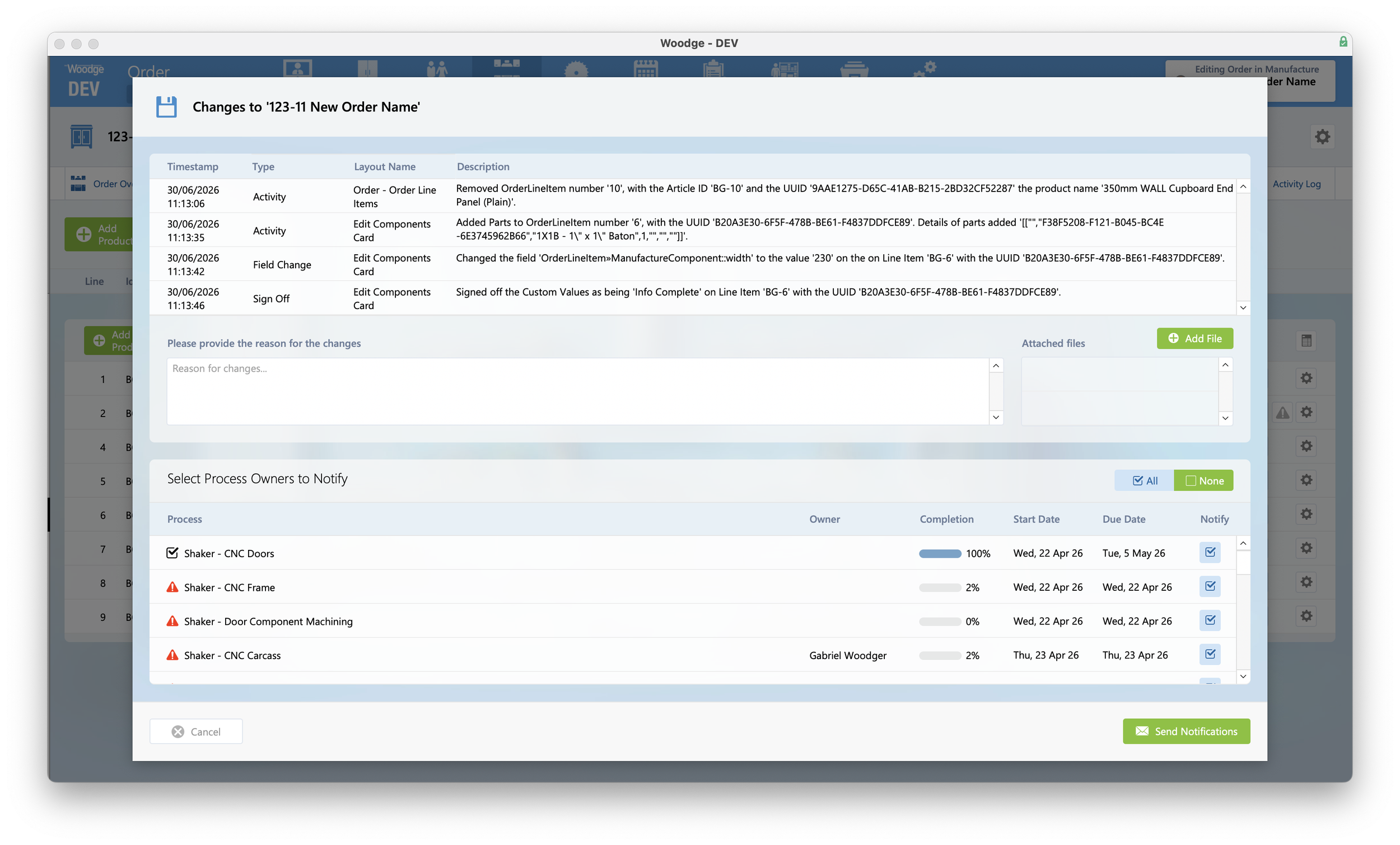
You will then be show the above card window. The top portal shows all the changes that have been made to the order. You will be required to provide a reason for the change. Please provide as much detail as possible to provide context for the change.
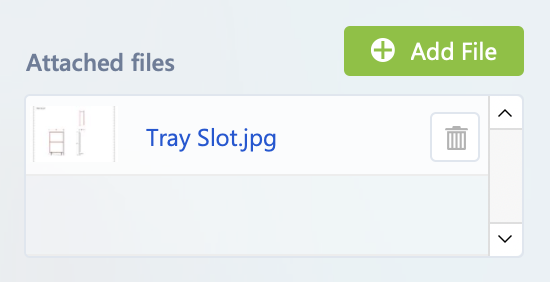
It is also possible to attach one or more files to the update. This could be updated drawings or other supporting documents.
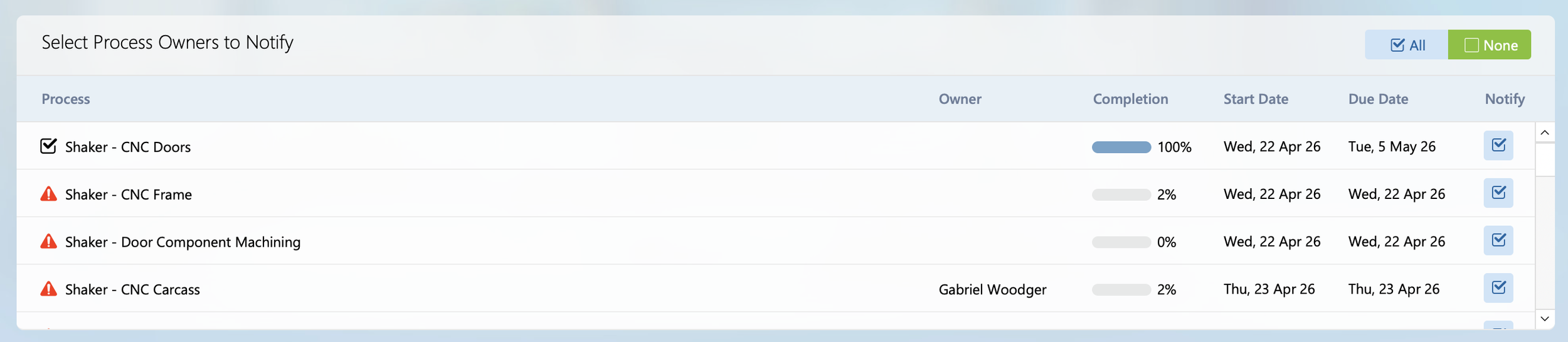
You can also select which process owners to notify about this change. Finally once you have provided all the required information you can click ‘Send Notification’ and an email detailing the changes will be sent to the required people.
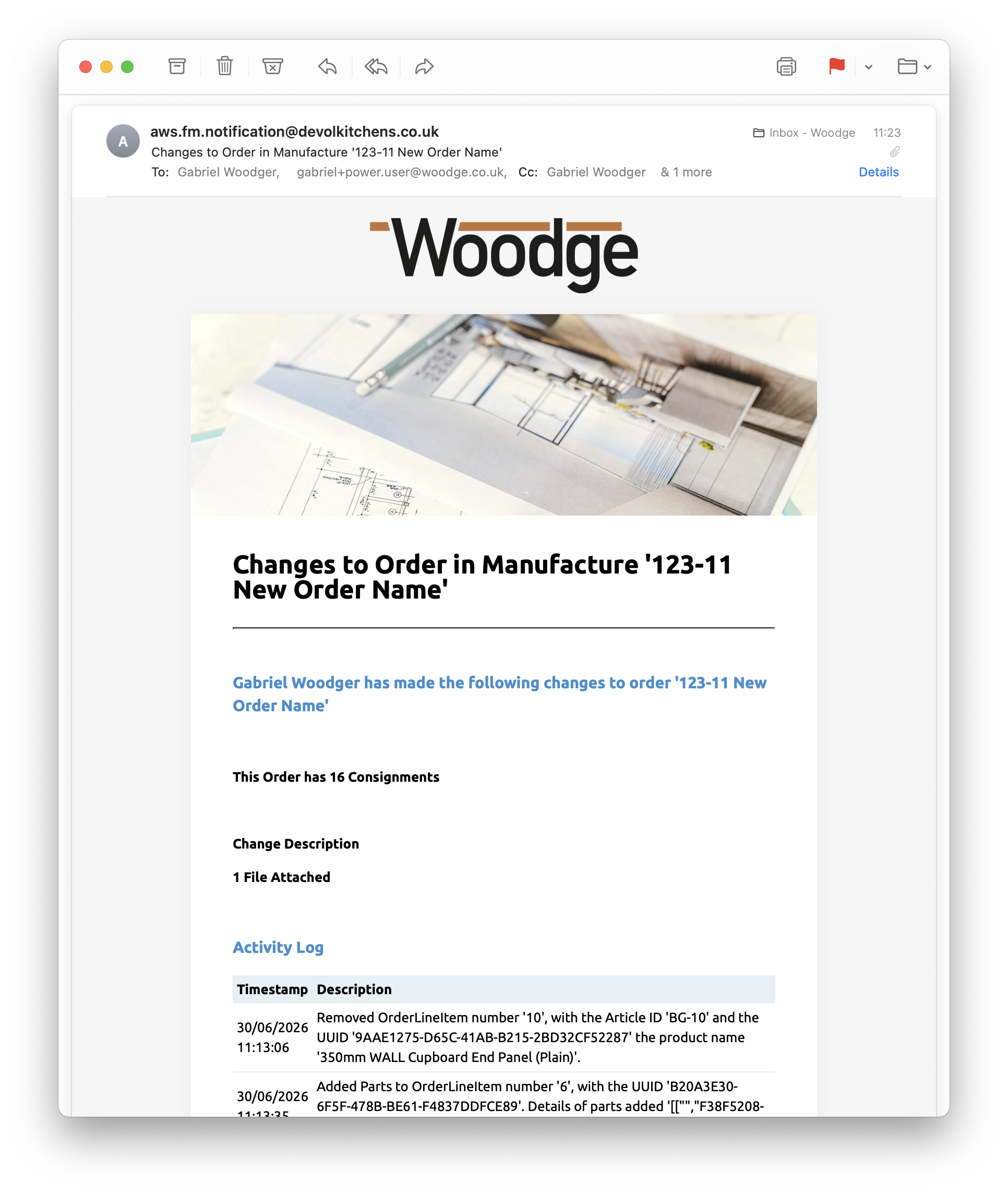
An email detailing the changes, and any attached documents will be sent to the required individuals.
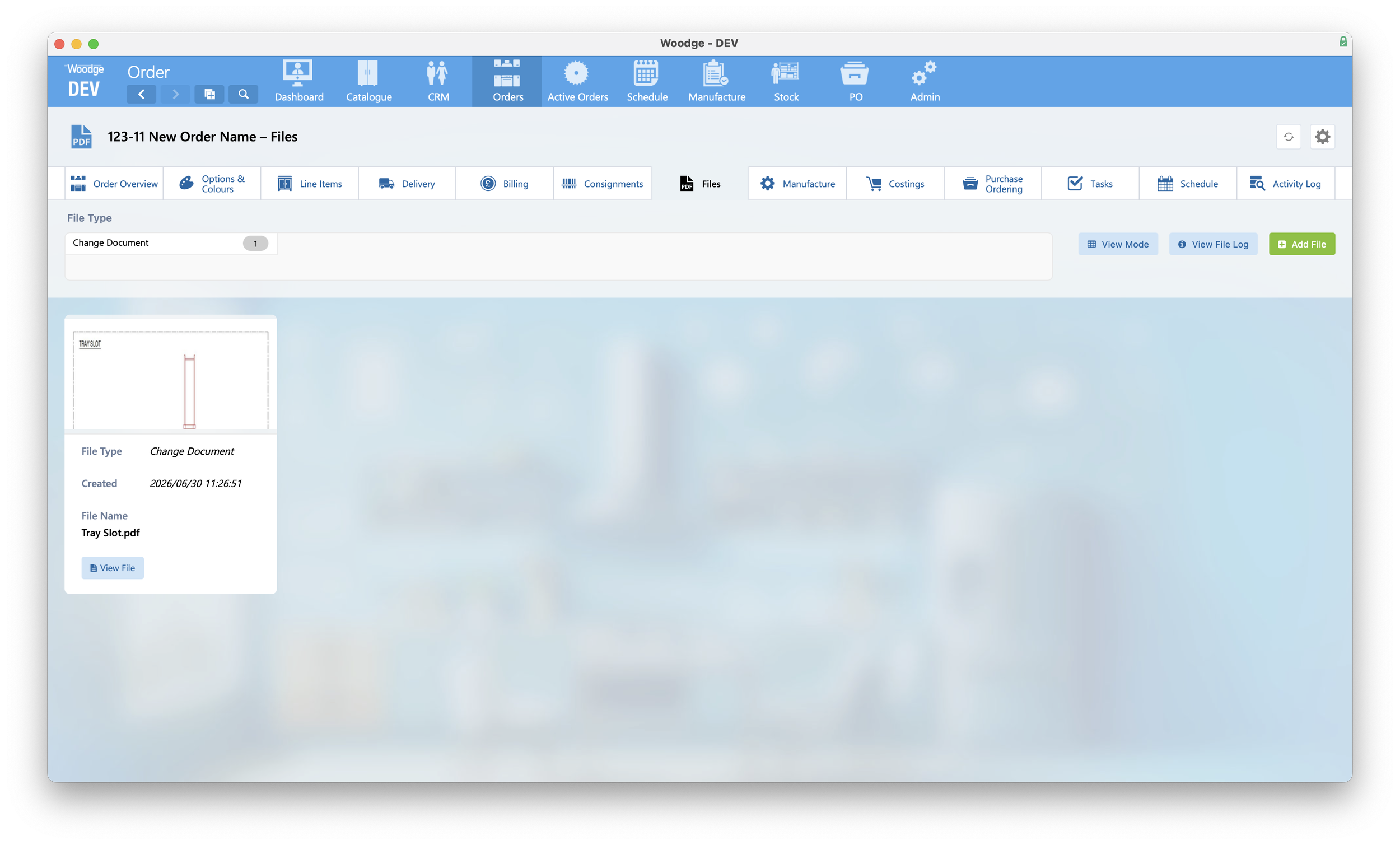
Files added to an update can be viewed later by going to Files tab of an Order. These documents will be of the type ‘Change Document’.
Deleting Milestone Improvements
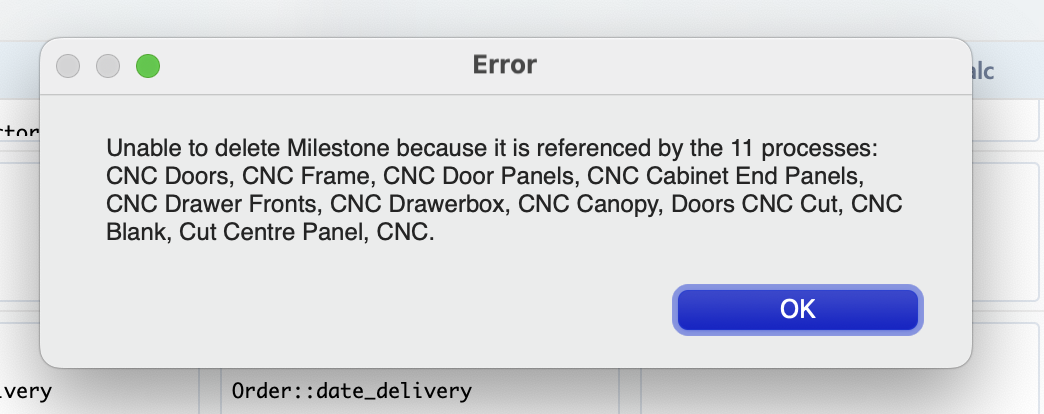
If a Milestone is referenced by Processes, the user is informed about this. The milestone cannot be deleted until the Processes have been re-allocated do a different Milestone.
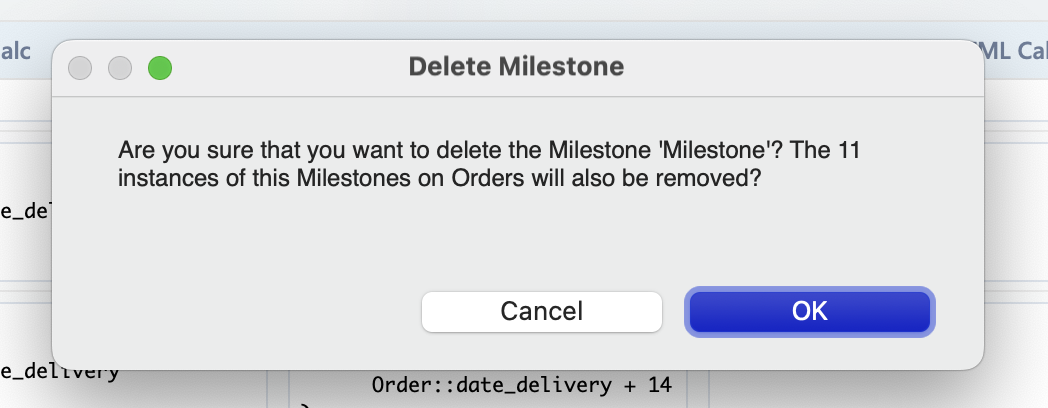
The system will also now remove the Order Milestone instances of the deleted Milestone. This prevents an orphaned milestone from remaining that is no longer updated.
OnTime Stats
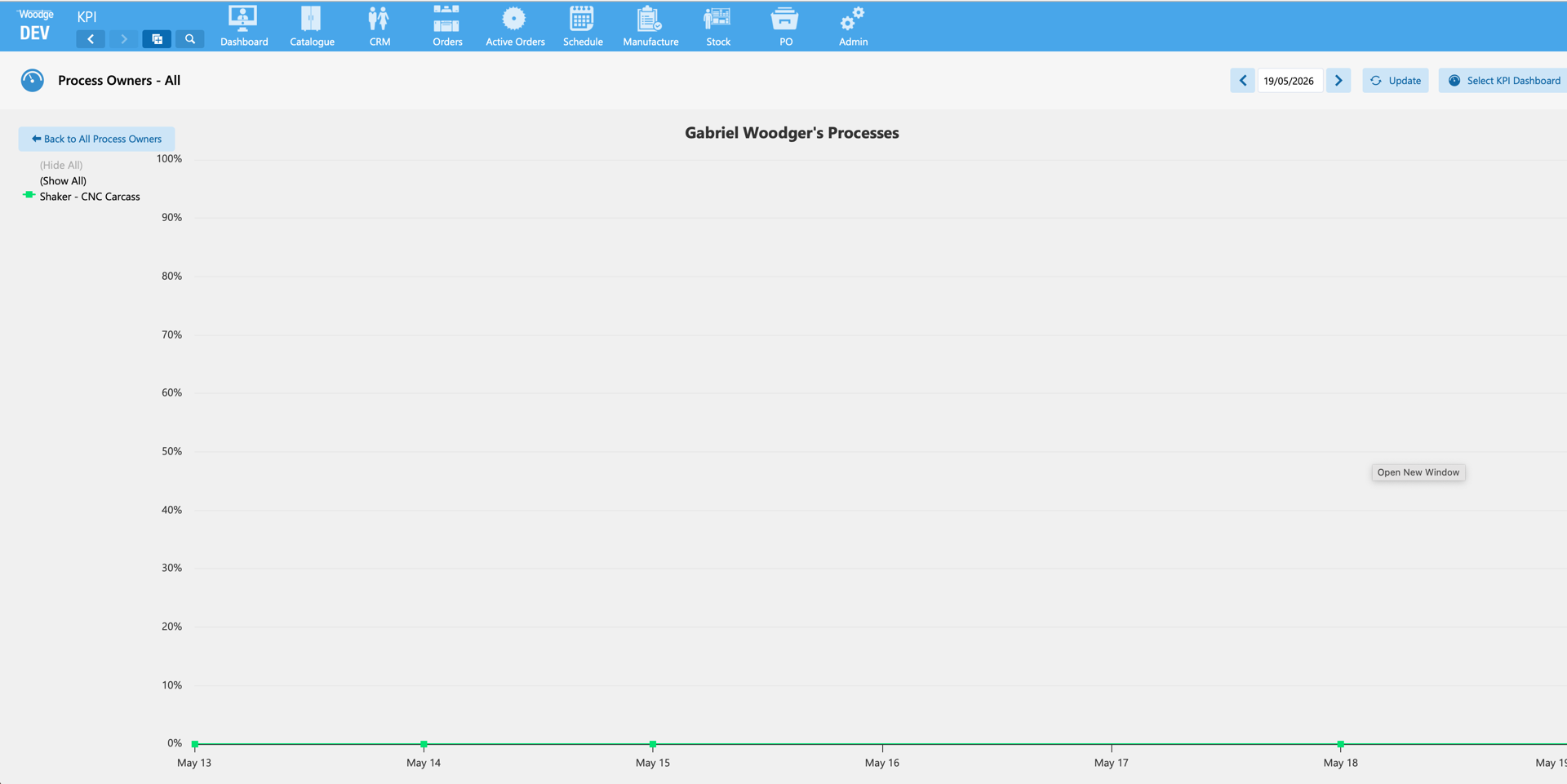
Archived Processes are no longer loaded on the Process Owners stats dashboard.
Consignment Improvements
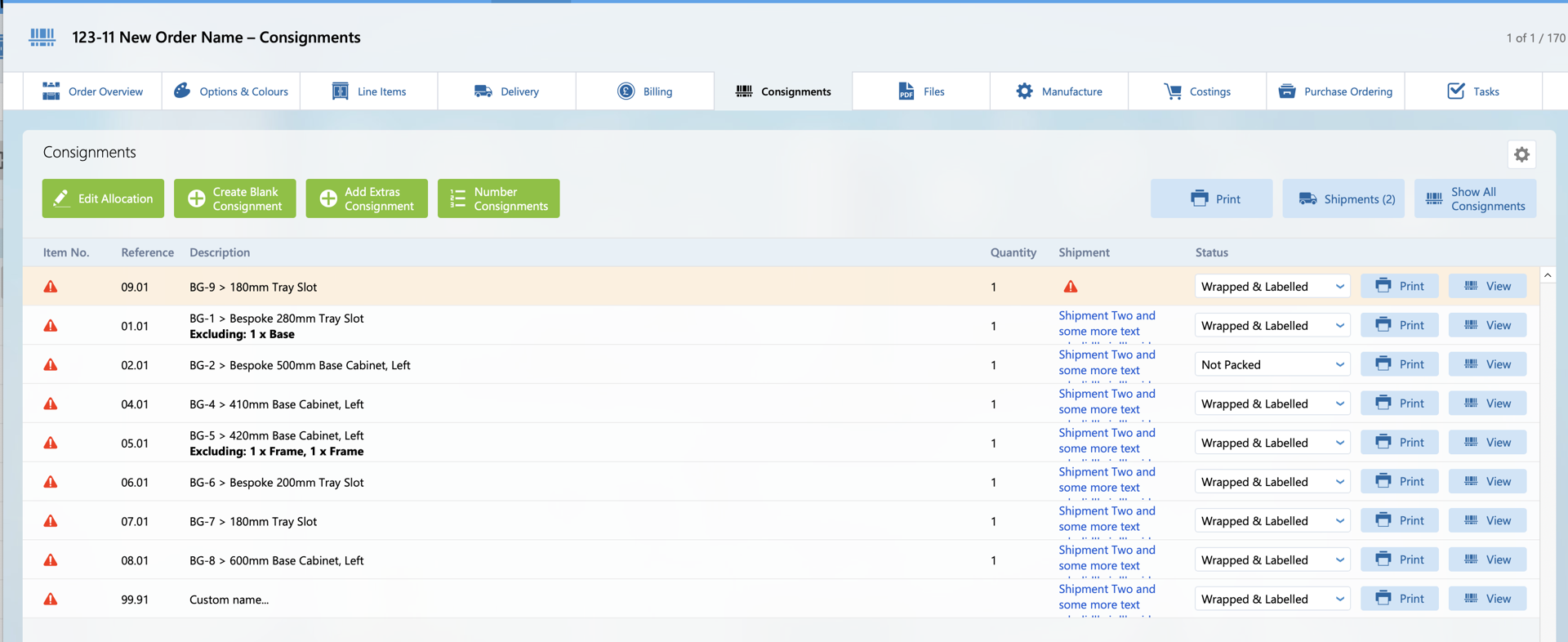
When allocating additional items on an order, custom consignment descriptions are no longer overridden if they contain parts from multiple line items.
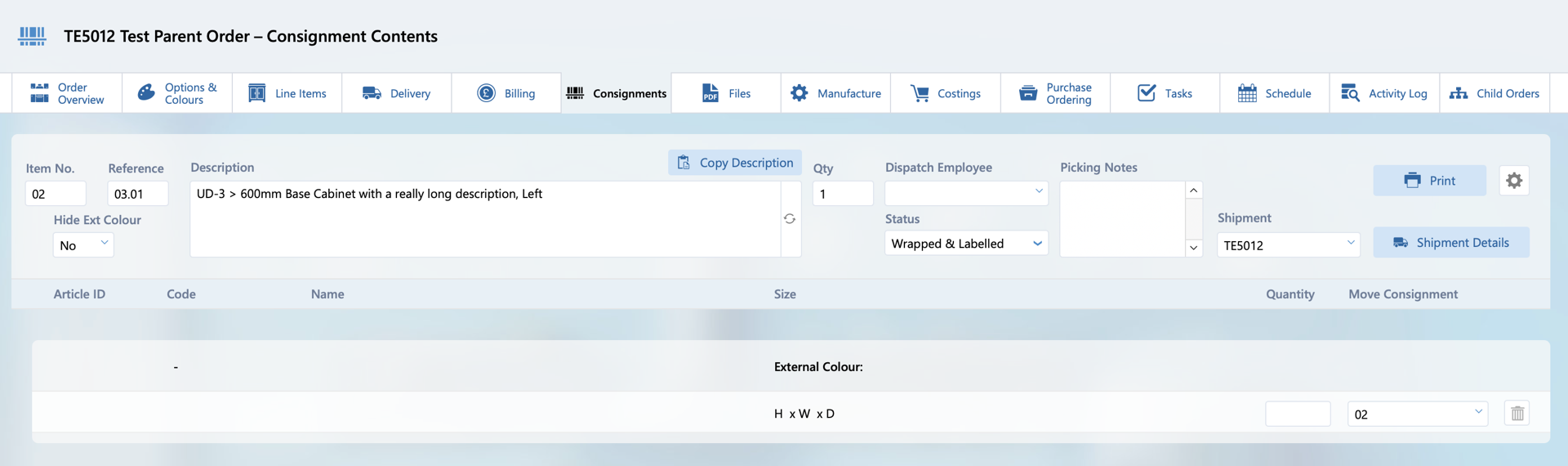
When a line item is moved to a child order, the part from that line item no longer remain in consignments on the parent order.
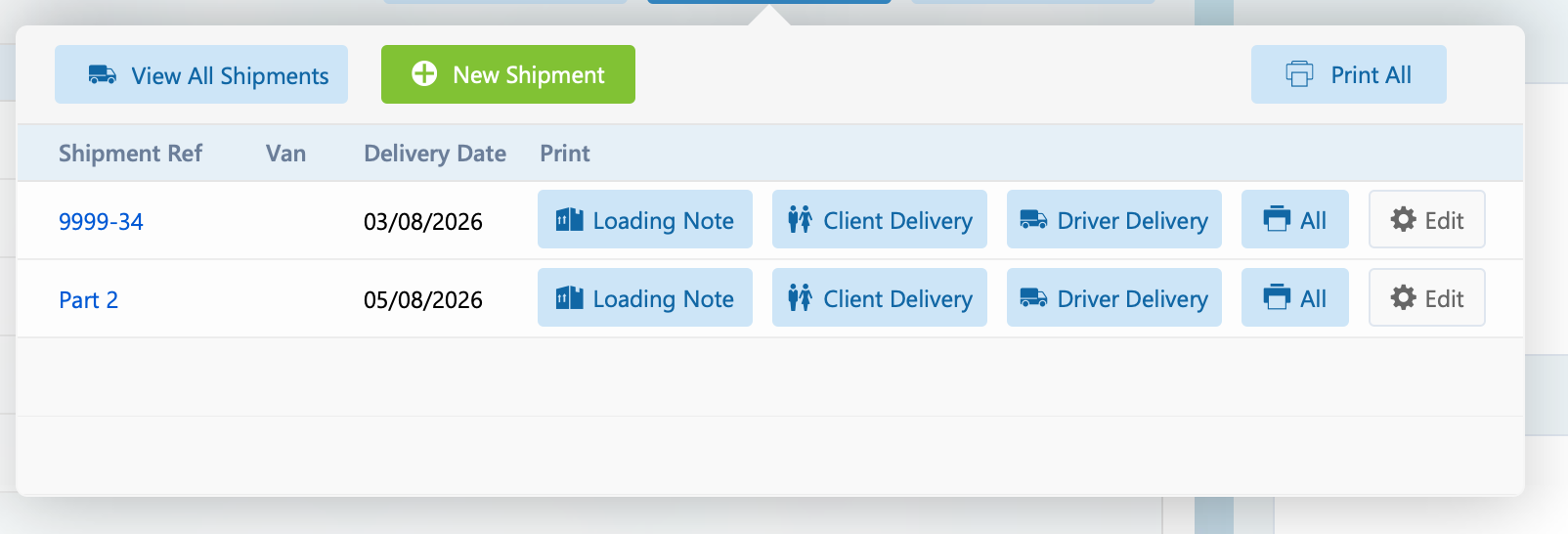
What the delivery date of an order is changed, any shipments that were on the delivery date will automatically be updated to the new delivery date.
Active Orders Improvements
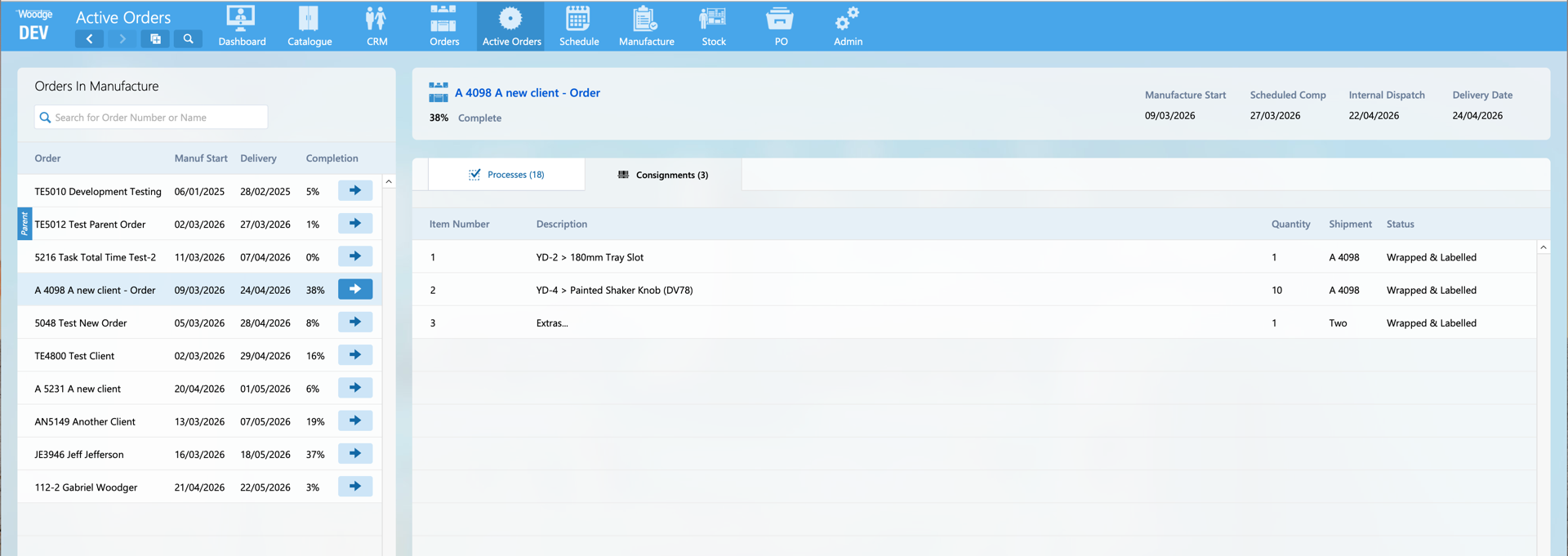
The Shipment Ref is now shown under the Consignment tab on the Active Orders layout.
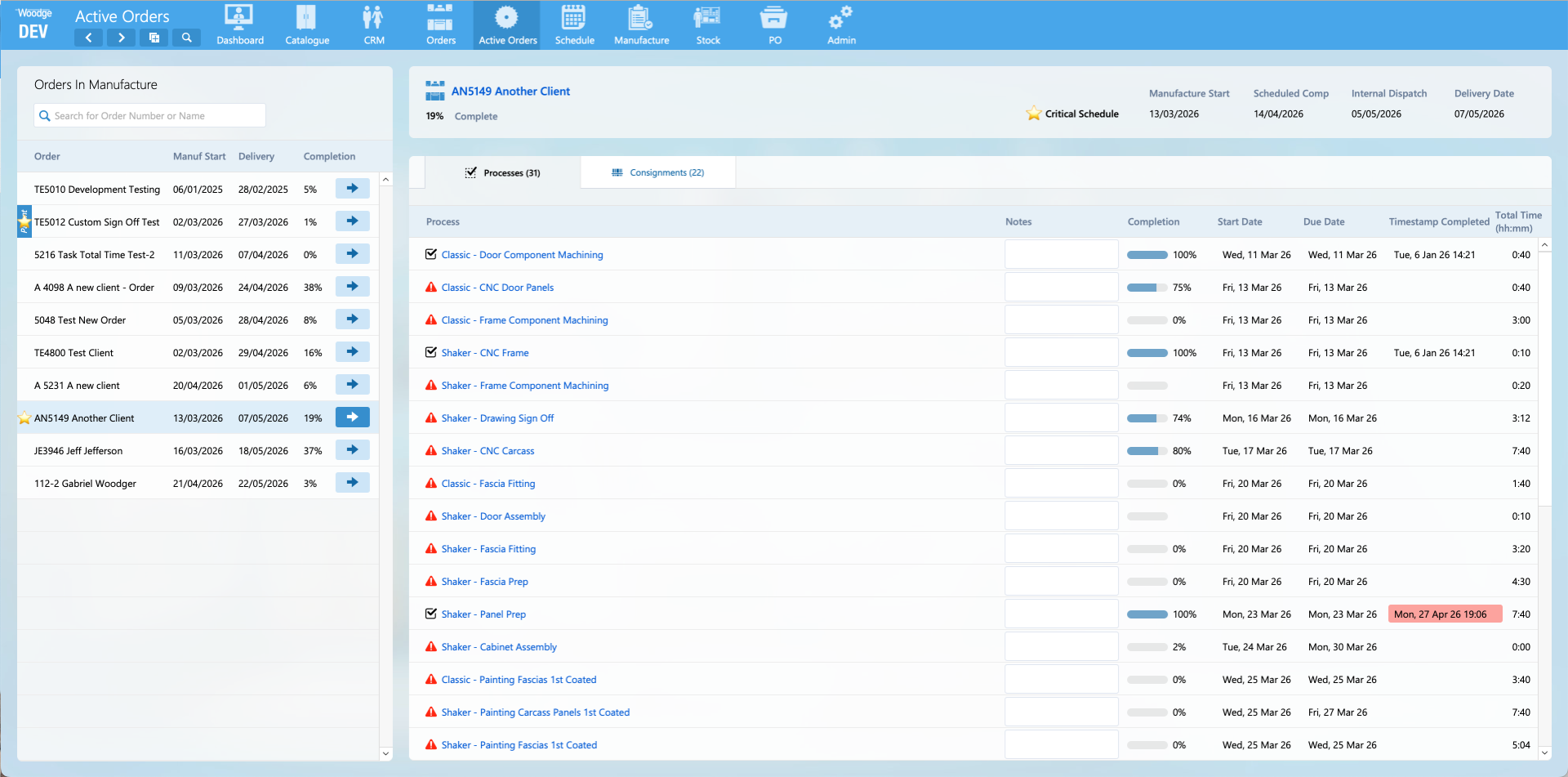
The star for critical orders is now shown on the Active Orders layout.
Product Minimum and Maximum Dimensions
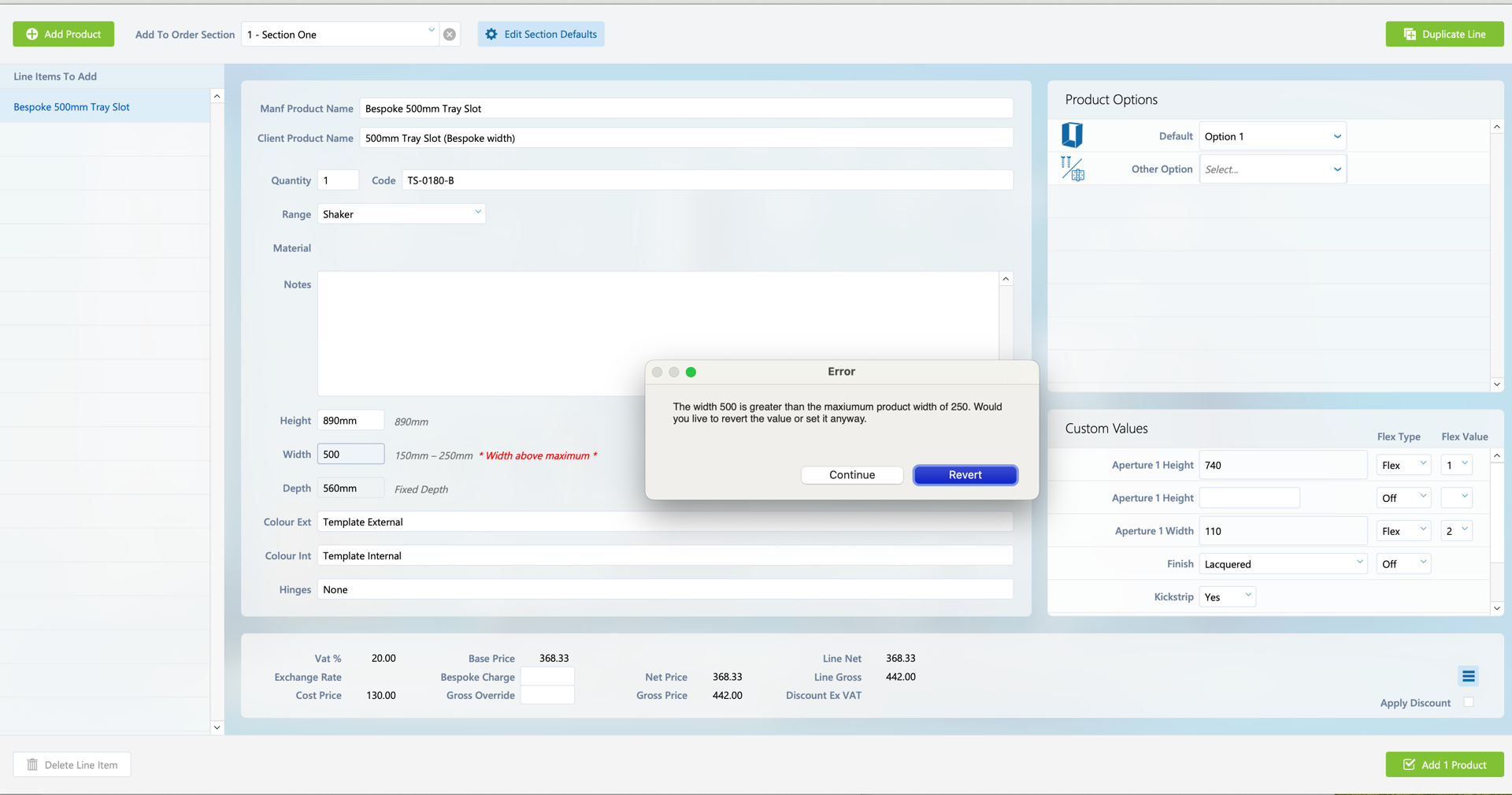
Warning dialogue is shown when value is entered outside of min max value. User has option to Revert, or Continue.
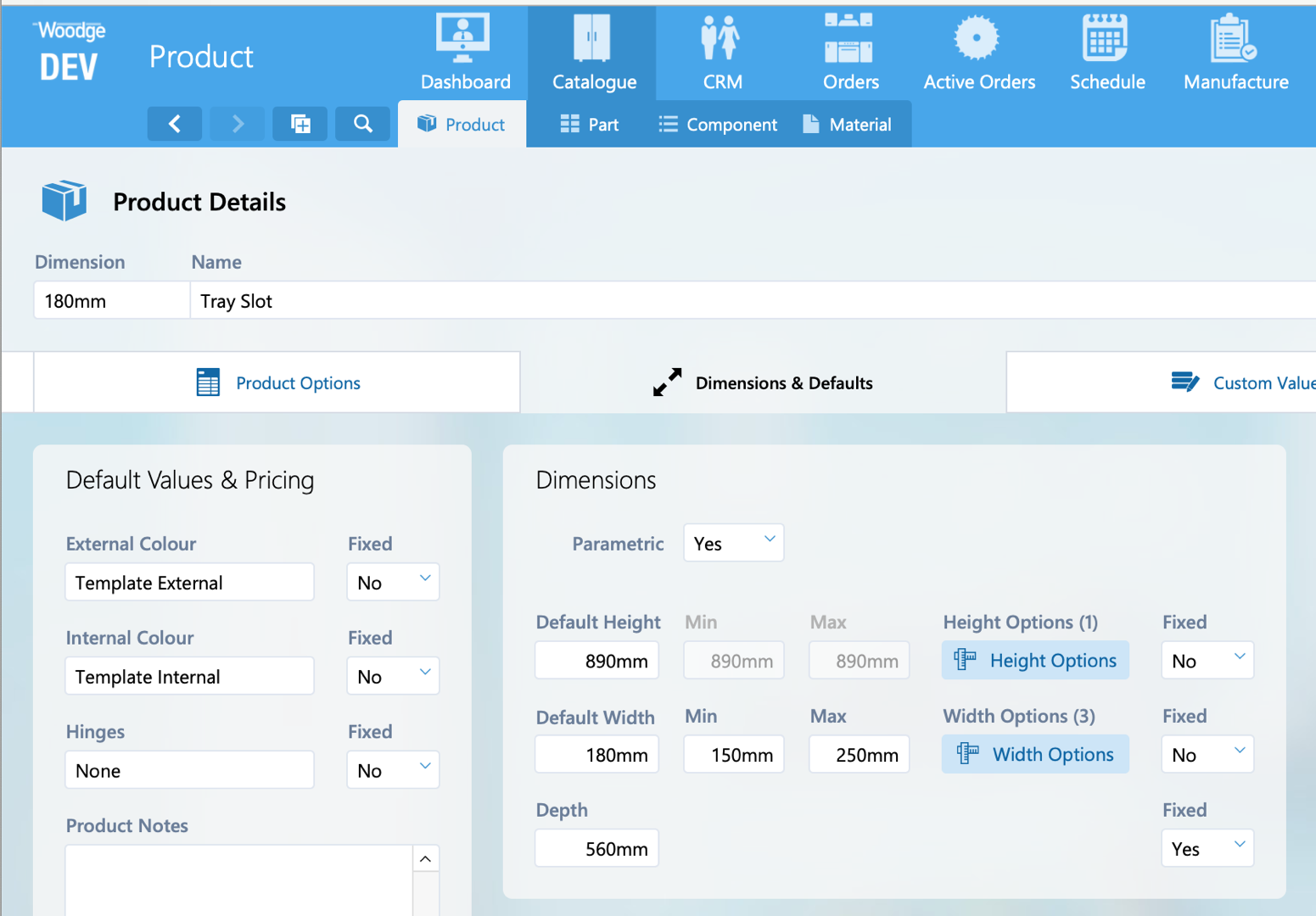
New option for setting a dimension as 'Fixed' on a product in the catalogue.
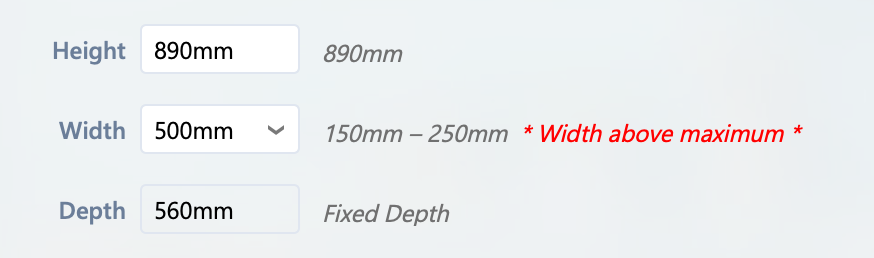
If a dimension is set as fixed, then the value is shown but is not editable.
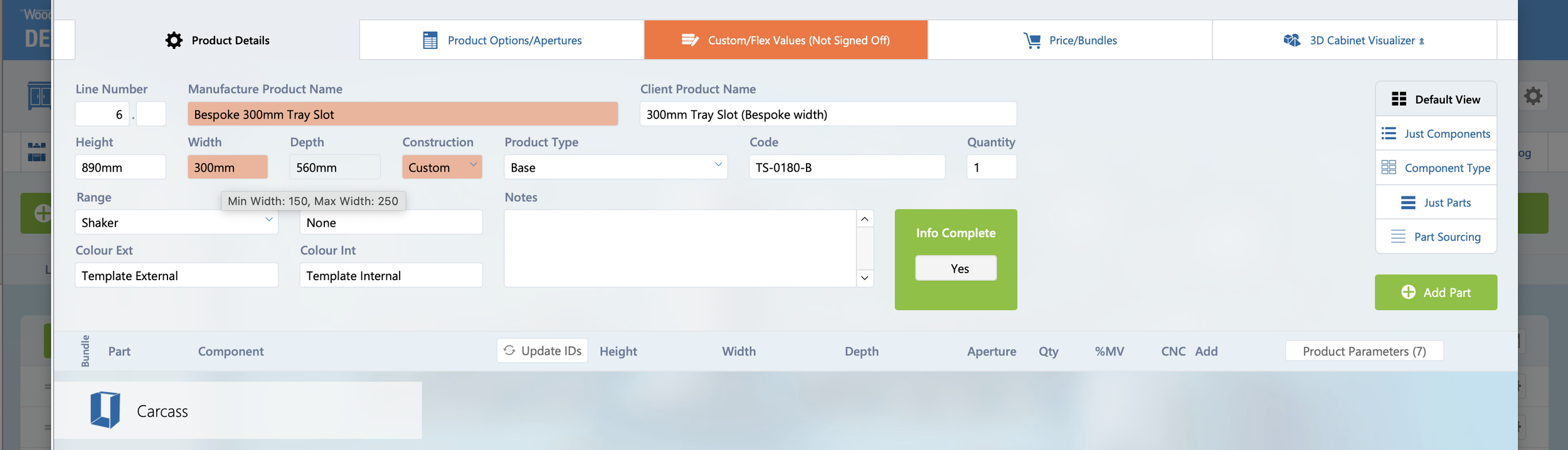
In Edit Card window, dimension is colour in red if outside minimum/maximum range. Hovering over the field will show the minimum and maximum values.
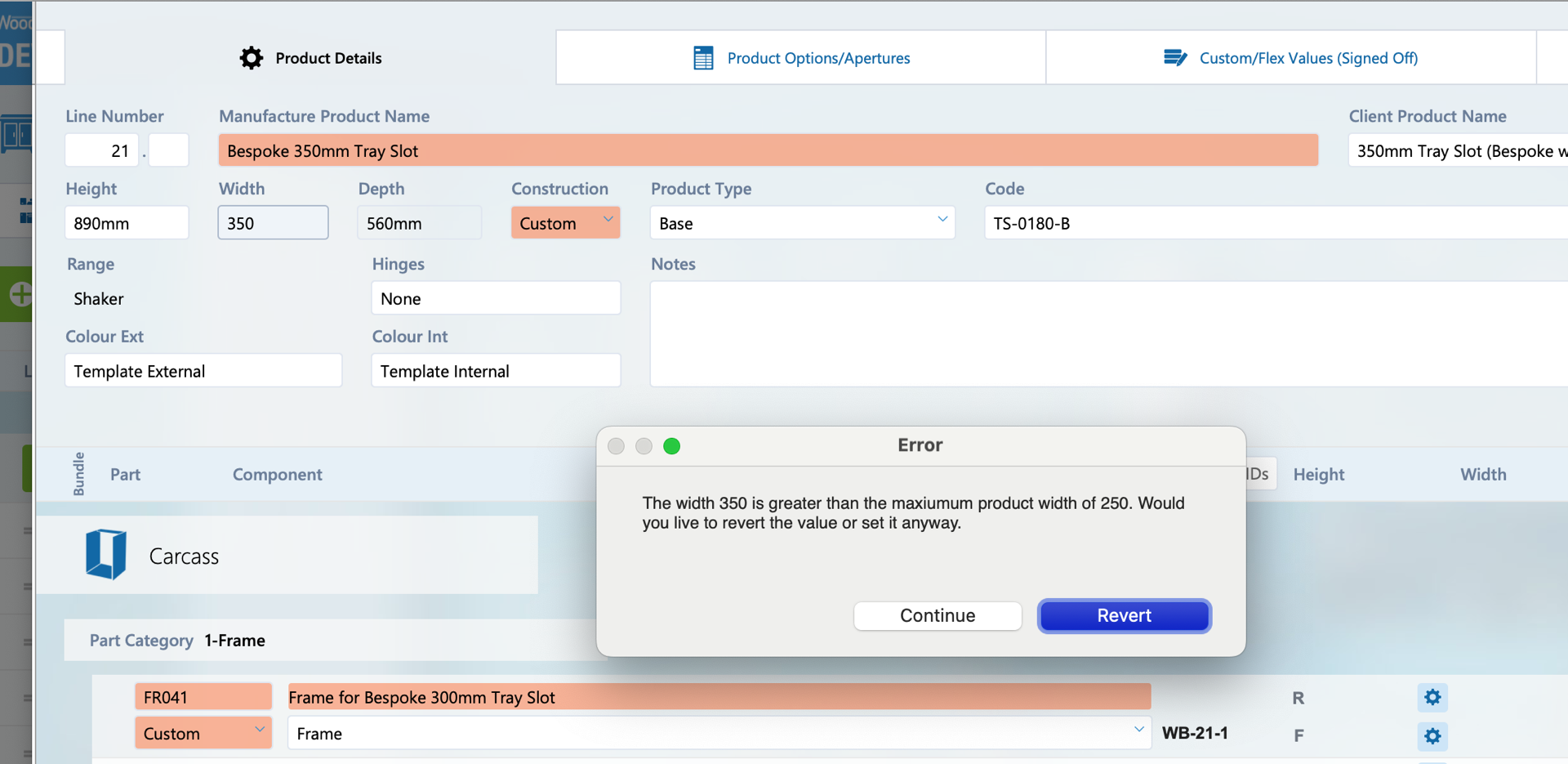
Changes from the Edit Card window also prompt an error is outside minimum maximum range. The user can either revert the change, or continue with the dimension outside of the valid range.
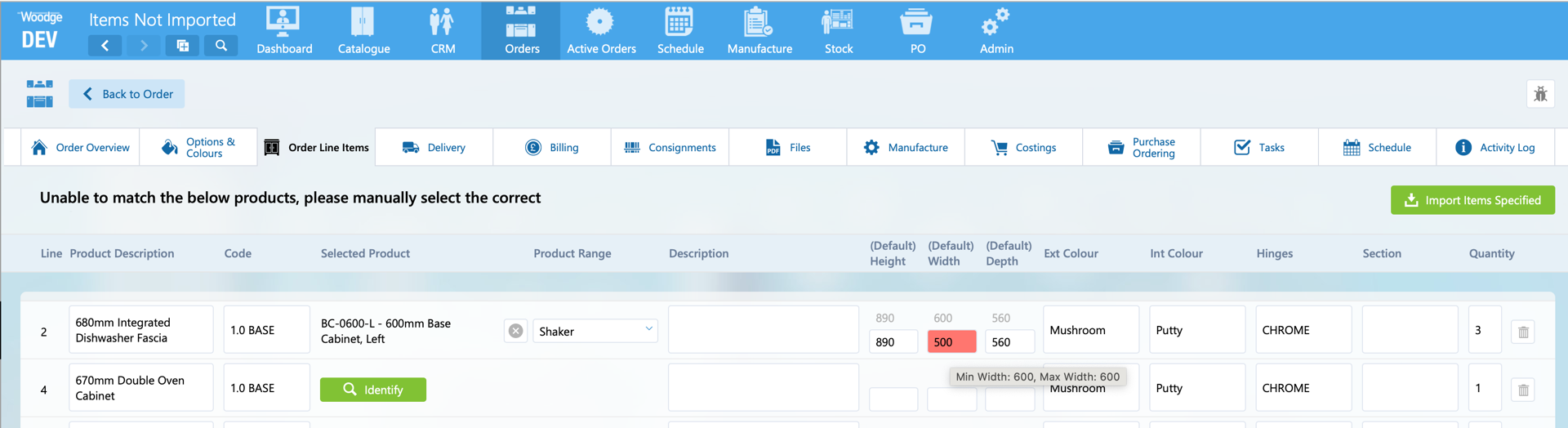
Manually selecting an import product has the same behaviour, out of bound values are highlighted in red, the user is prompted to confirm when the value is out of bounds, and fixed dimensions cannot be modified.
If the specified dimensions from the import are outside of the product dimension ranges, then the product is not automatically identified and must be manually selected.
Stock Values
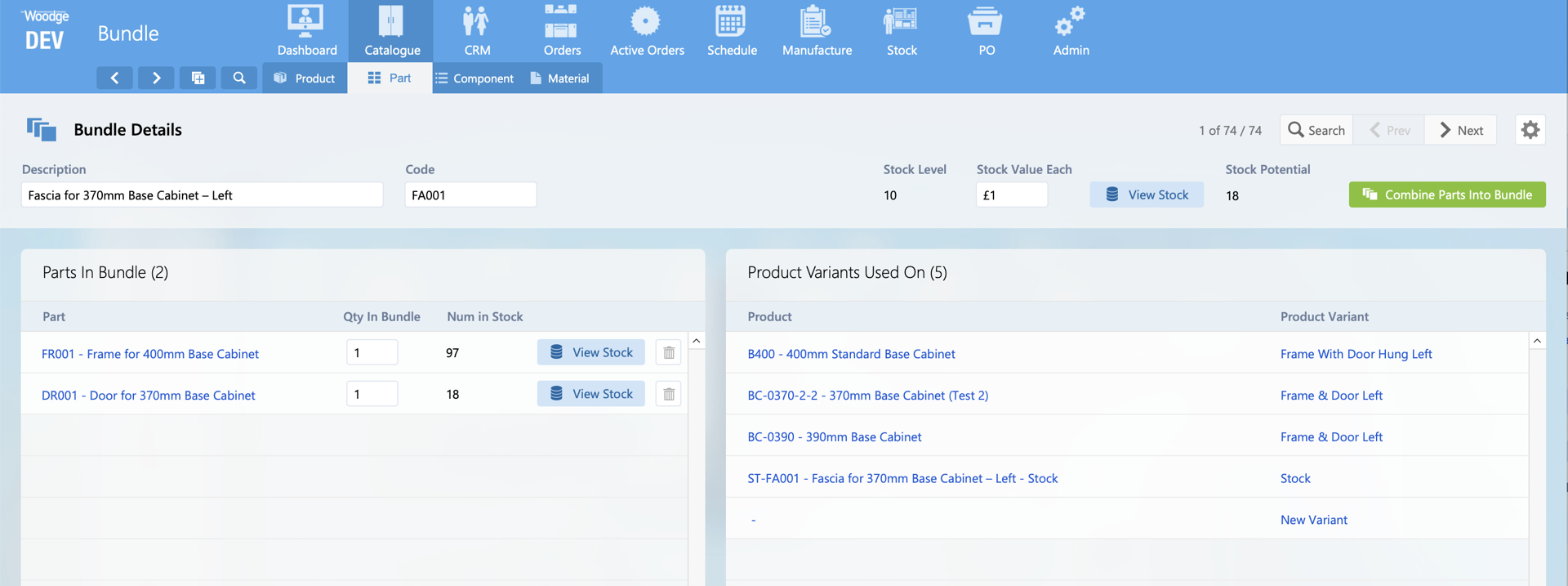
When a bundle is tracked in stock a new field 'Stock Value Each' is shown. This allows stock to be added without the user having to enter the value.
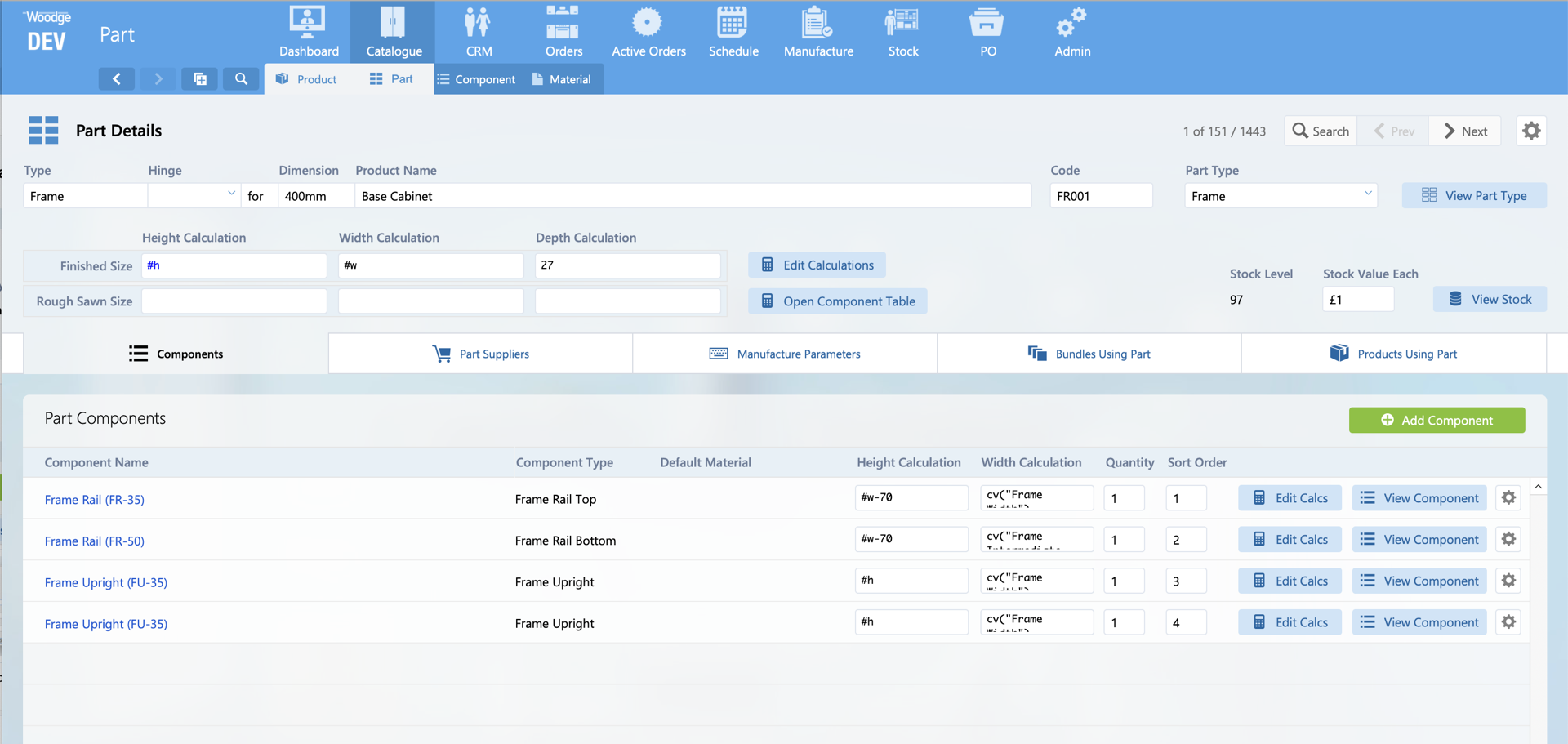
When a part is tracked in stock a new field 'Stock Value Each' is shown.
New Consignment Scan Layout
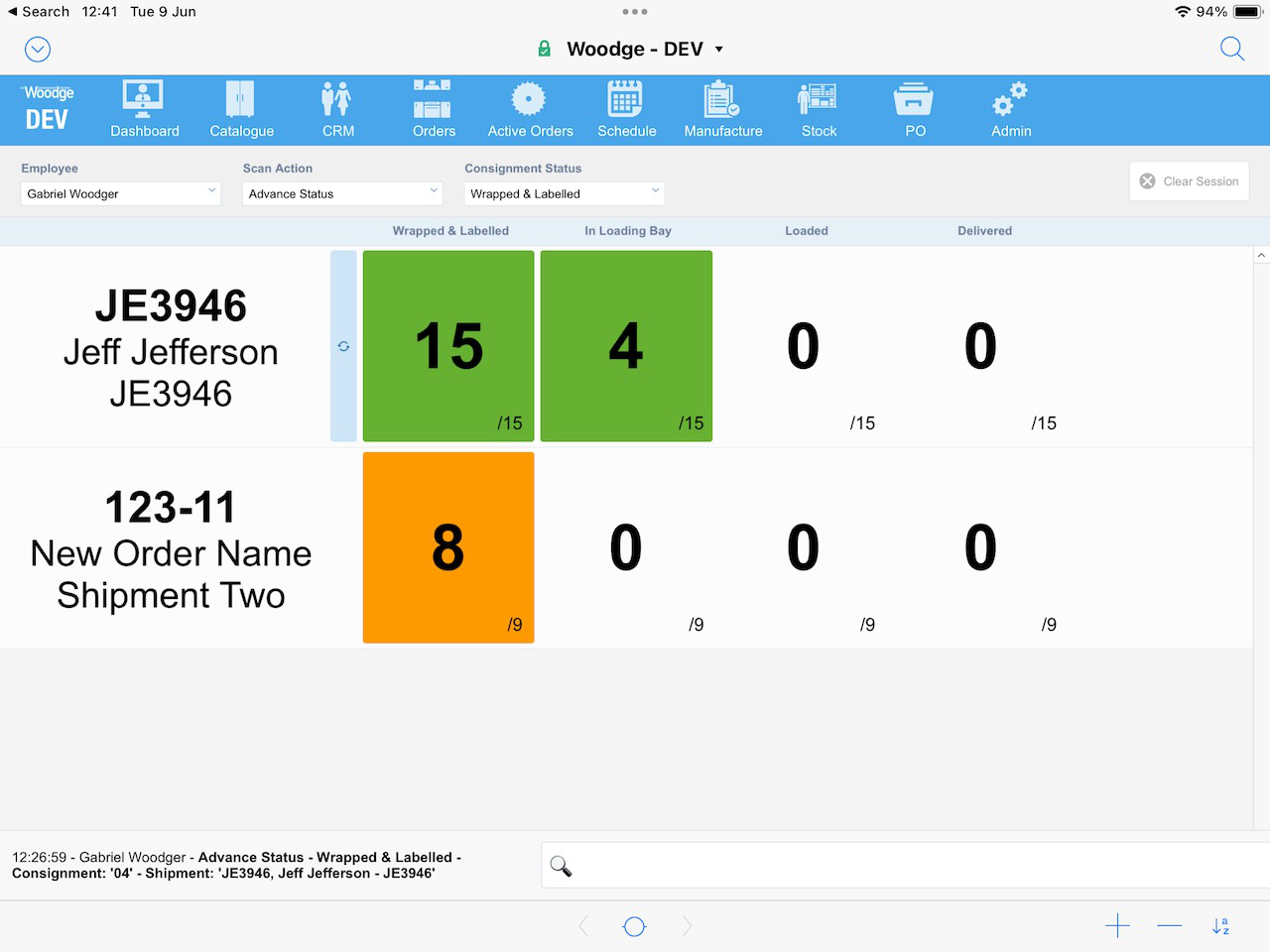
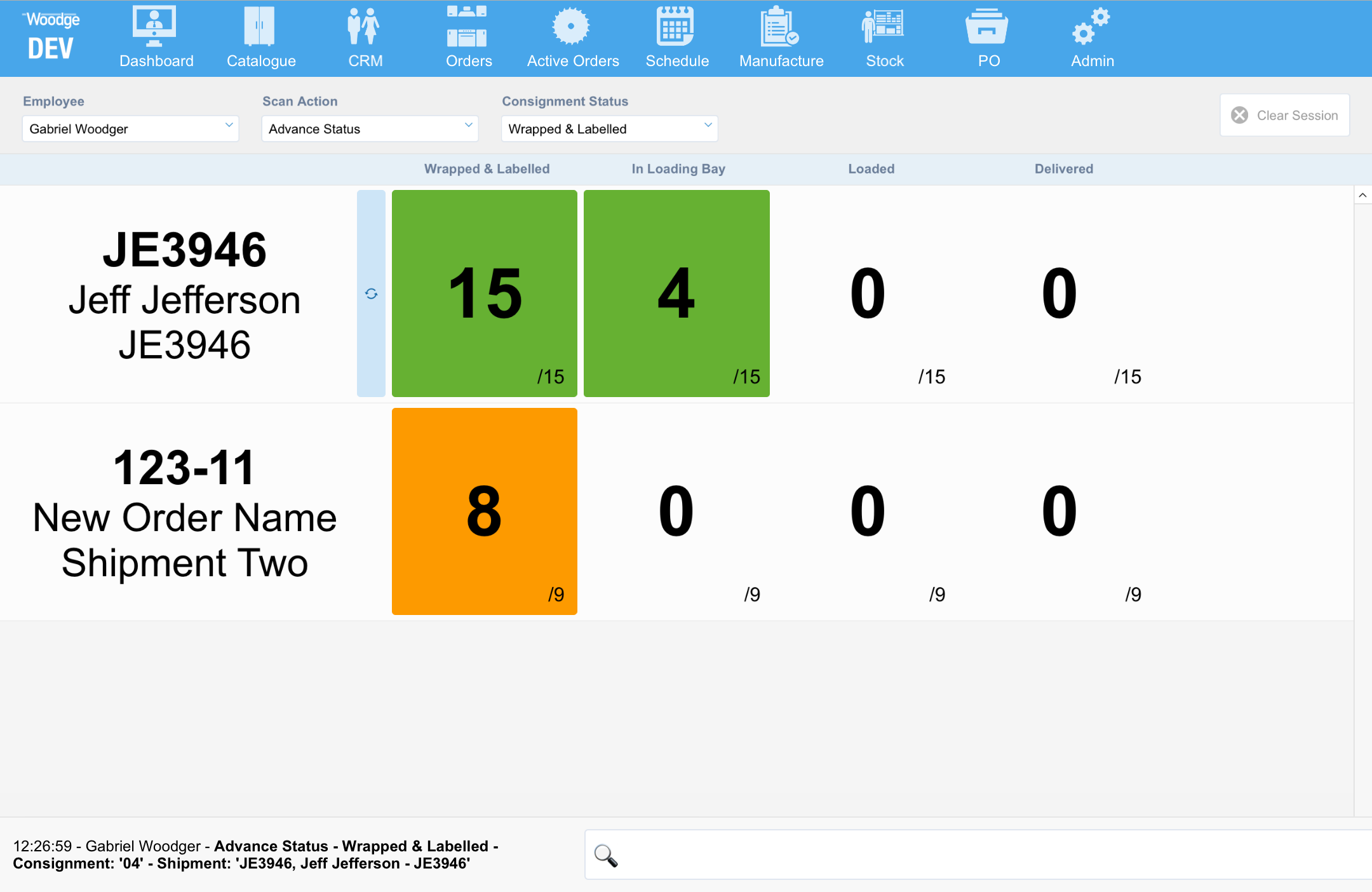
A new consignment scan layout has been created. This layout provides much more visual clarity, prioritising the information the operators require.
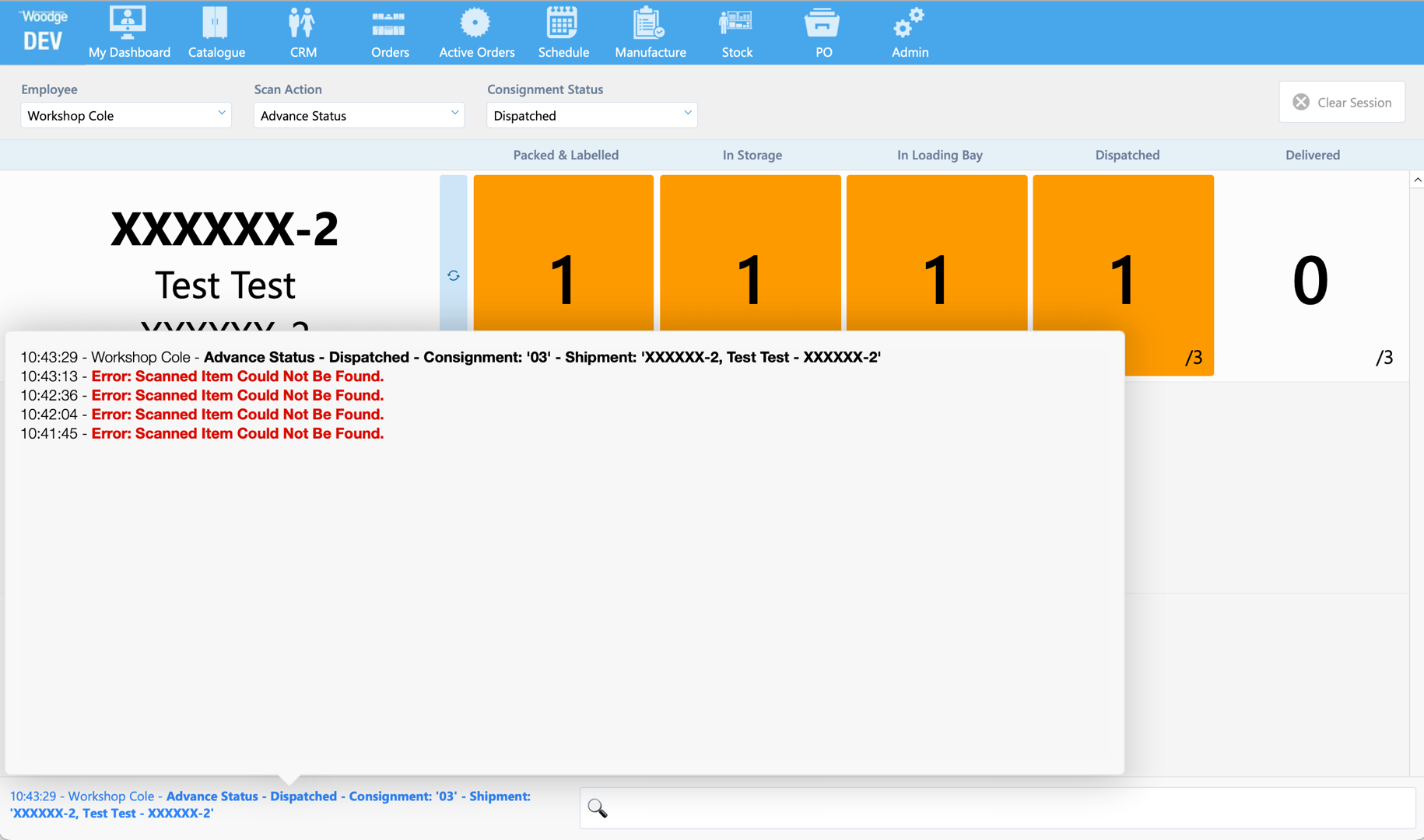
The scan history can be viewed by clicking the most recent scan entry in the bottom left of the window.
Line Number Checks
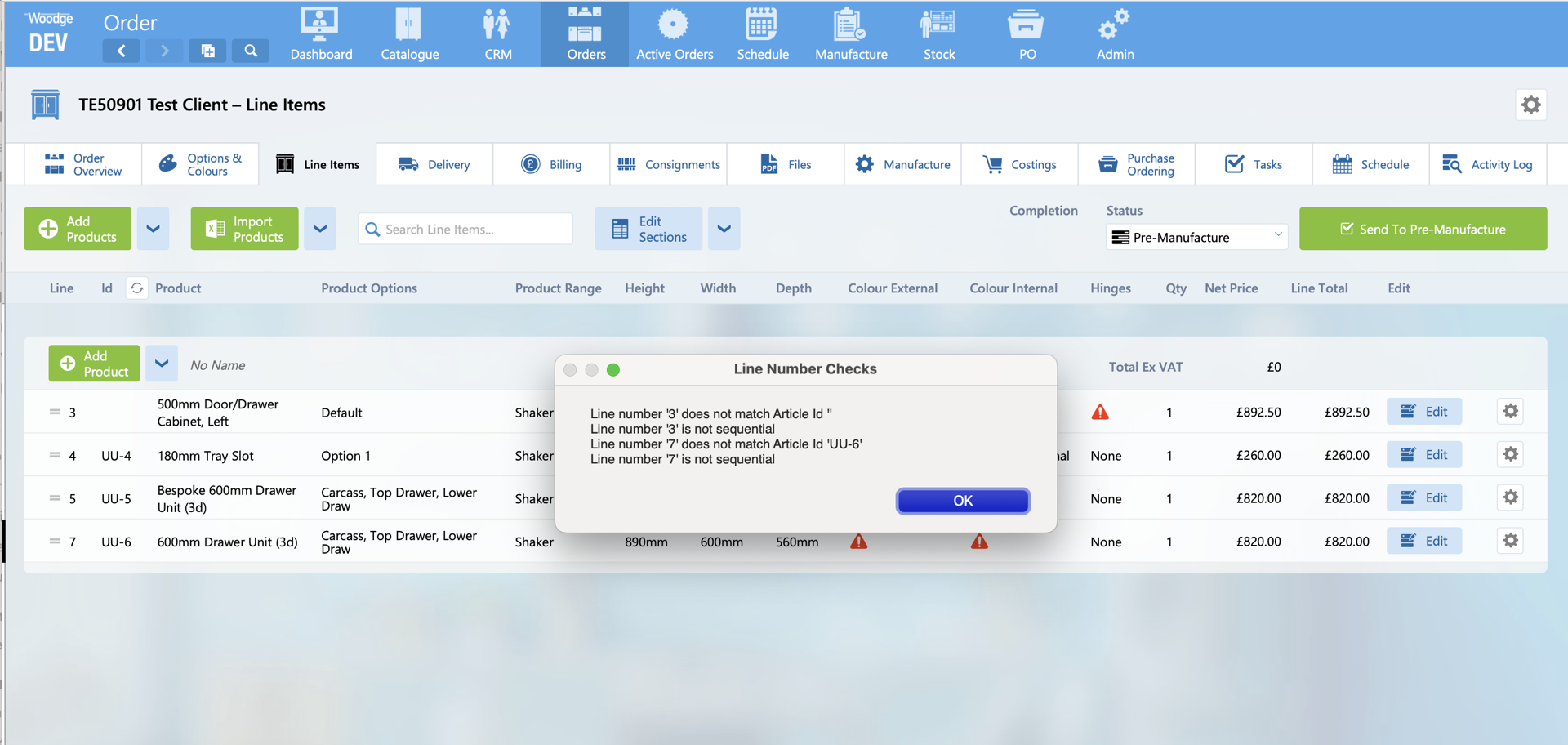
When leaving 'Planning' and entering 'Pre-Manufacture' the system now performs the checks on line numbers and Article ID's. The user is shown a list of all of the issues and the order's status it put back to Planning.
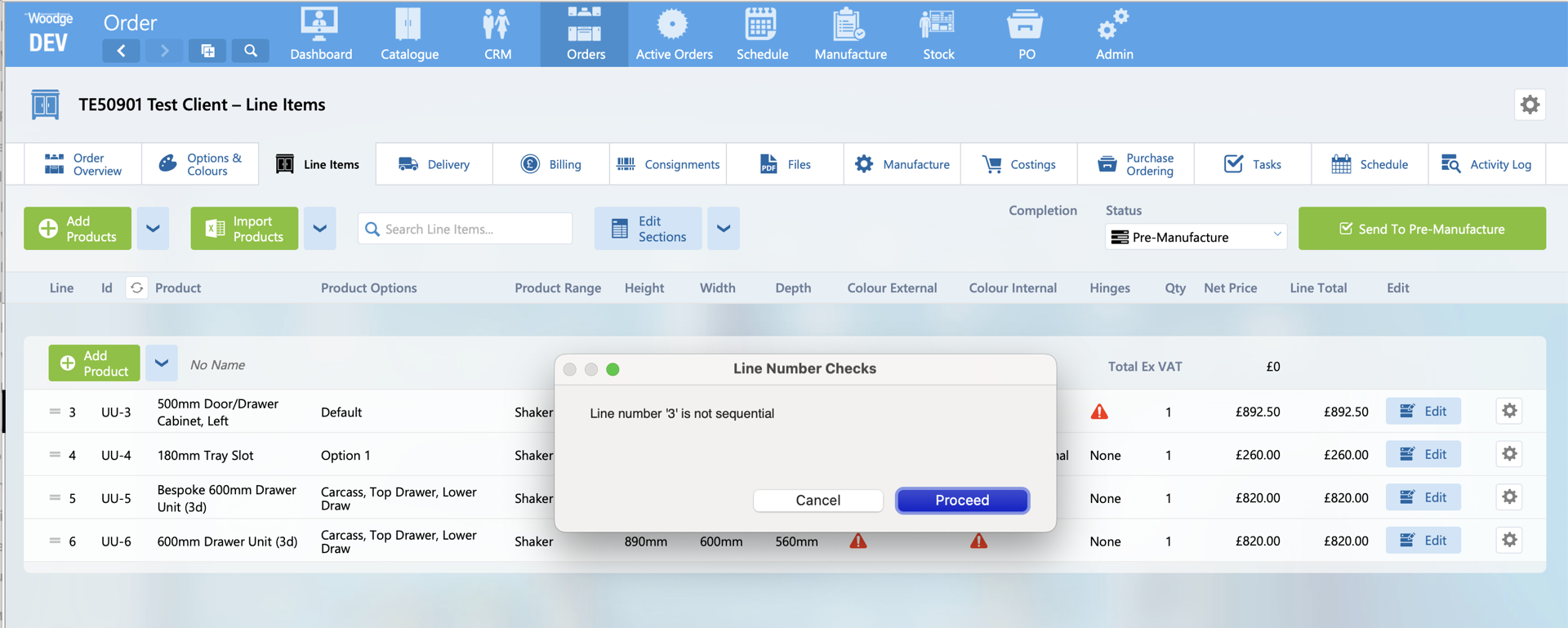
If the only found issue's are sequential, then the user has the option to proceed anyway. Allowing for line items that have been delayed and moved to a child order.