
Woodge System Update 26.03
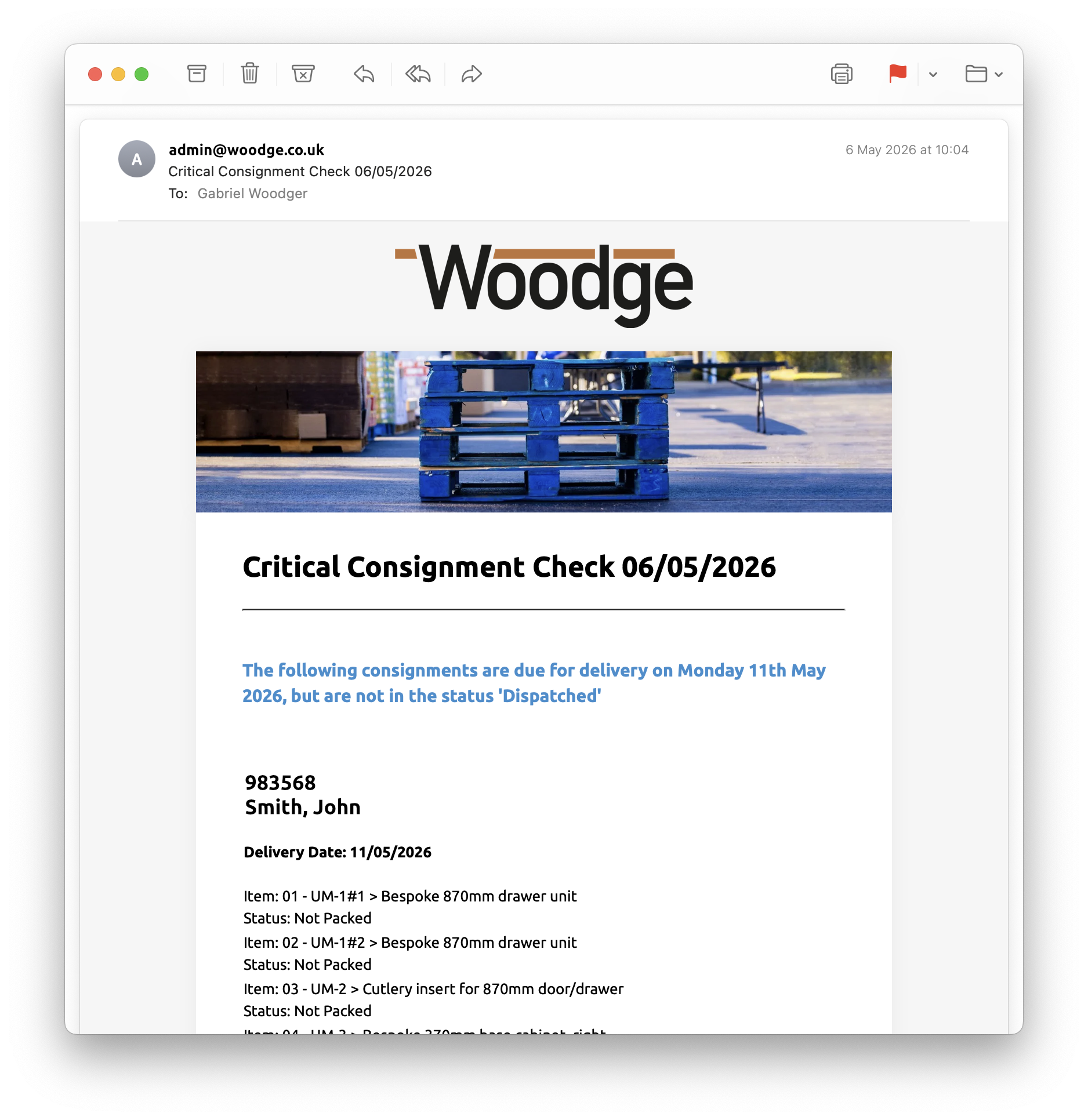
The Woodge 26.03 update introduces powerful new Scheduled Notifications for automated system checks and email reporting, alongside major improvements to consignments, task management, barcode support, critical order tracking, and preference comparison tools. The update also includes a wide range of workflow, scheduling, reporting, and manufacturing calculation enhancements aimed at improving system reliability, usability, and operational efficiency.
Scheduled Notifications
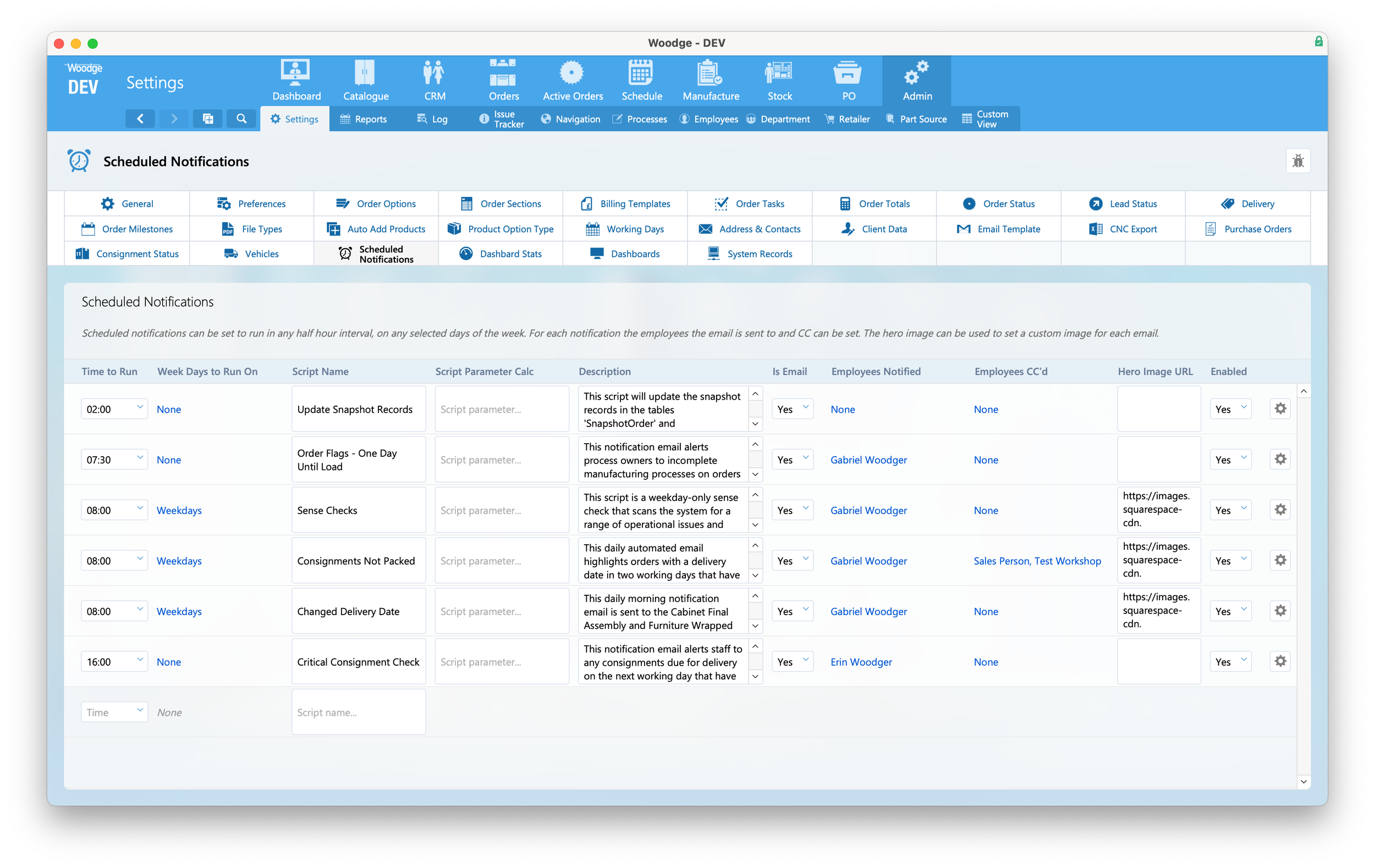
Functionality has been added to schedule different daily notification scripts. Each schedule can run a custom script to perform any type of system check and send the results vis email to specific employees.
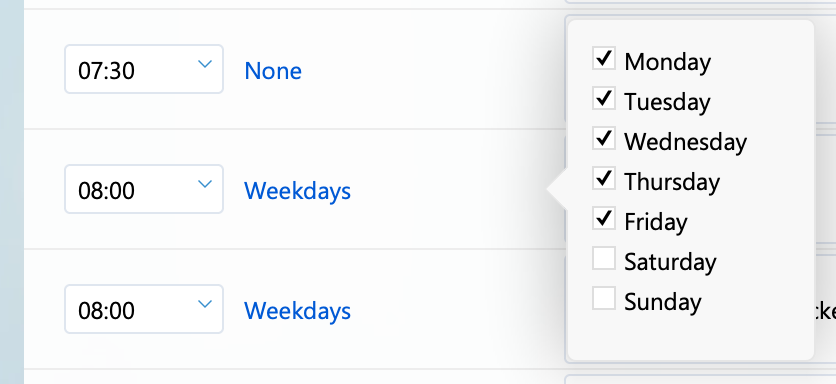
The schedules can be setup for any half hour interval of the day, and specific days of the week.
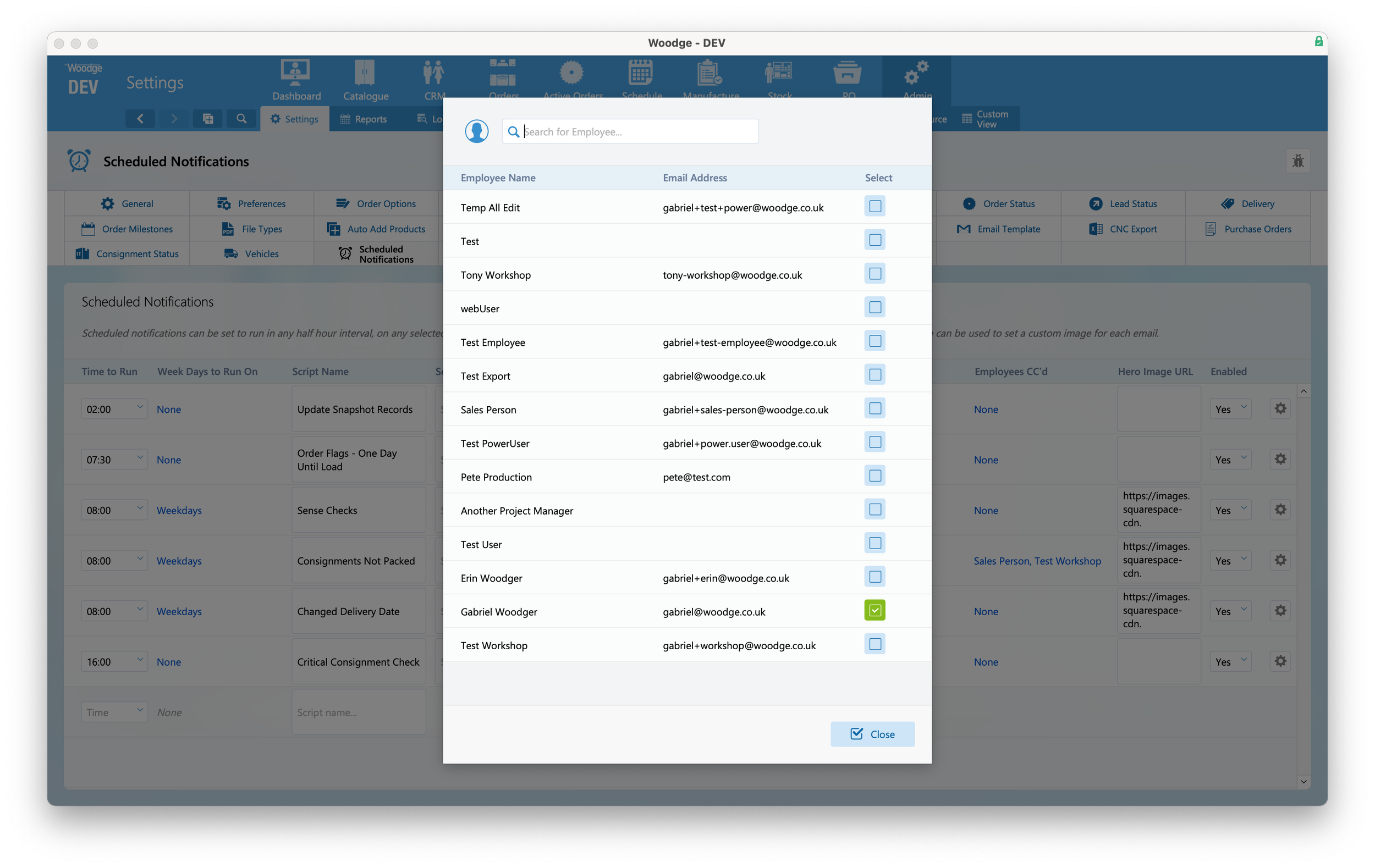
You can select which employee or employees the email is sent to or CC’d. The system uses the email address species in the employee record, making it easy to update email addresses in a single location.
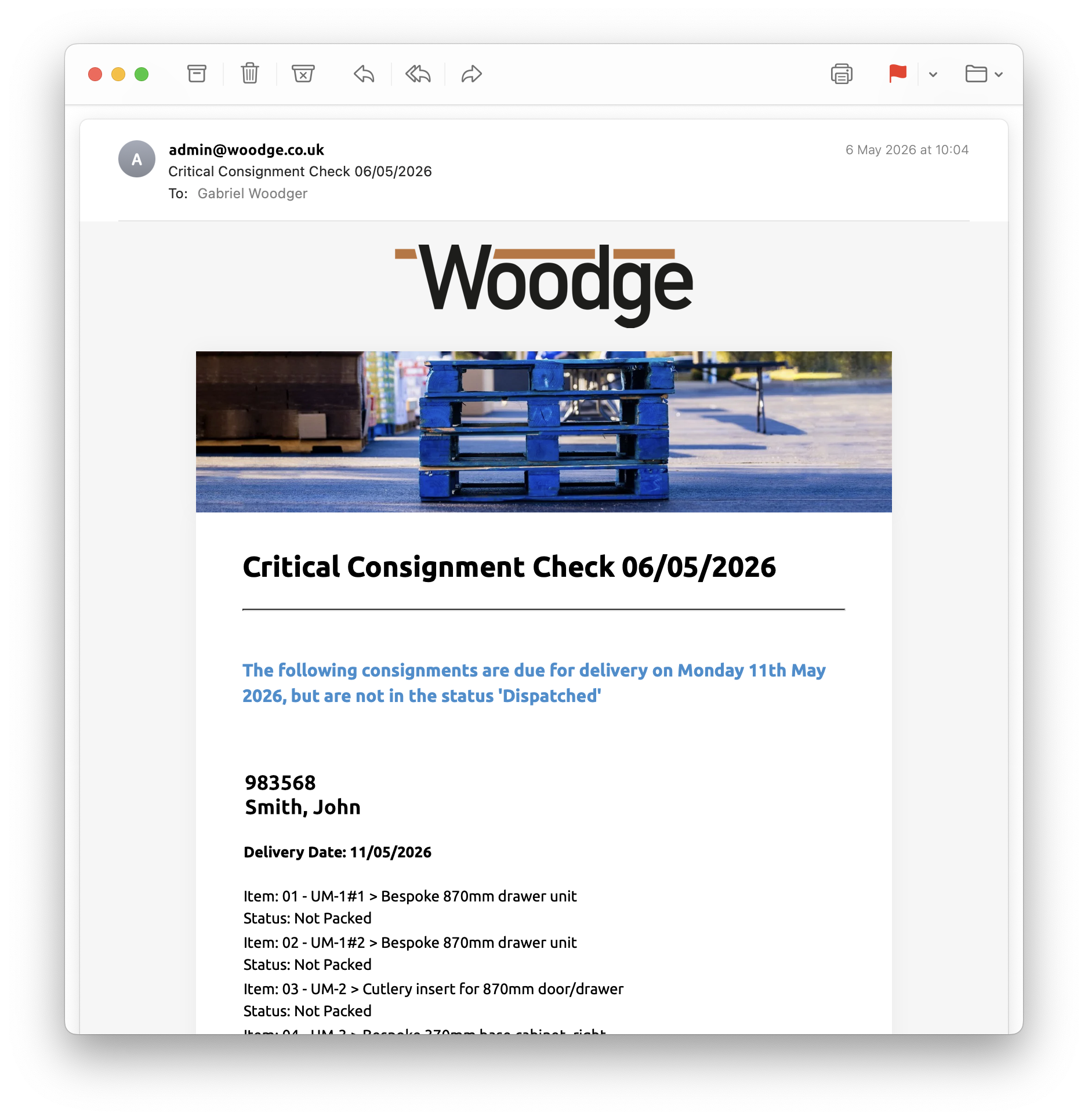
The emails generated use one of the standard templates specified I the “Email Template” section, and can have a custom hero image to provide professional looking emails that are visually distinctive for their purpose.

Scheduled Notification can be used for purposes other than generation emails. By selection ‘Is Email’ as ‘No’ the email specific fields will be hidden. The speed script will run at the specified time and can be used for any data processing requirements.
Consignment Improvements
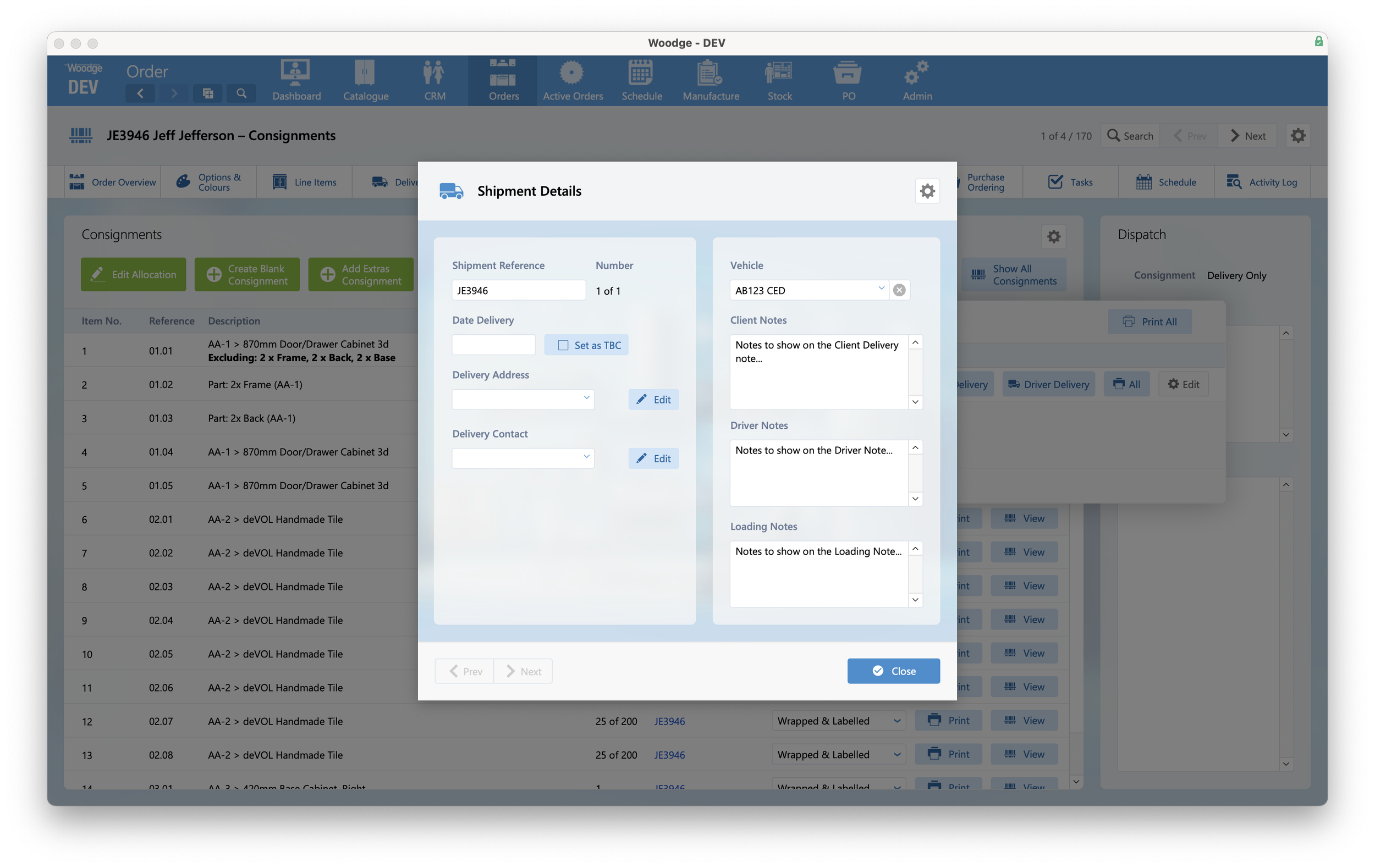
It’s now possible to add notes to a Shipment that are specific to the loading of an order.
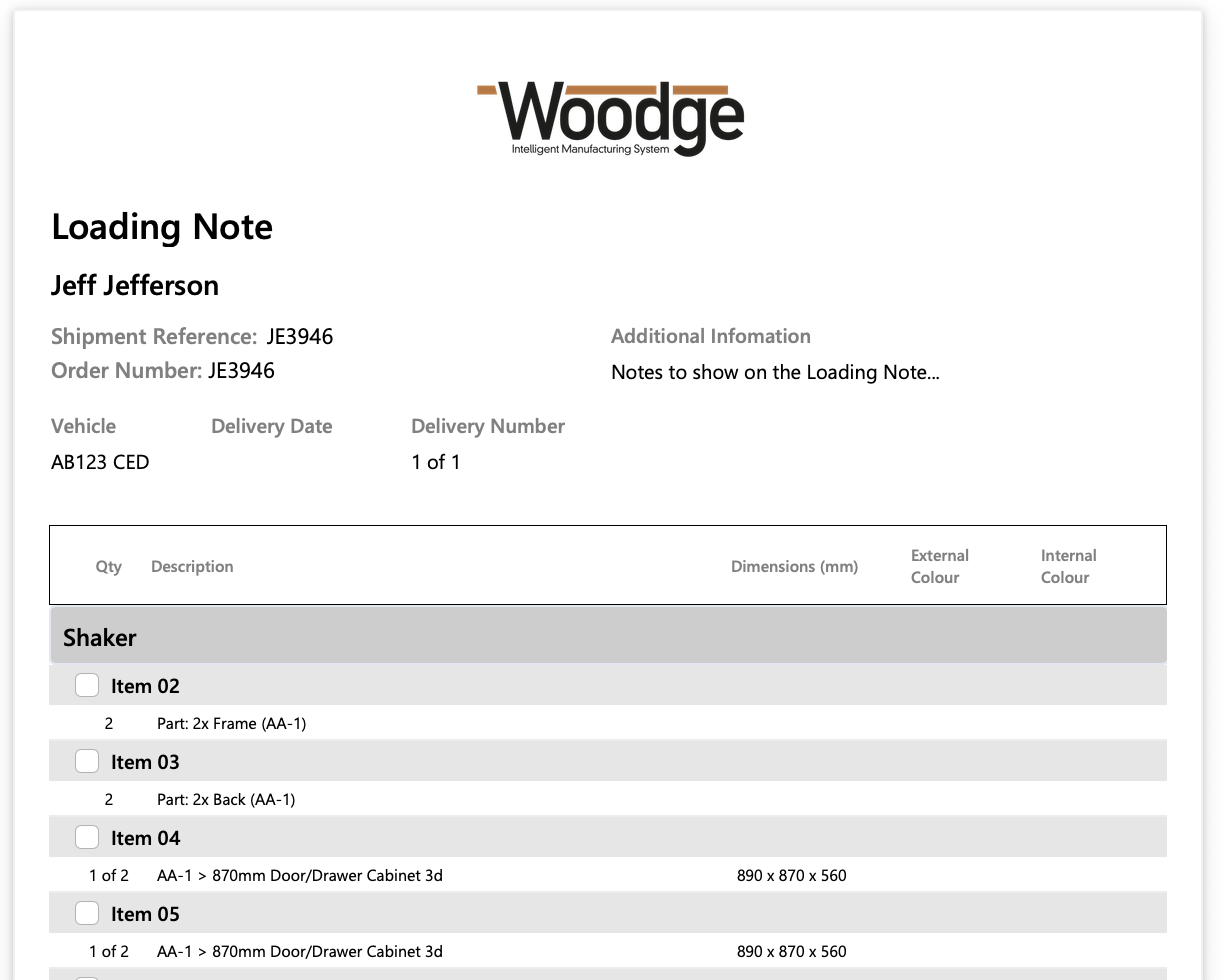
The Loading Note now shows this information if it has been specified.
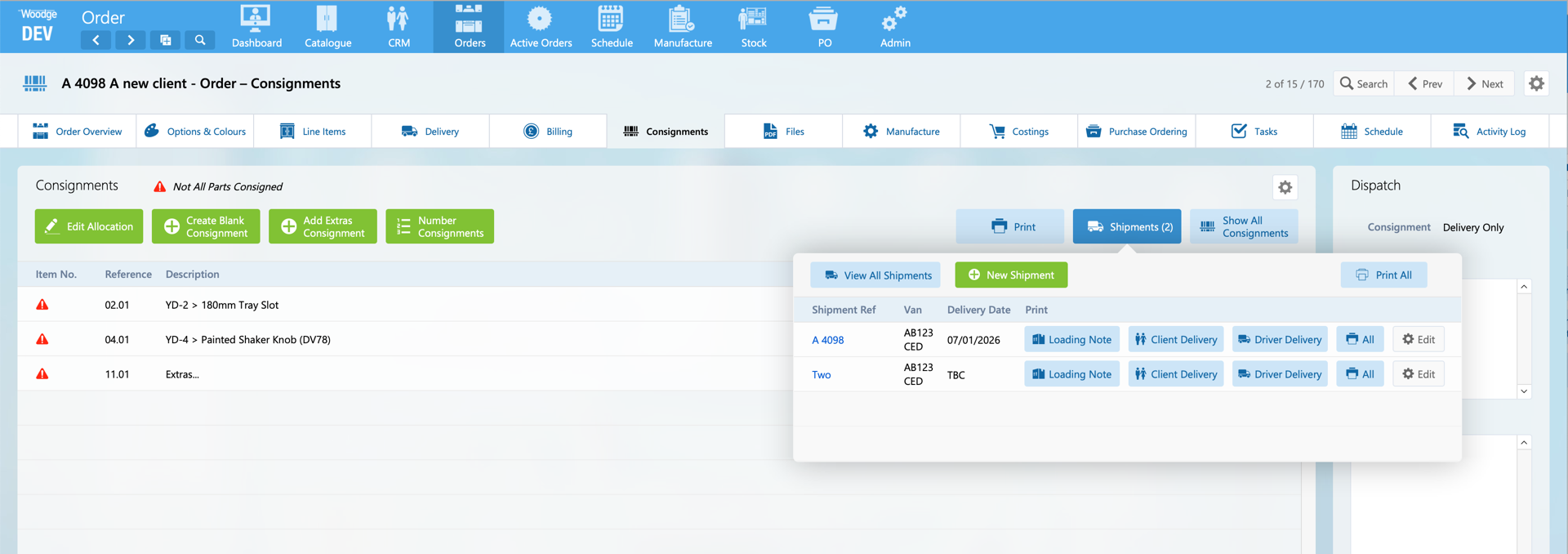
To make Shipment management easier the vehicle details are now shown in the Shipments Popover.
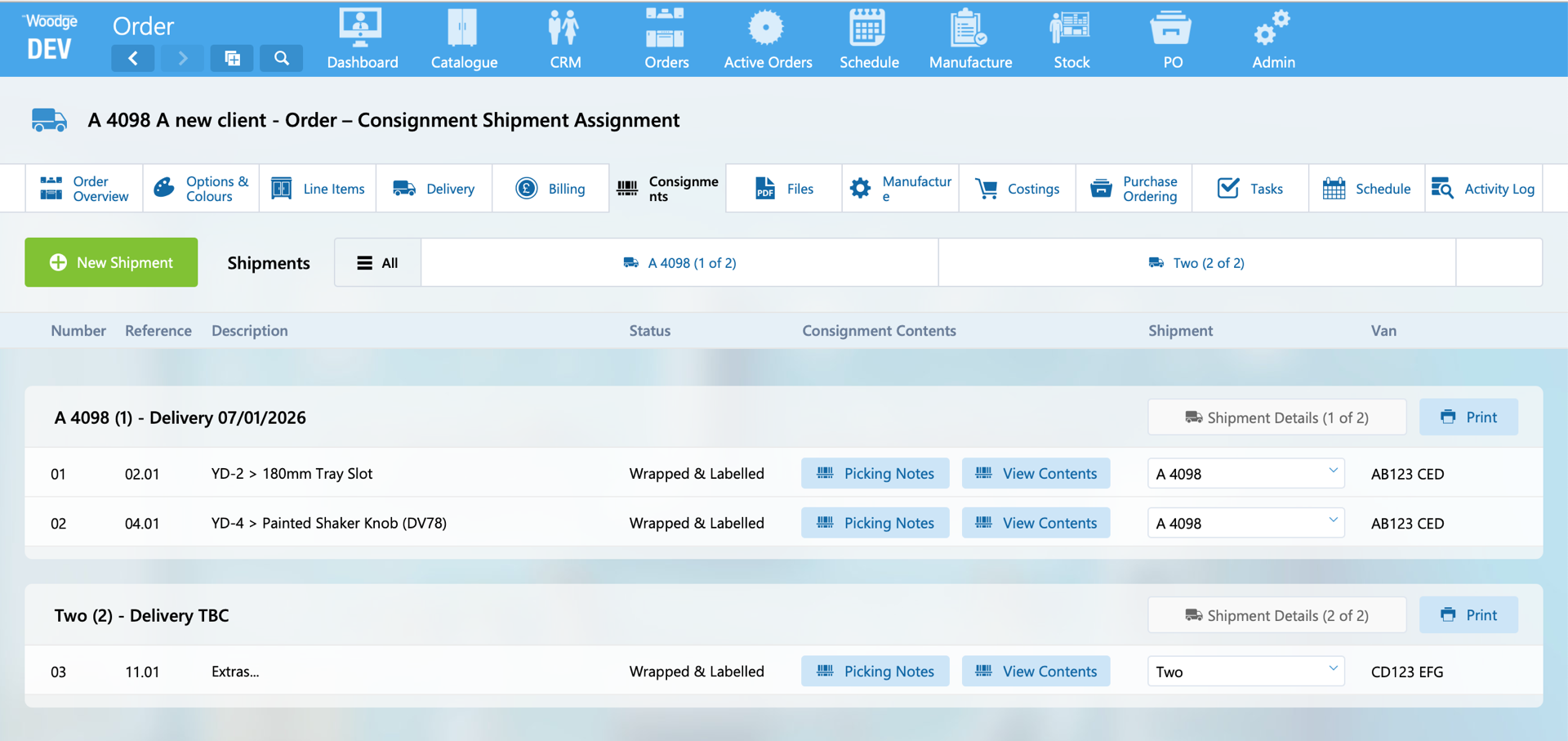
When looking at the Shipment contents the vehicle details are now shown.
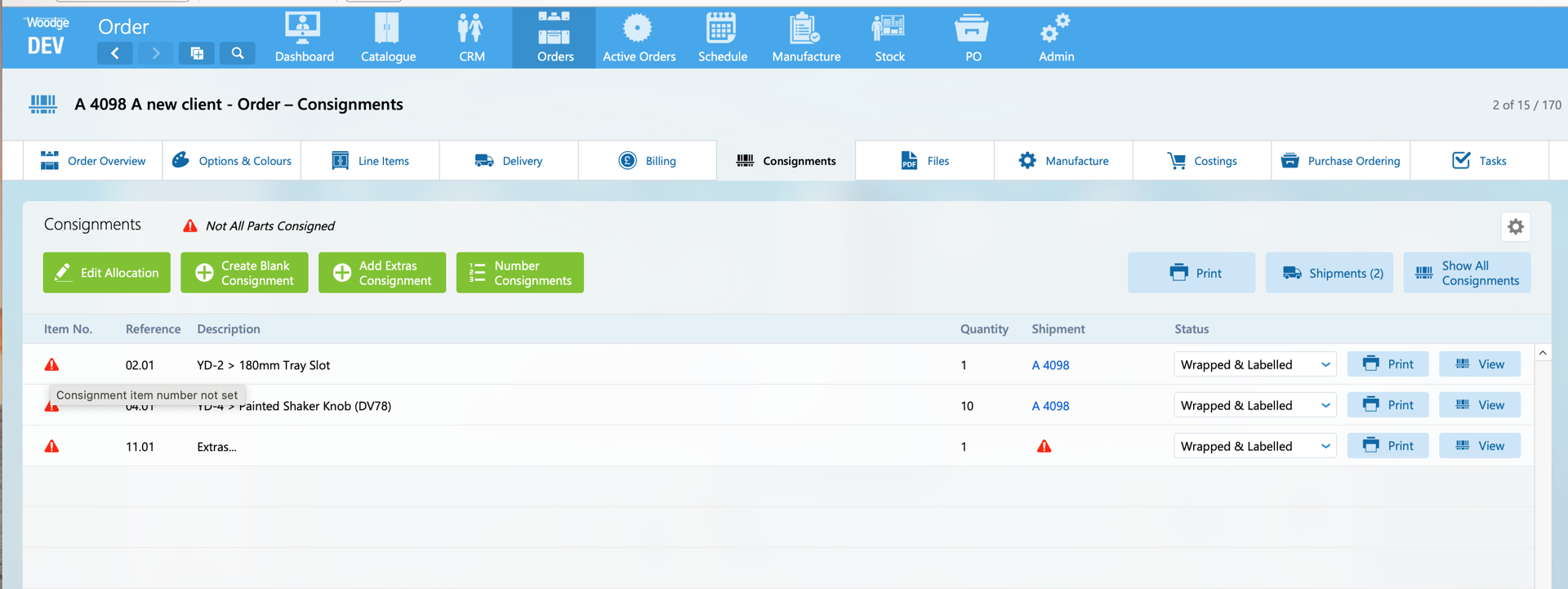
A warning triangle is now shown when a consignment is missing its ‘Item Number’. This makes it easy to ensure all consignments have had it’s item number correctly generated.
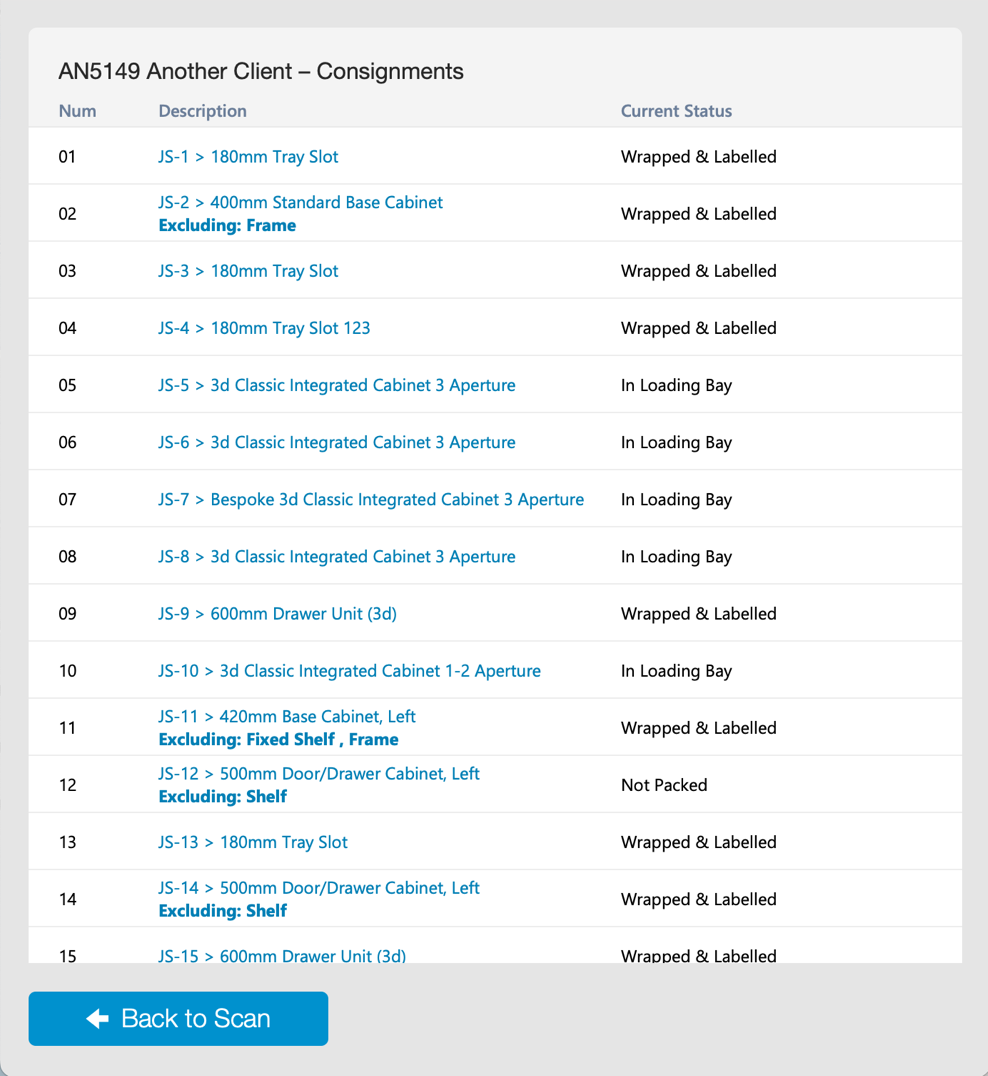
When looking up a consignments contents from a barcode scan the user is now taken directly to the list of all consignments on that order. The speed of loading this layout has also been significantly improved as some un need calculations have been removed. This makes it significantly faster of an operator to view the information they need.
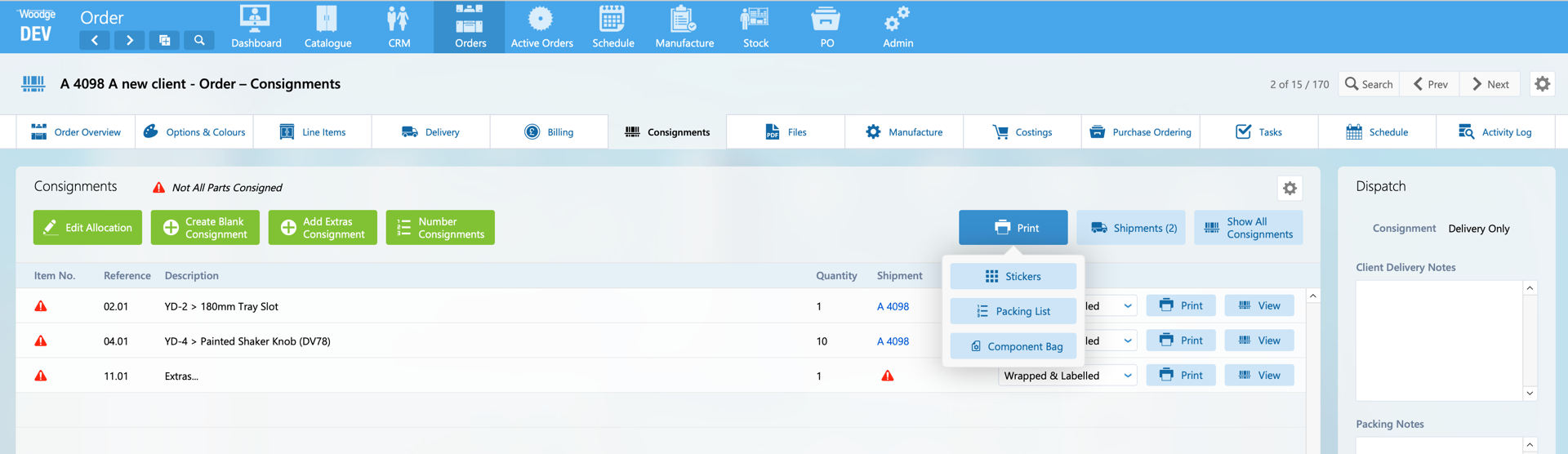
It’s now possible to run a Manufacture View from the Print popover on the consignments layout.
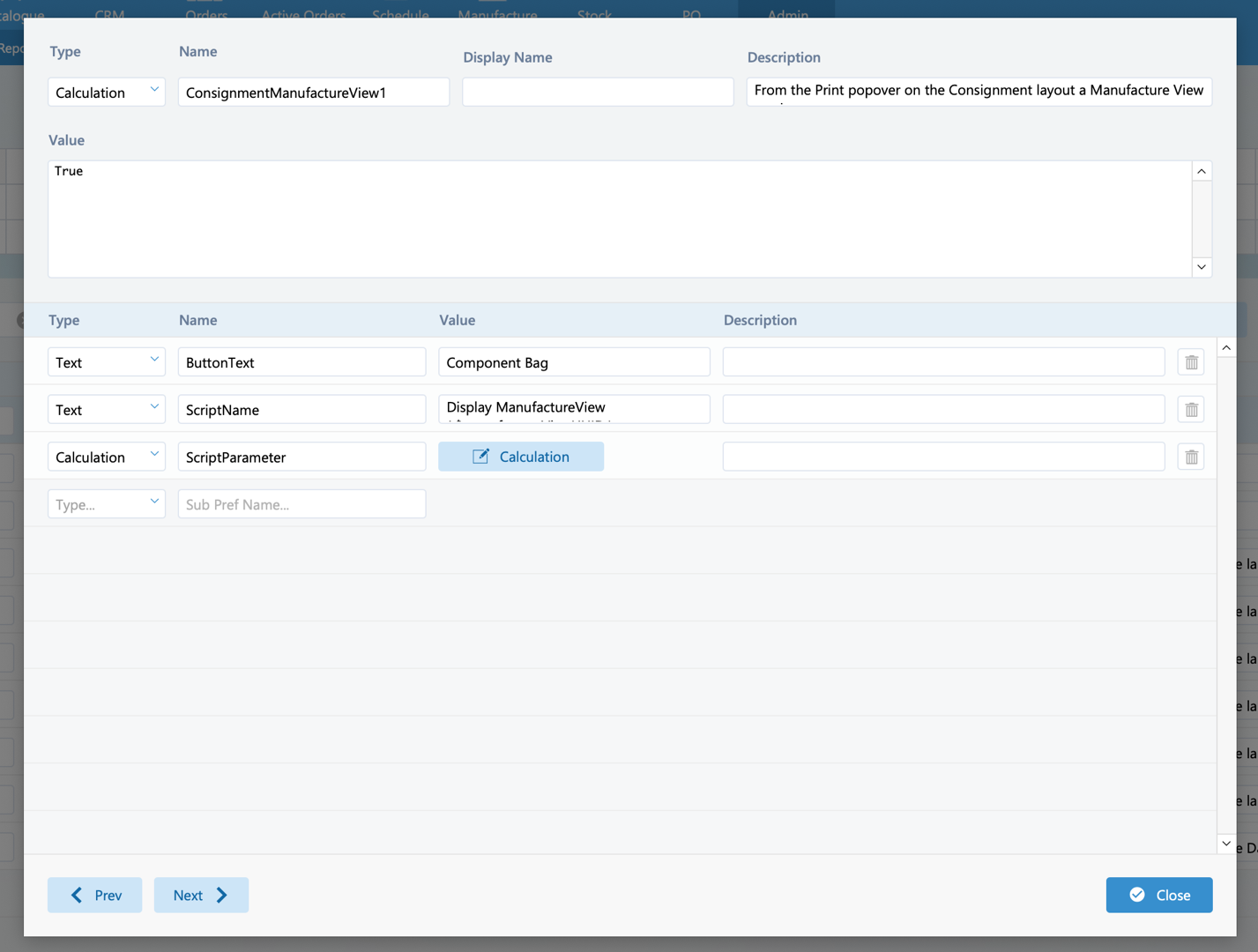
The details of which Manufacture View to run are specified in the preference ‘ConsignmentManufactureView1’. The text of the button and script details can be modified here.
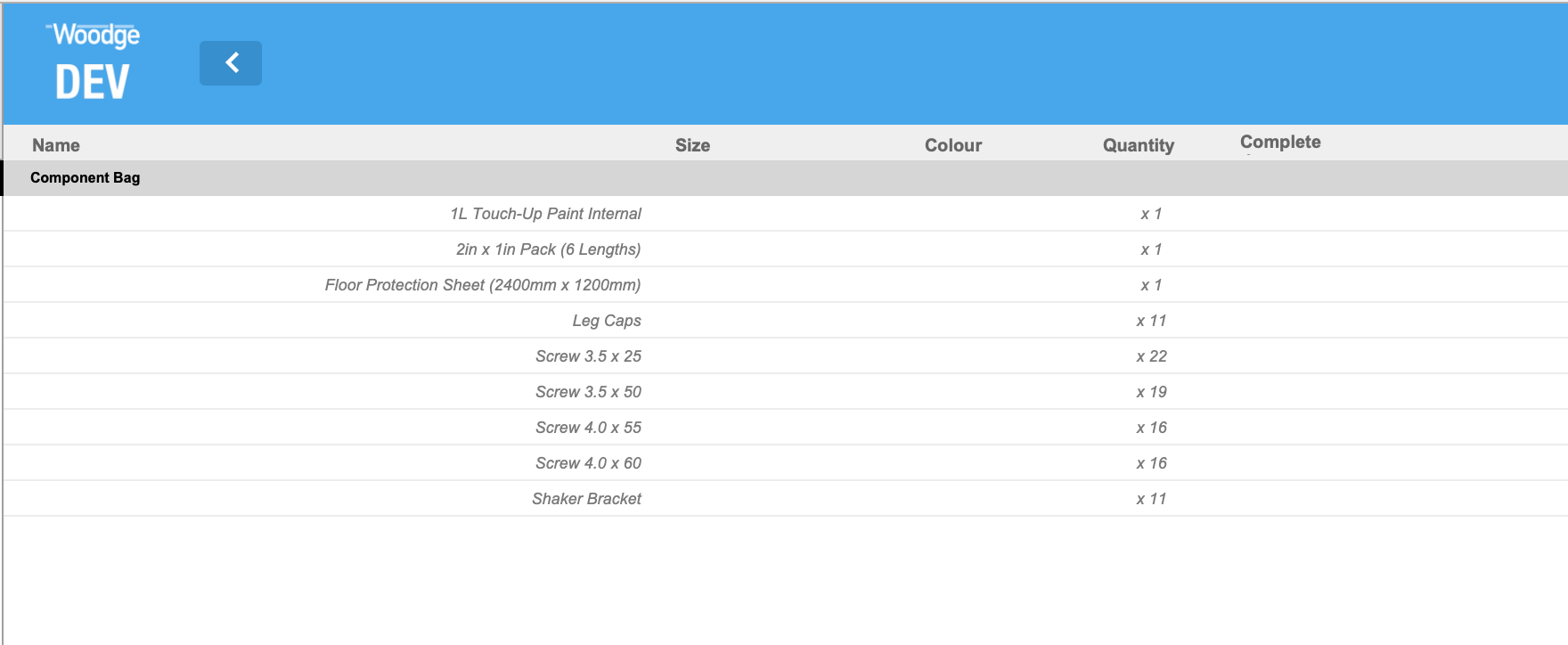
This allows a report like the Component Bag to be run directly from the consignments section.
Task User Interface Improvements
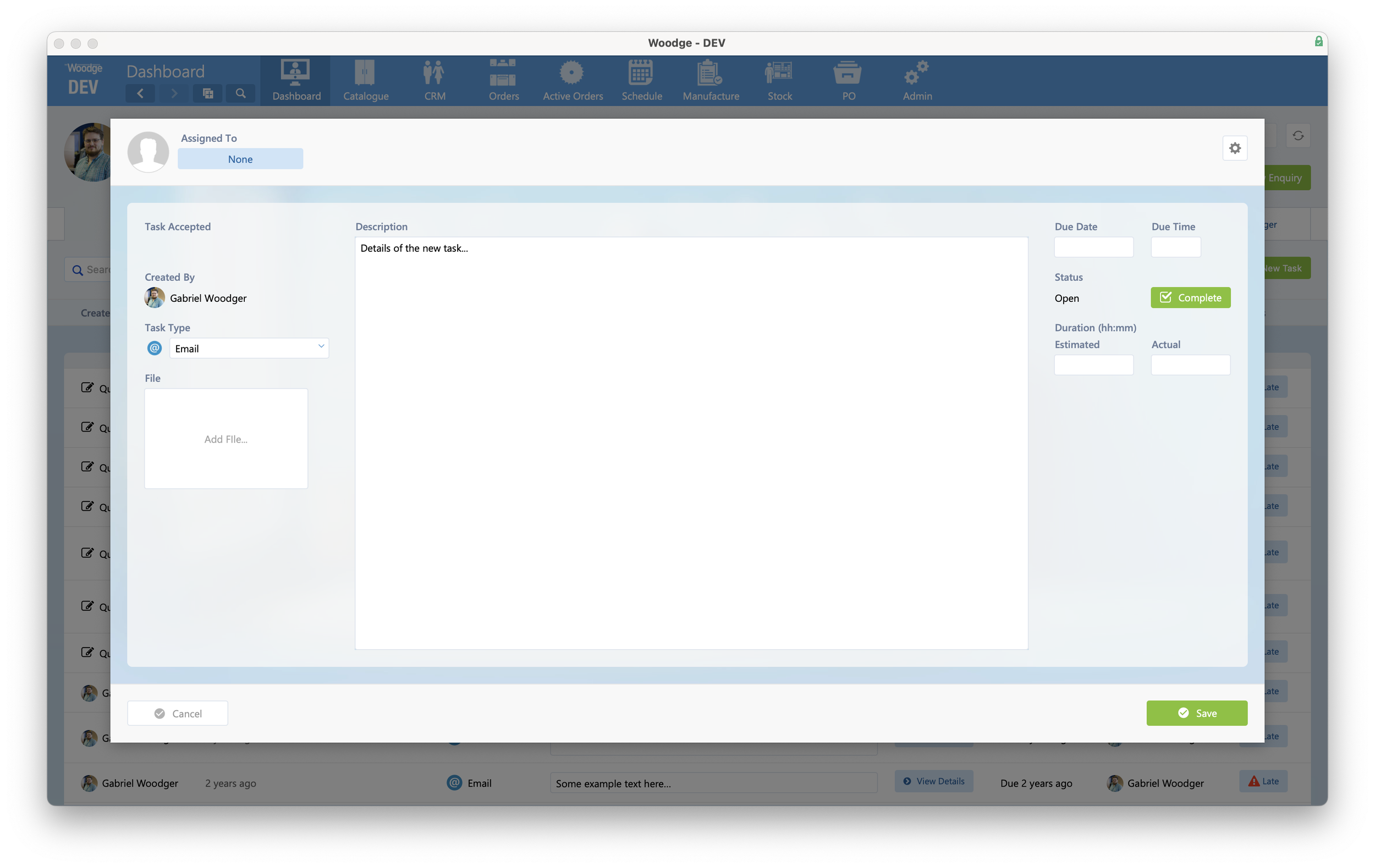
When creating a new task it is now possible to cancel the creation without having to manually delete the task. The Task Card window now shows ‘Cancel’ and ‘Save’ when creating a new task.
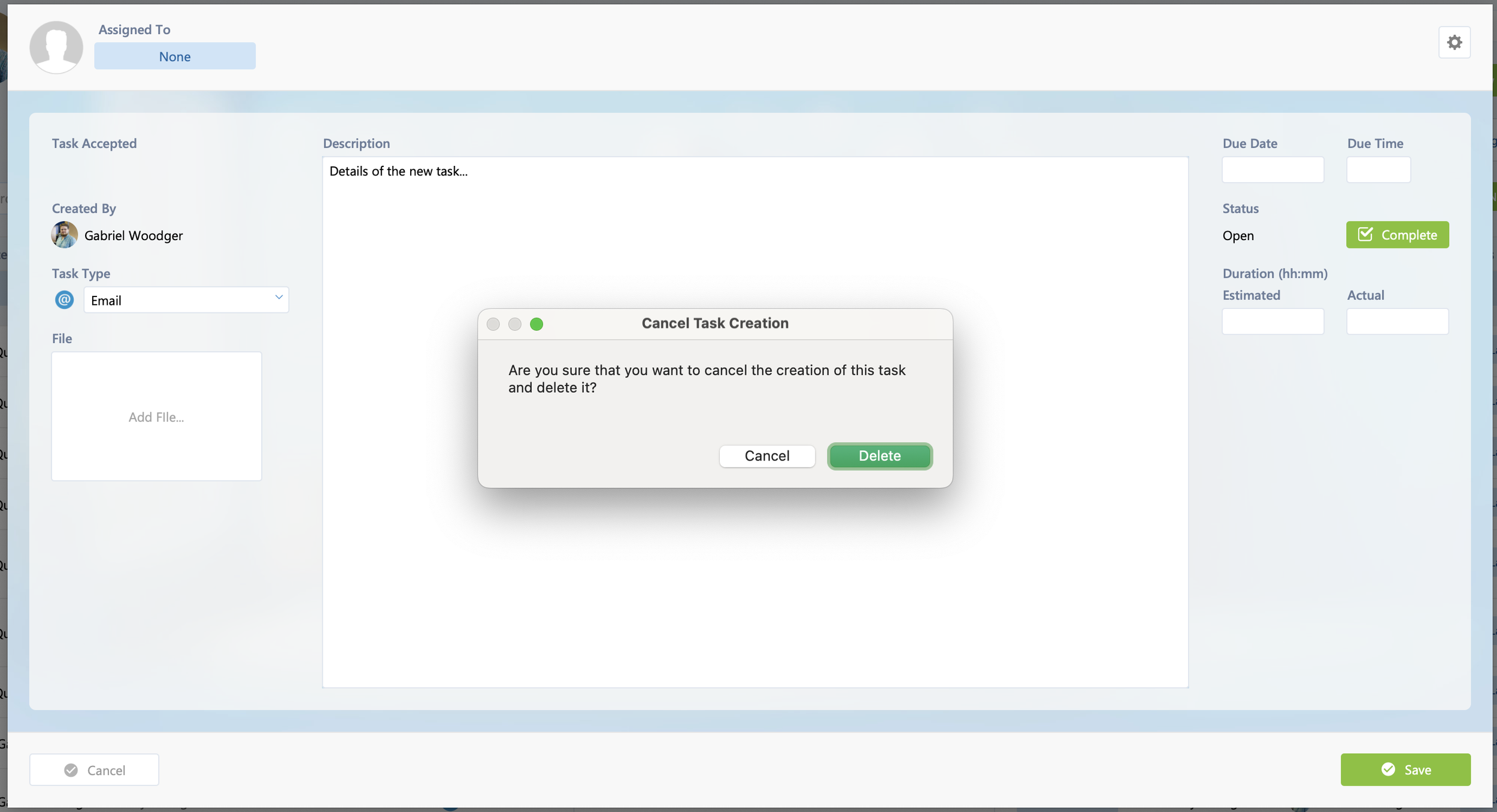
If you click ‘Cancel’ you will be asked if you want to delete the task.
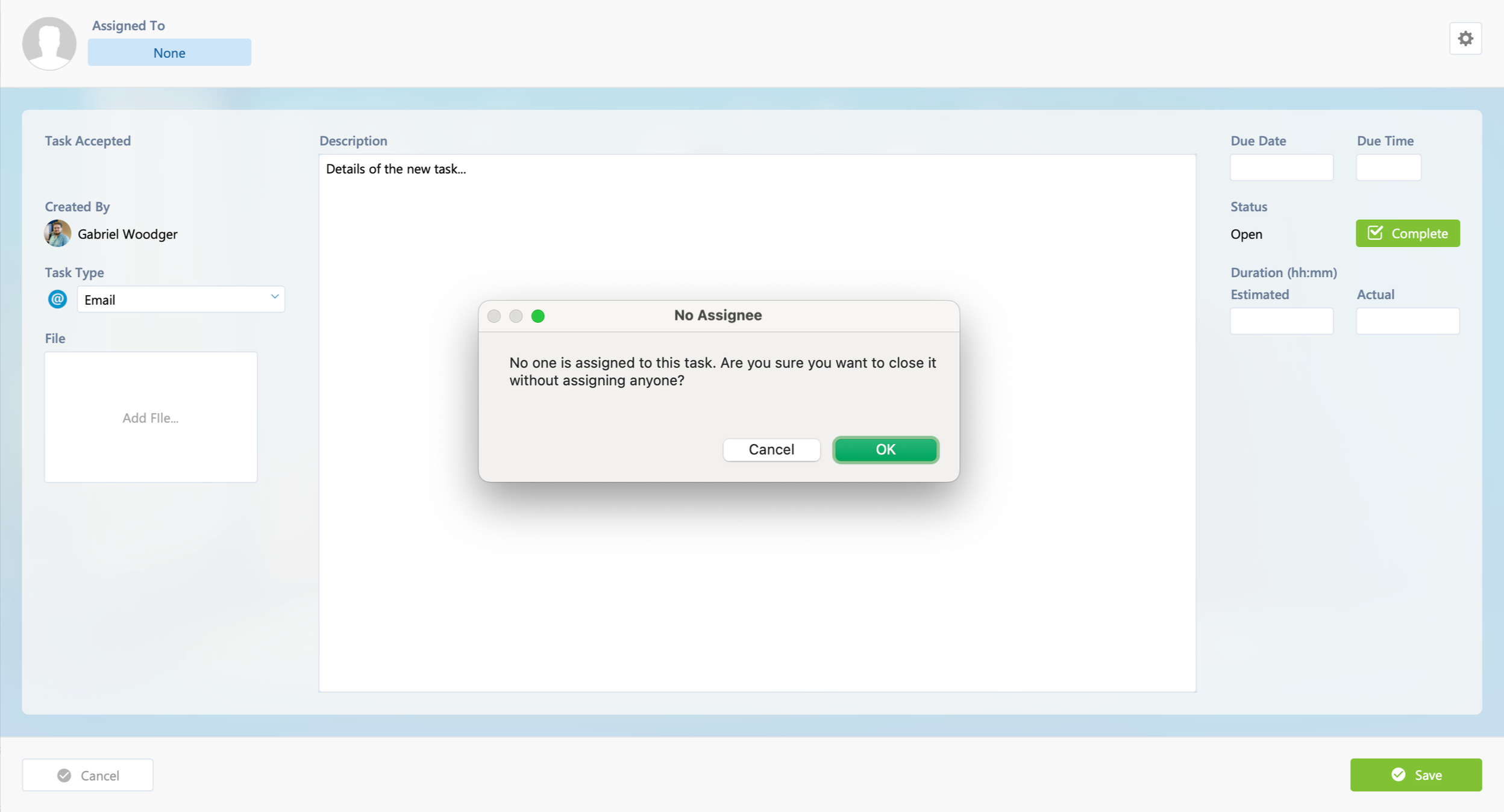
If you create a new task but forget to assign it to an Employee, you will be warned about this before closing the window. This ensures that Tasks are not accidentally left assigned to nobody.
Code 128 Barcodes
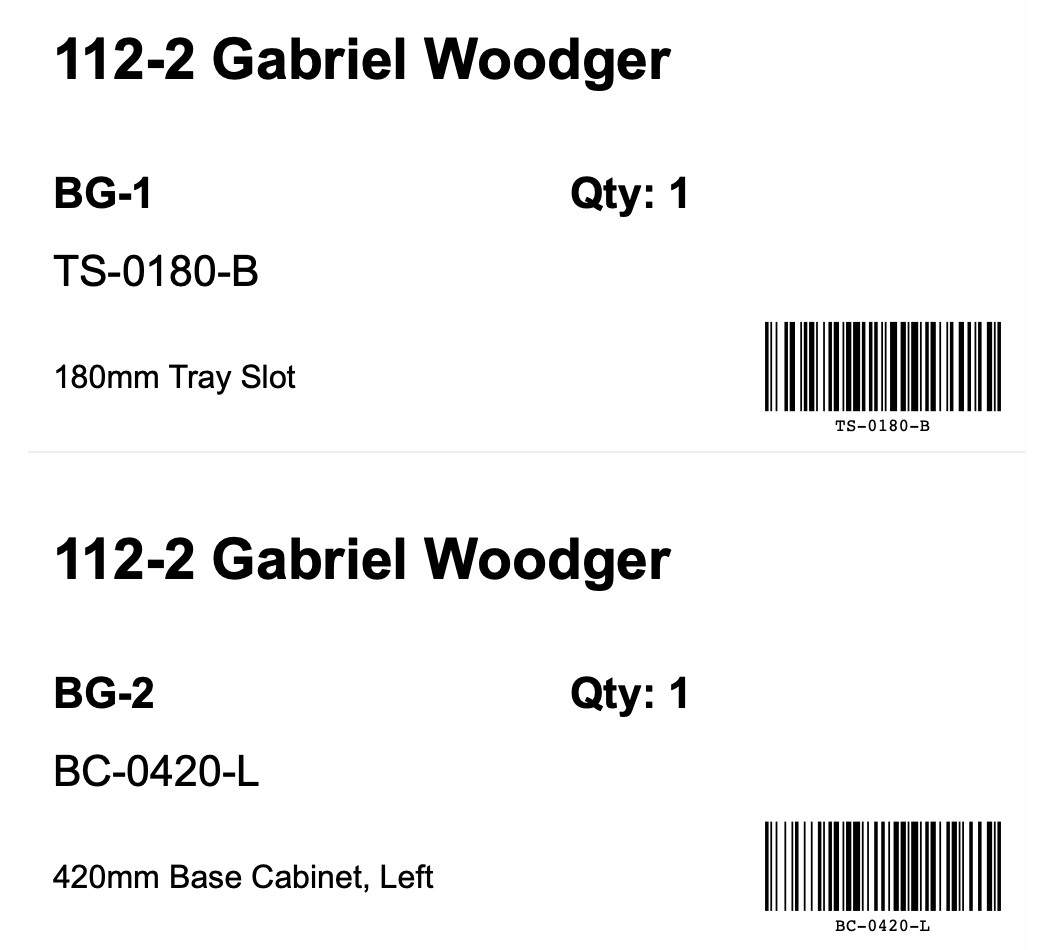
The Woodge platform now support Code 128 barcodes for stickers and other reports.
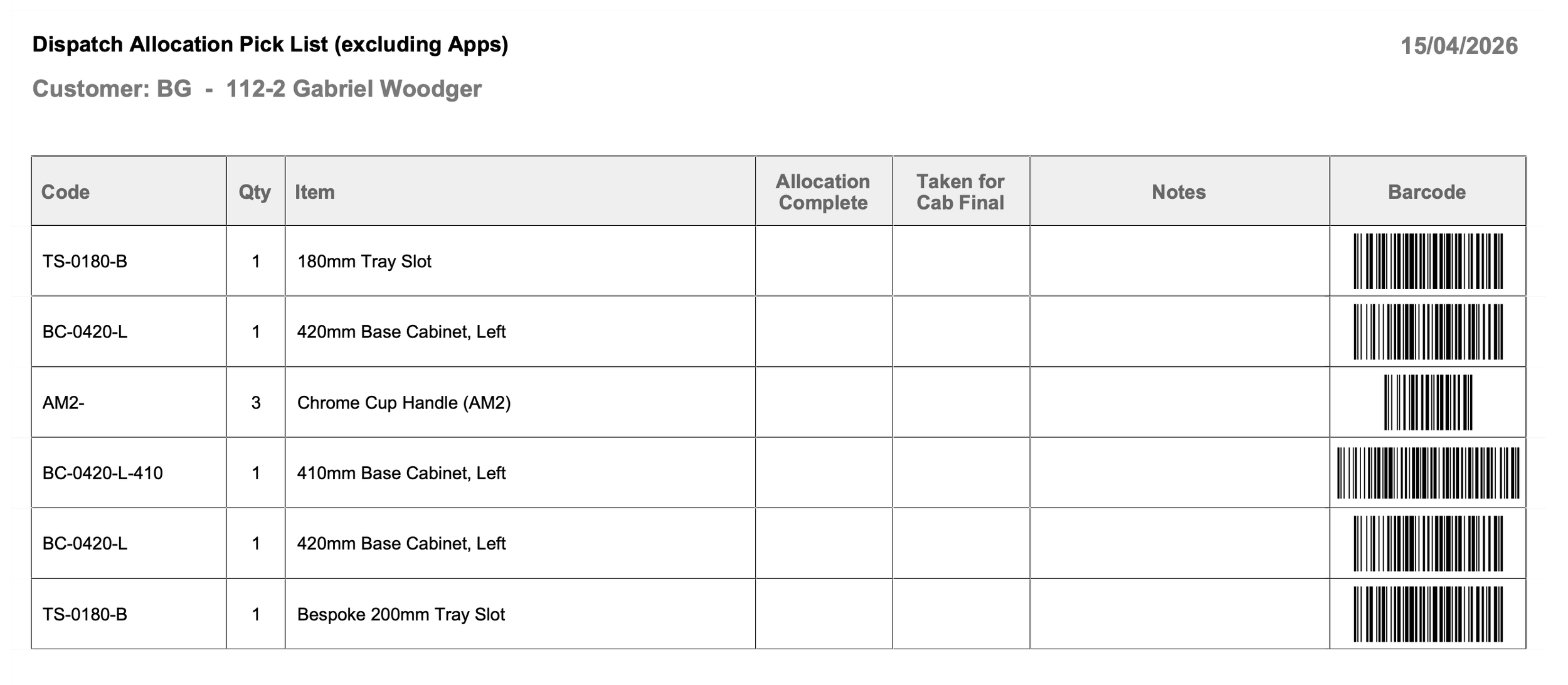
Code 128 barcodes can be displayed with or without the text value of the code displayed underneath depending on the available space.
Critical Orders
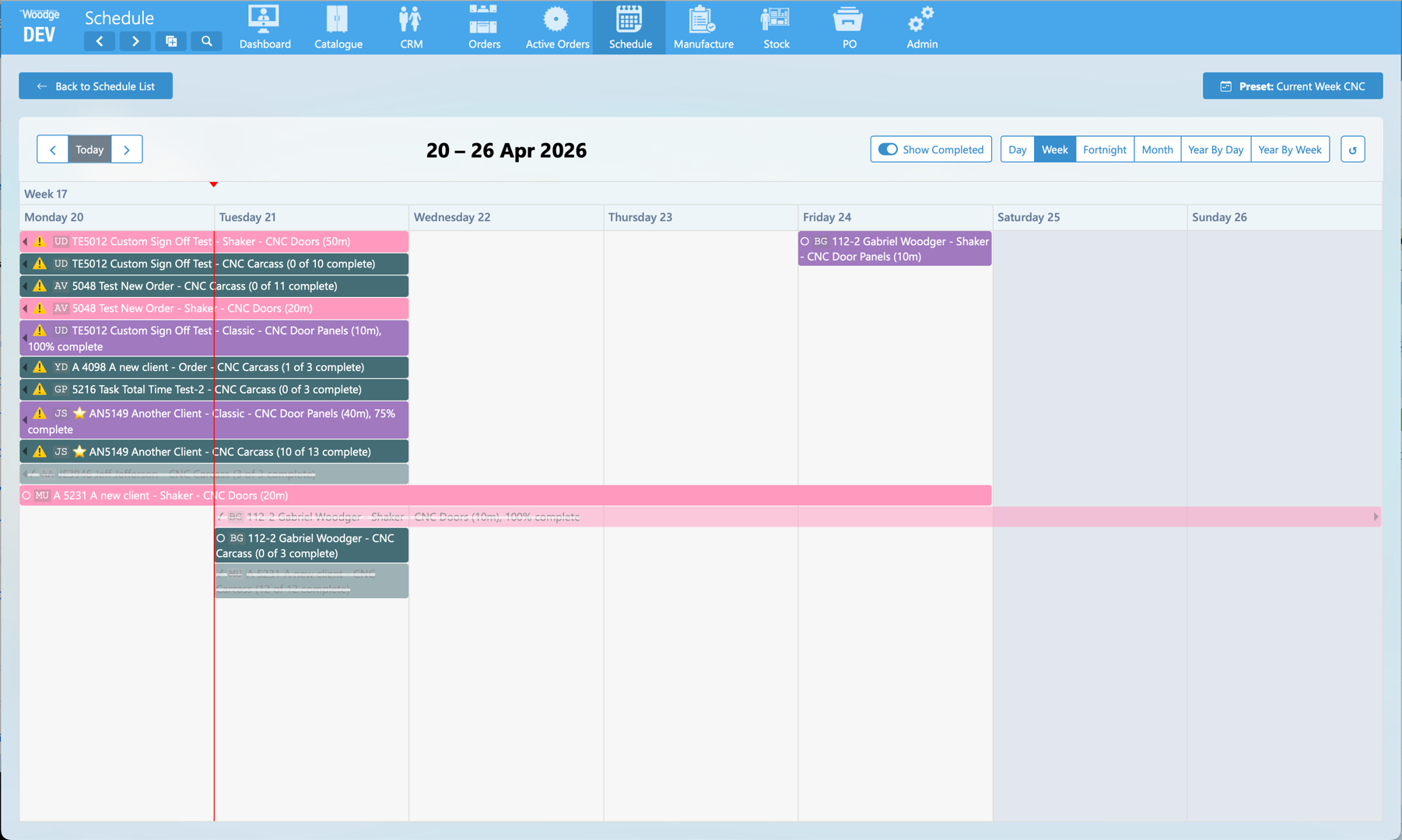
Processes on Orders that have Critical Schedule are now highlighted with a star.
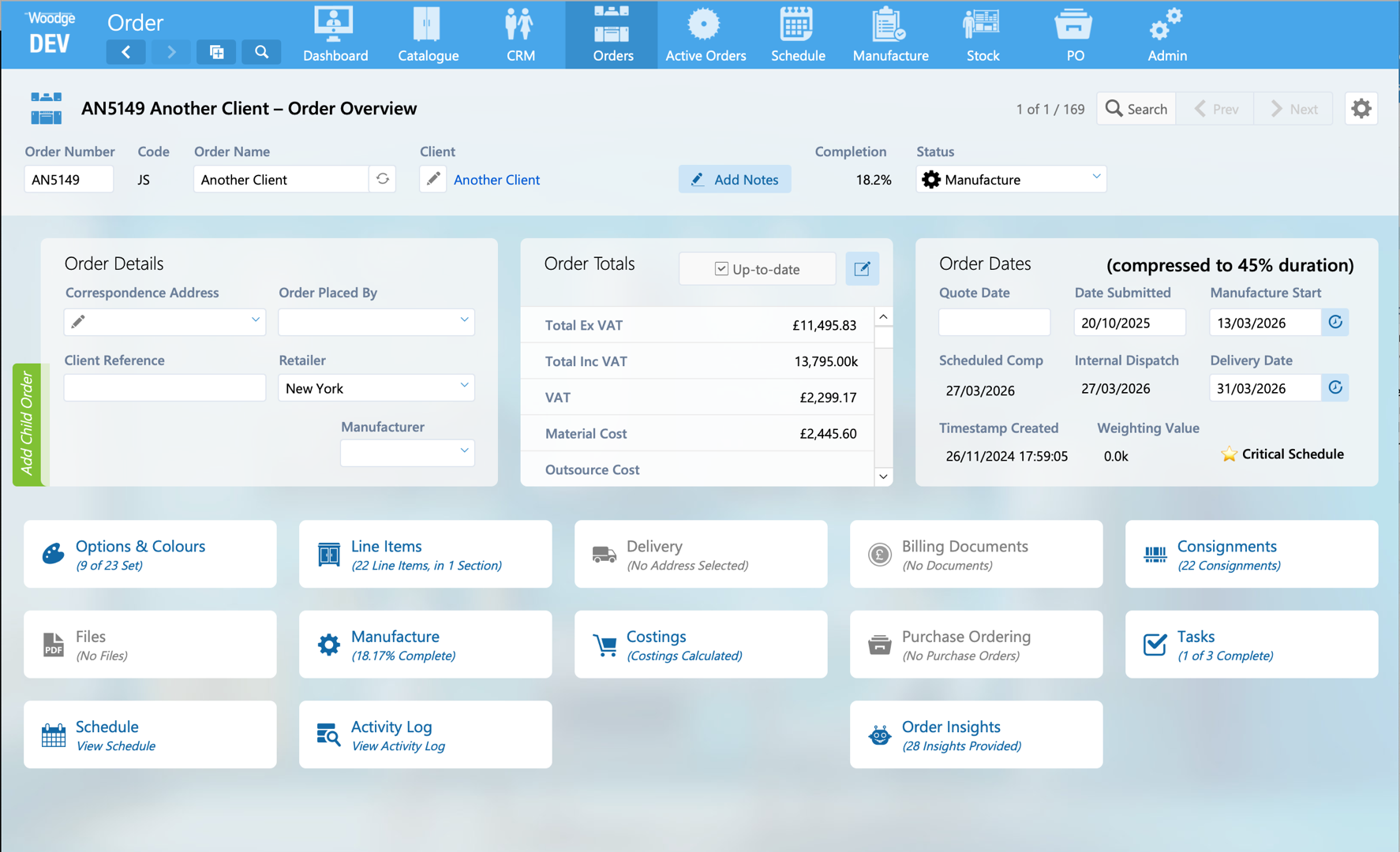
On the Order Overview “⭐️ Critical Schedule” is now shown for relevant orders.
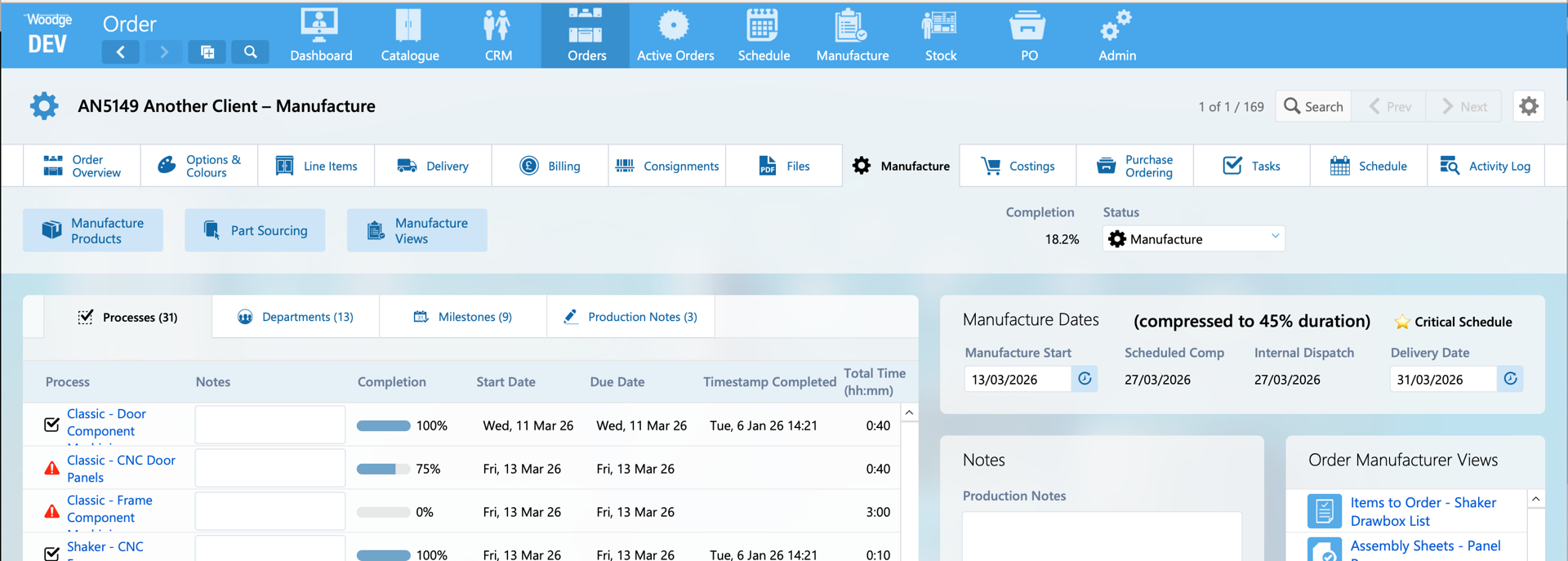
On the Order Manufacture tab this info is also shown.
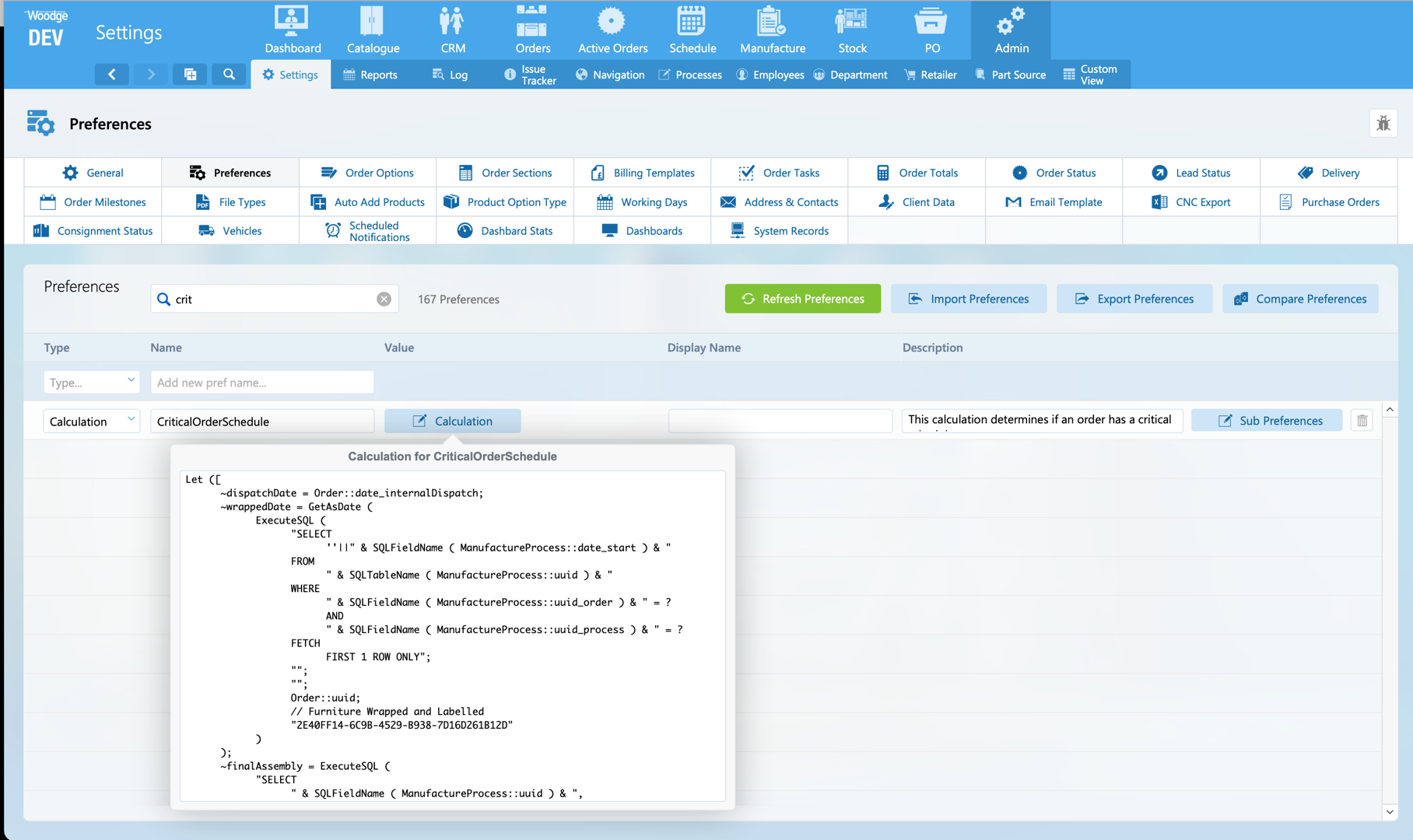
The calculation for when an Order is considered critical if defined in a new Preference named ‘CriticalOrderSchedule’. The calculation is evaluated every time there is a scheduling change on an Order.
Preference Comparison
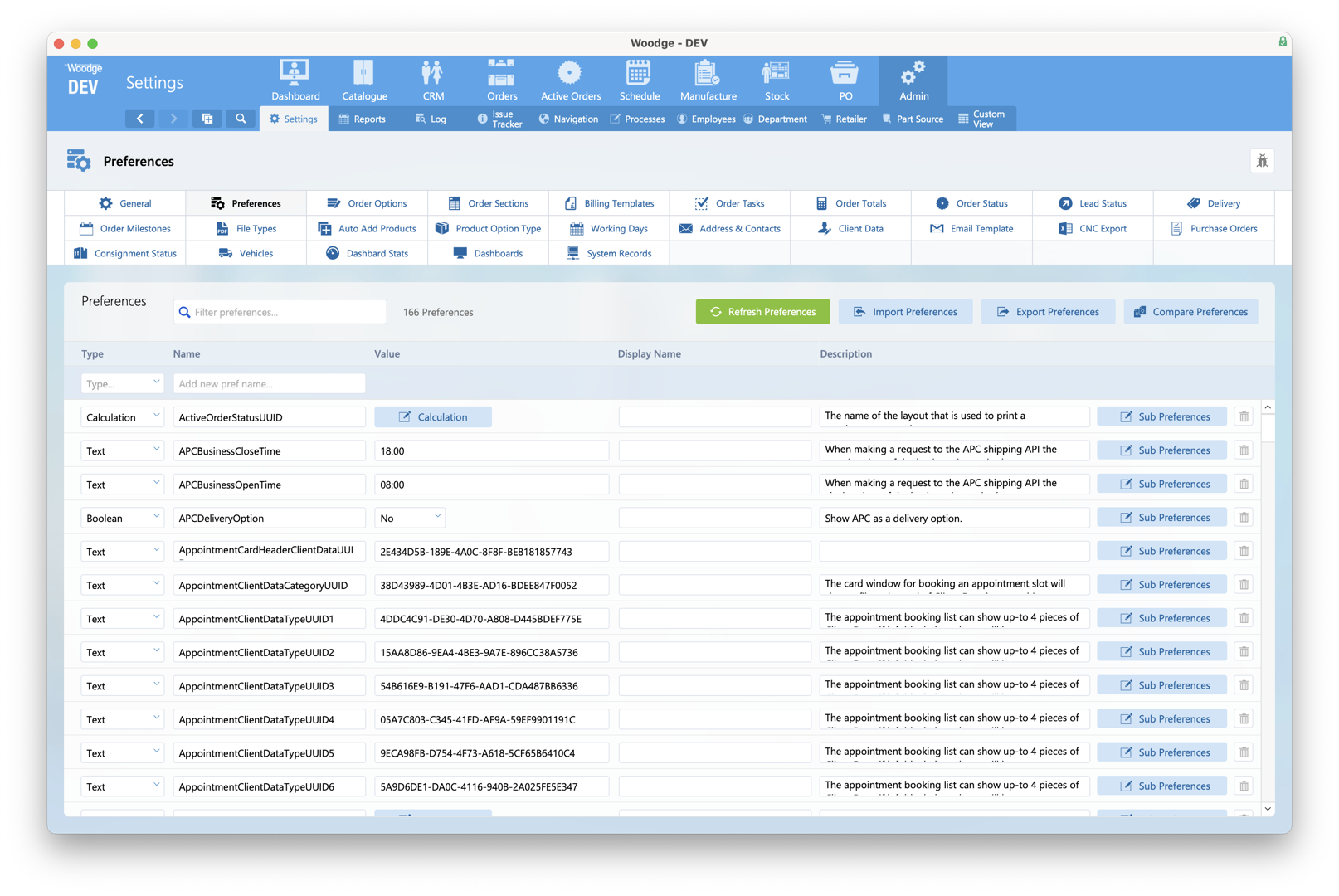
Next to the Import and Export Preference buttons a new button has been added named 'Compare Preferences'.
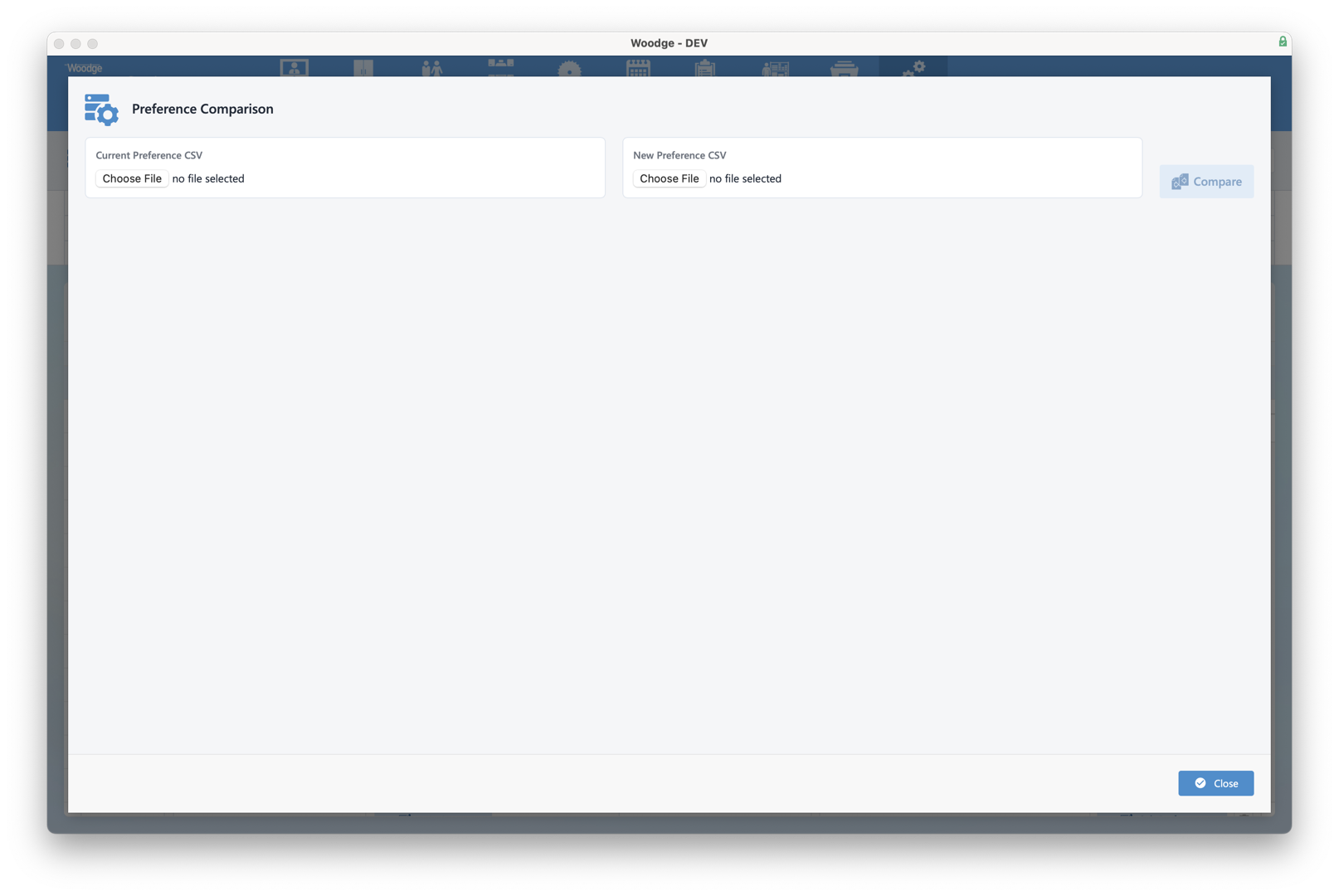
The will open the new 'Preference Comparison' tool. This allows the exported preference csv file from the existing file and the new file to be loaded.
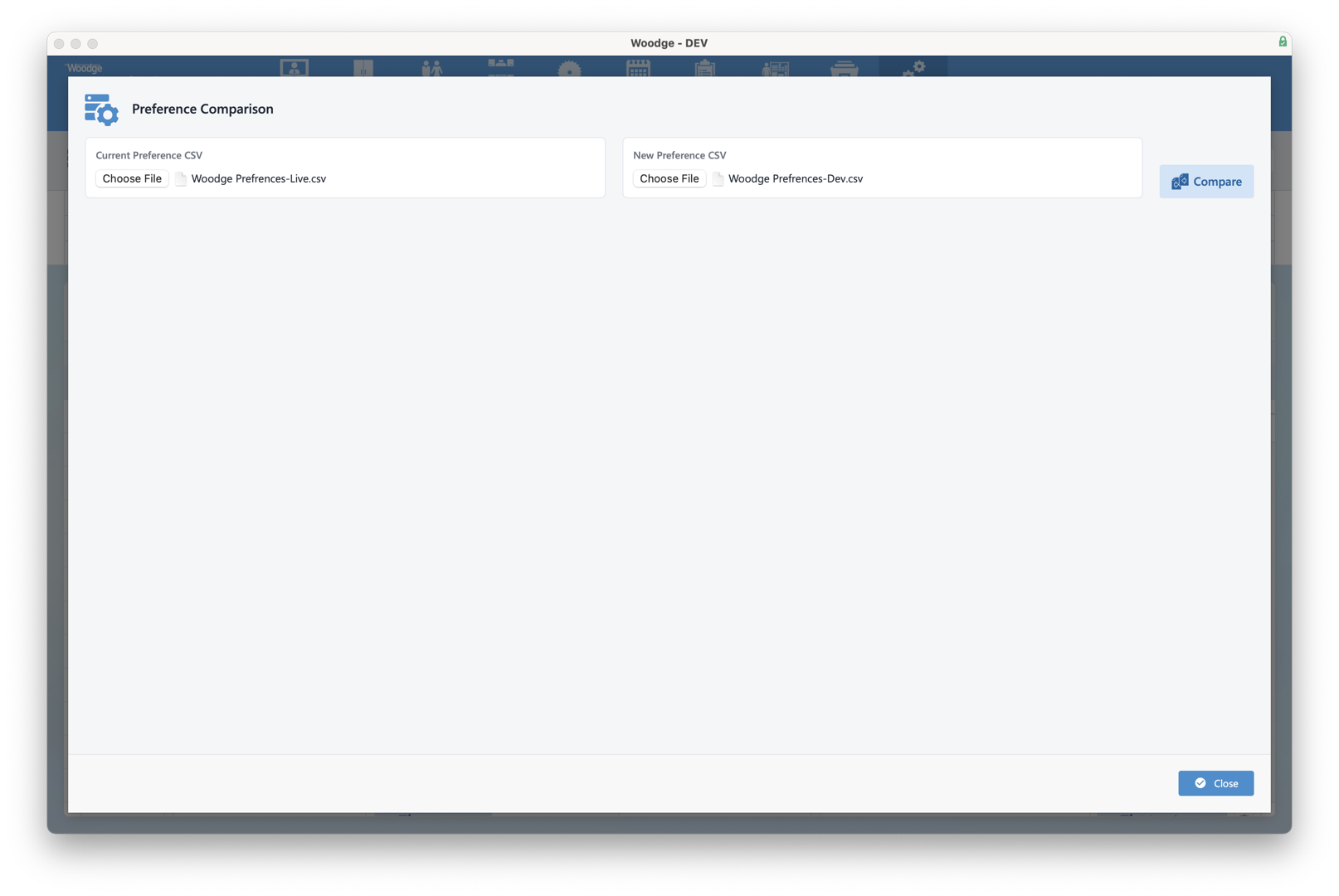
Once two files have been selected, the 'Compare' Button can be clicked.
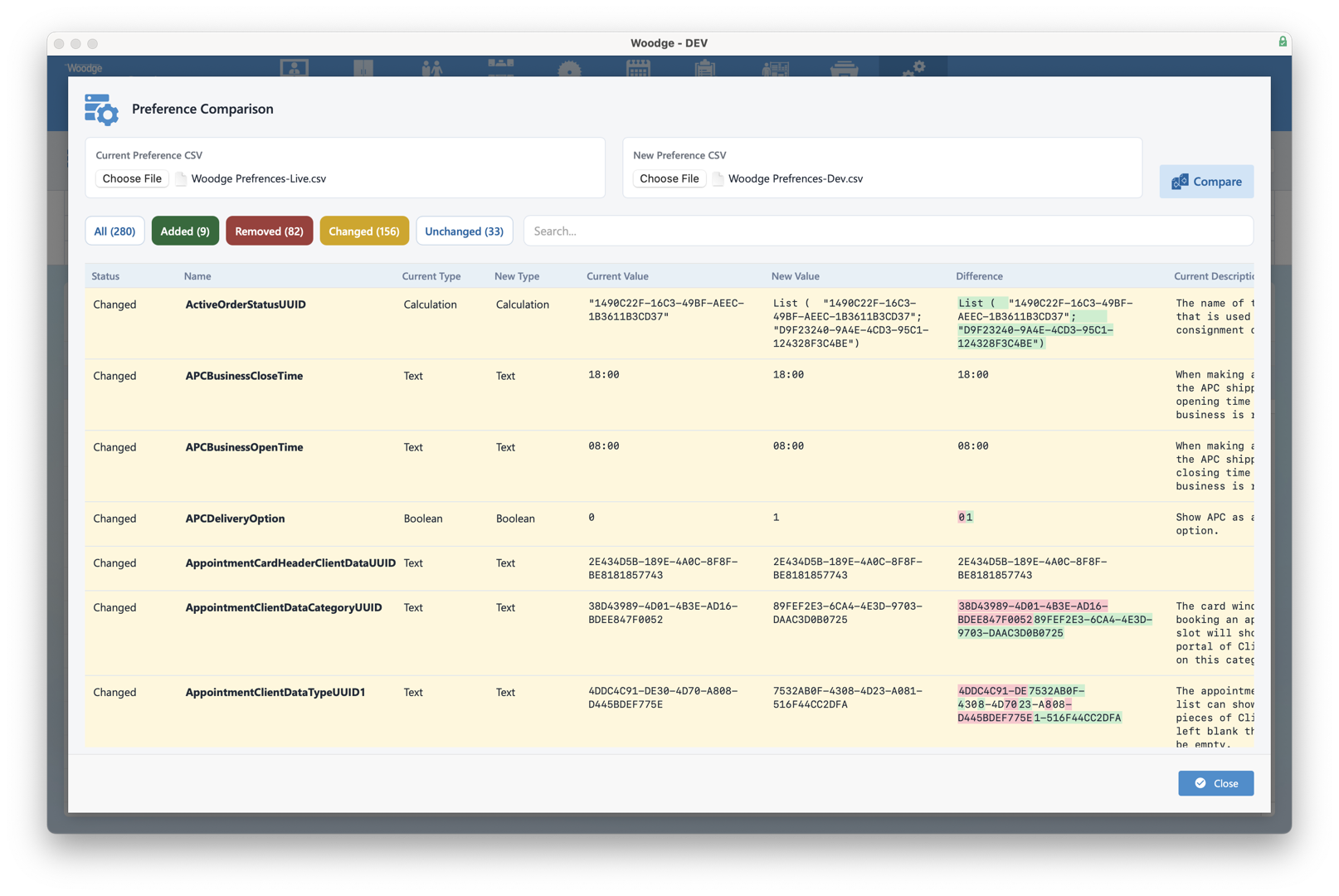
This will load an interactive view that shows which preferences have been added, removed or changed between the two systems. A count for each type is shown on the buttons. Clicking the type button will filter to just show that status. Where there is a change, the added or removed text will be shown in red or green.
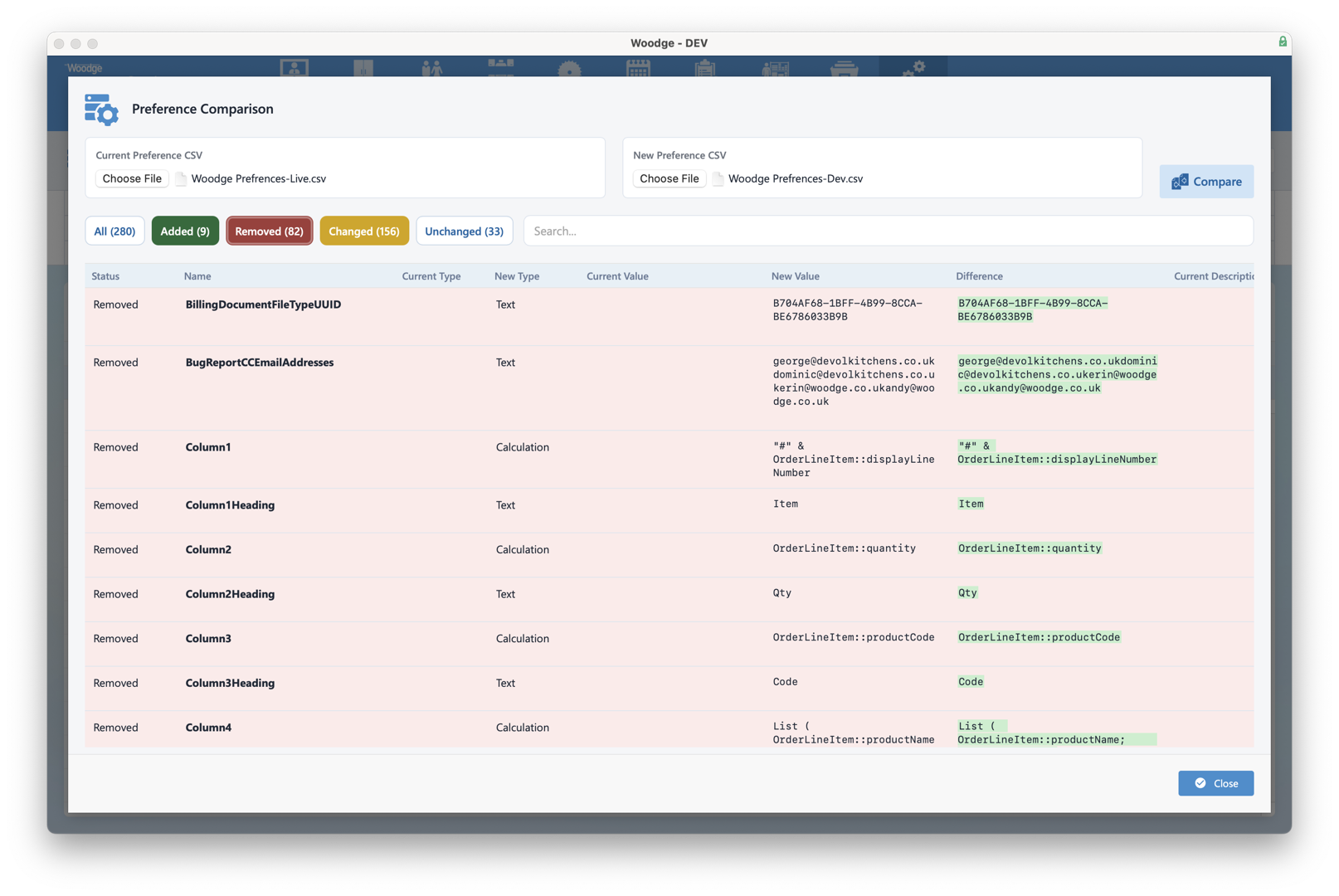
For example showing clicking 'Removed' will filter the table to show only preferences that exist in the current system, but have been removed from the new preference set.
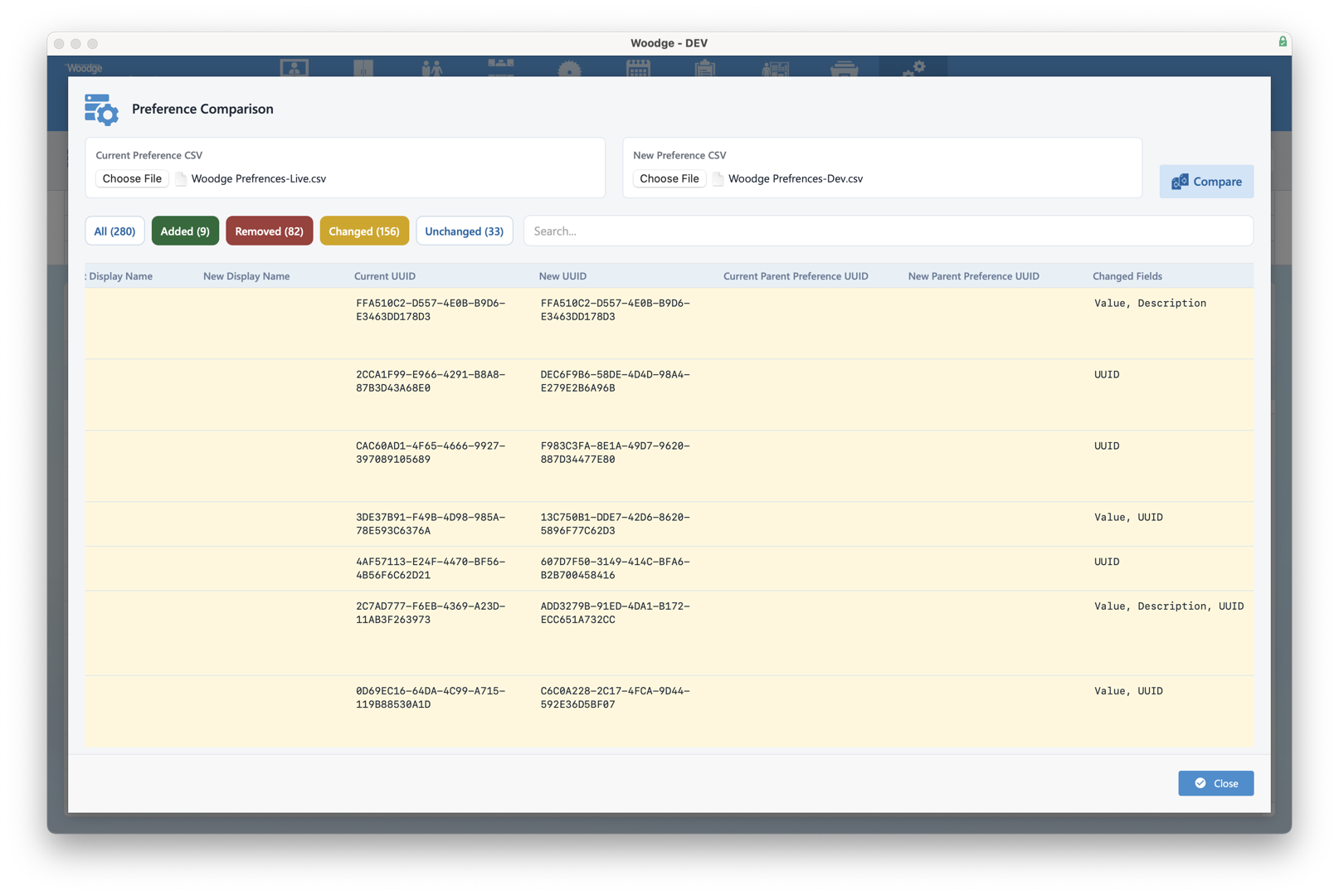
Scrolling right in the table view will show all the diff for all the fields including 'Description', 'Calc Name', 'UUID' and 'Parent UUID' and a list of which fields have changed.
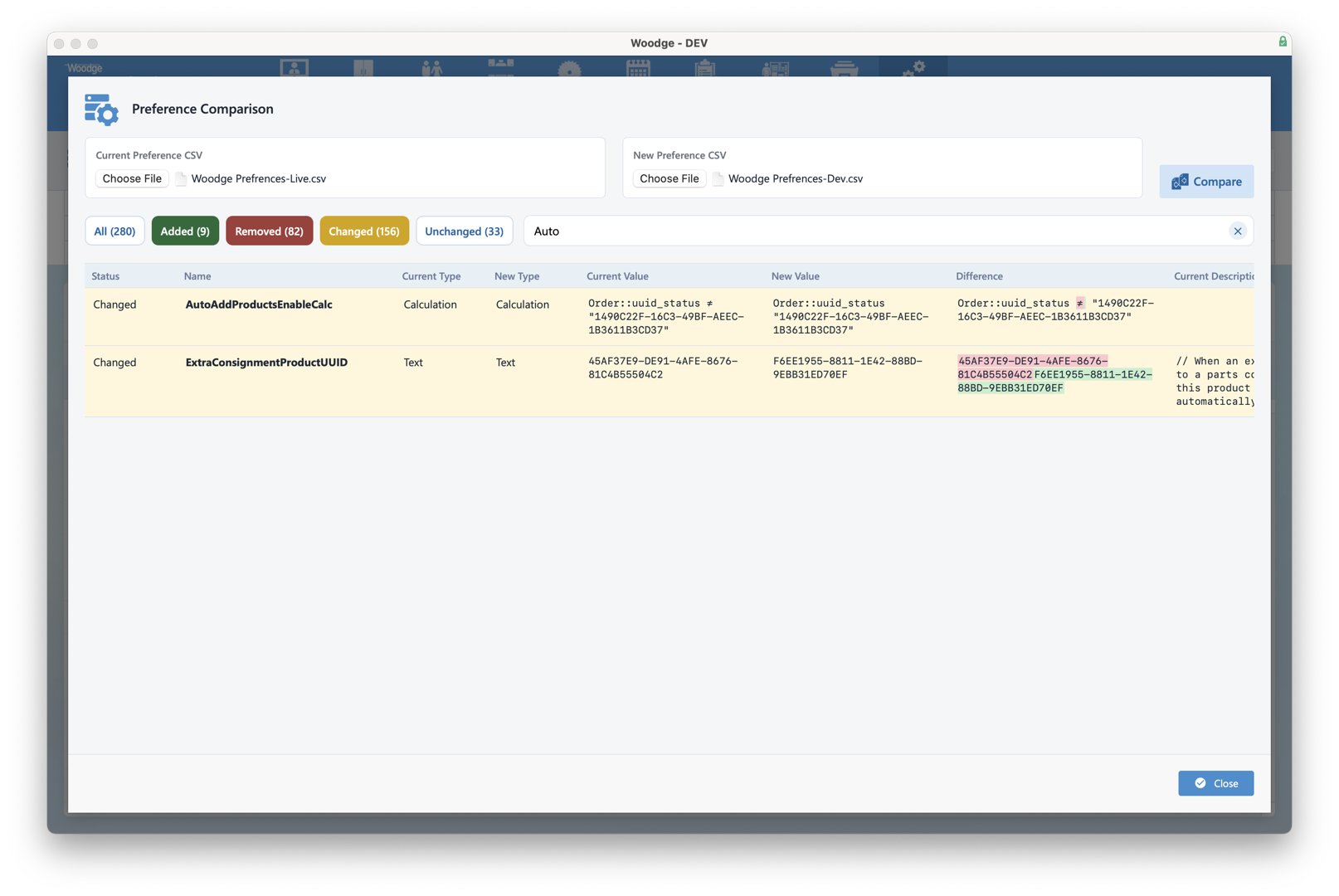
The table can also be search by typing in the Search field. This will show the preference that have a name that matches the search.
Miscellaneous Improvements
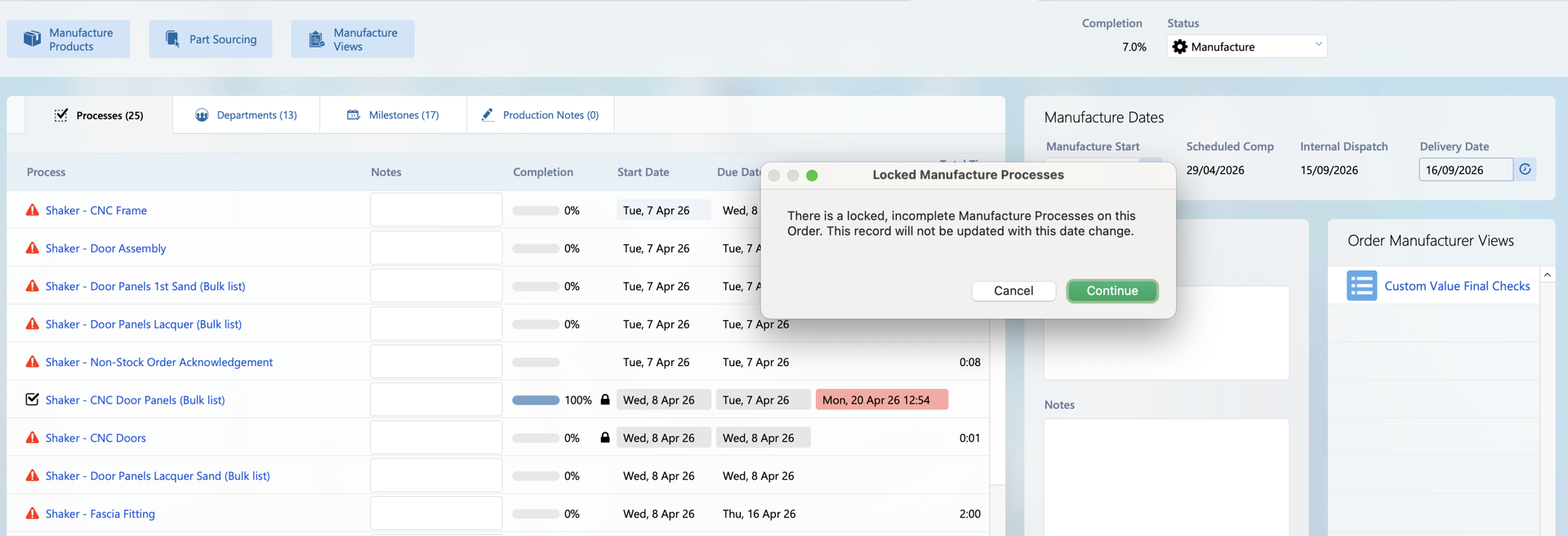
When refreshing Manufacture Processes the warning about locked processes is only shown if there are any locked processes. The warning dialogue also states how many locked processes there is.
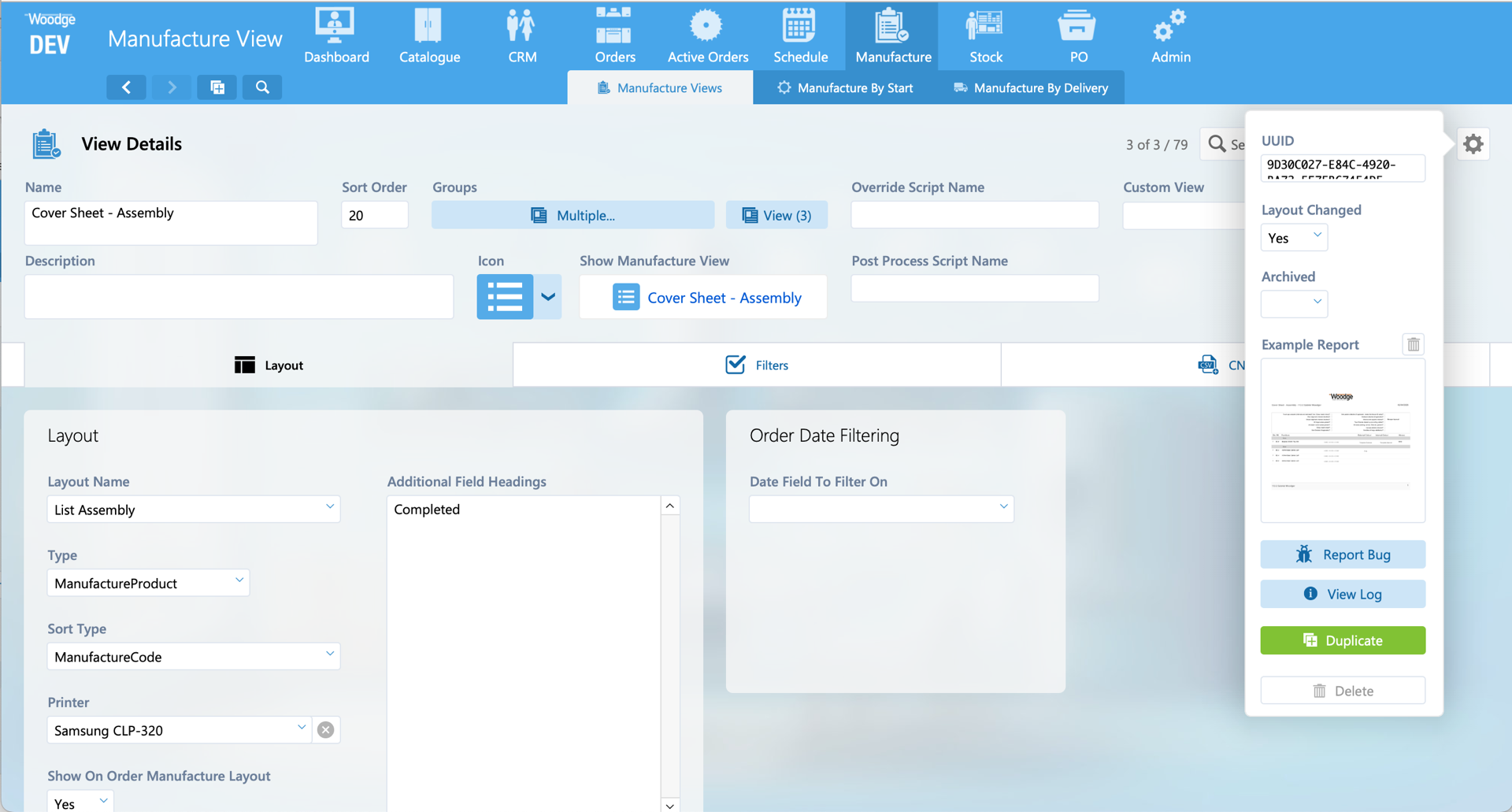
Manufacture Views have been updated to allow the tracking of when the layout has been changed. It’s also now possible to attach an example of what the report should look. This makes it easier to test that Manufacture View still appear as they should.
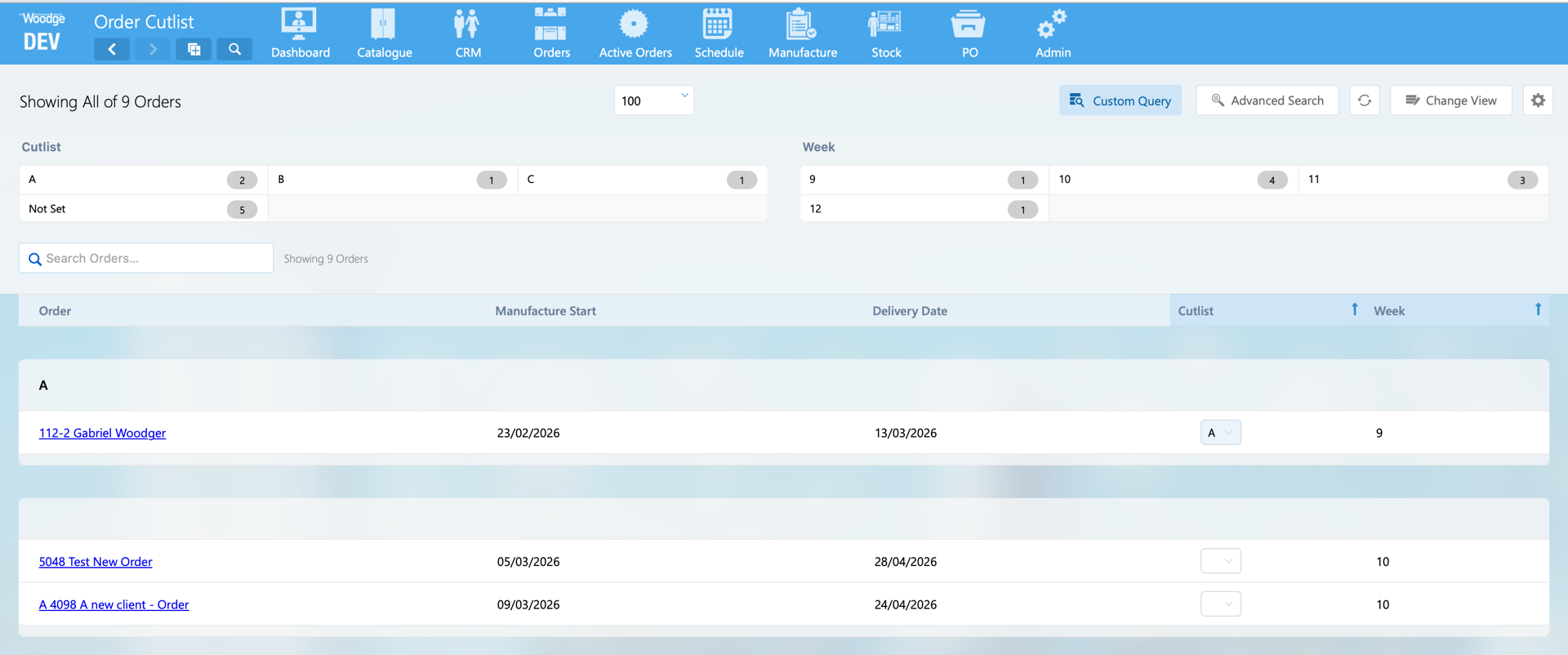
When making a change to the Cutlist of an Order, the Manufacture Milestones and Processes for the order are now automatically refreshed. This allows scheduling that references Order’s Cutlist to be automatically updated.
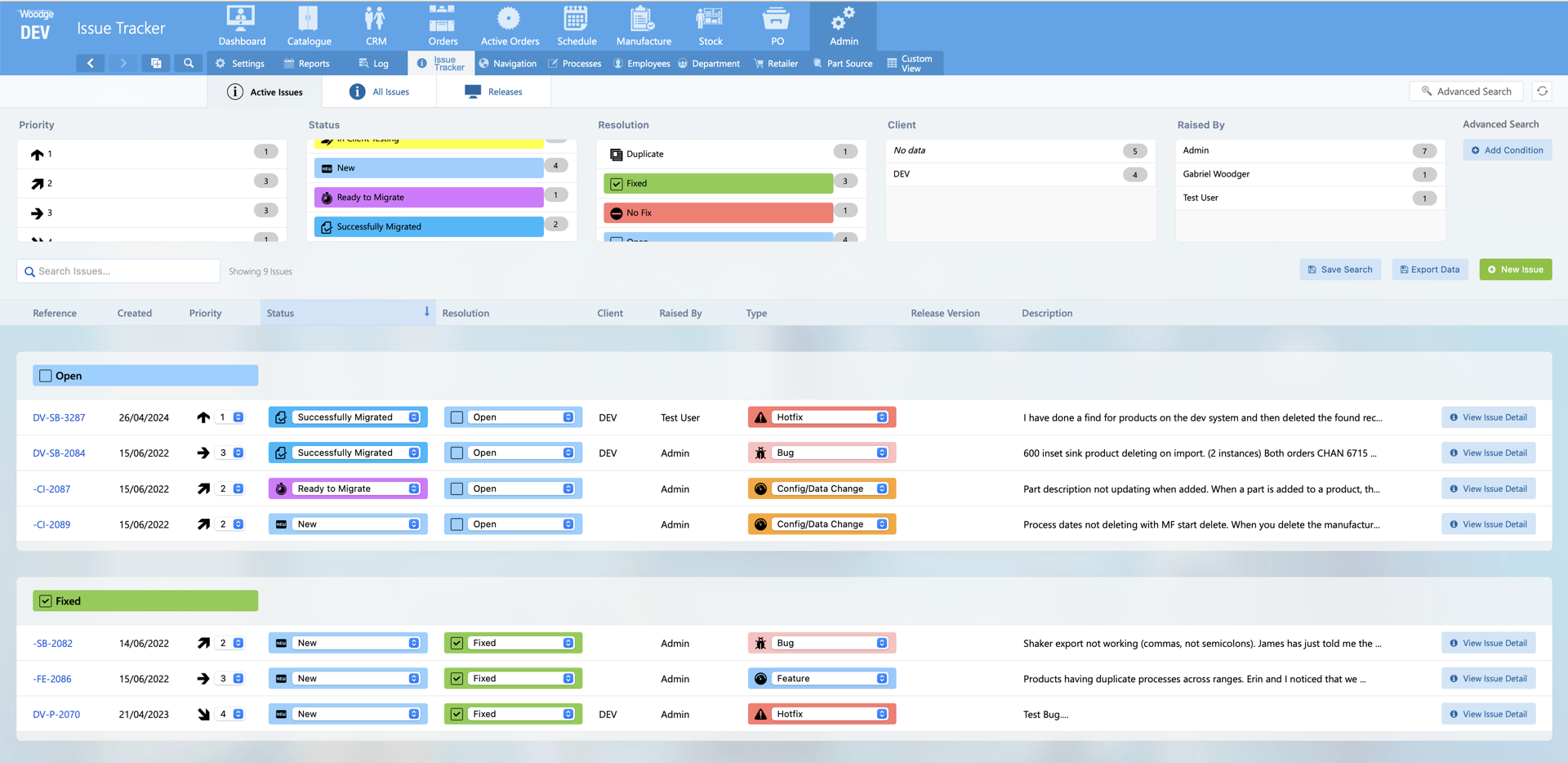
The issue tracker now support a new status named ‘Successfully Migrated’.
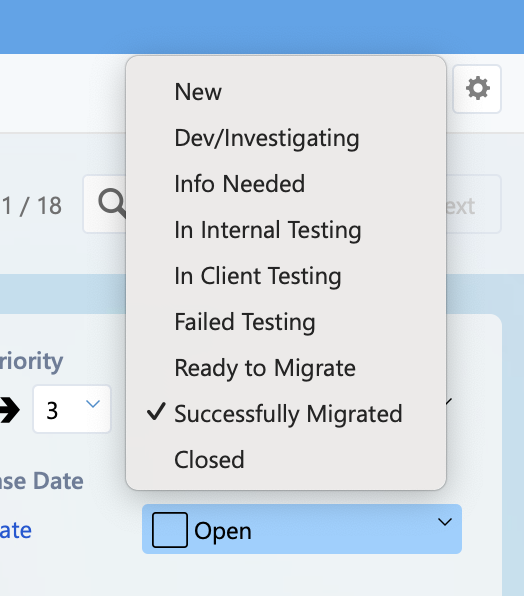
This can be picked from the status drop down on the issue detail layout.
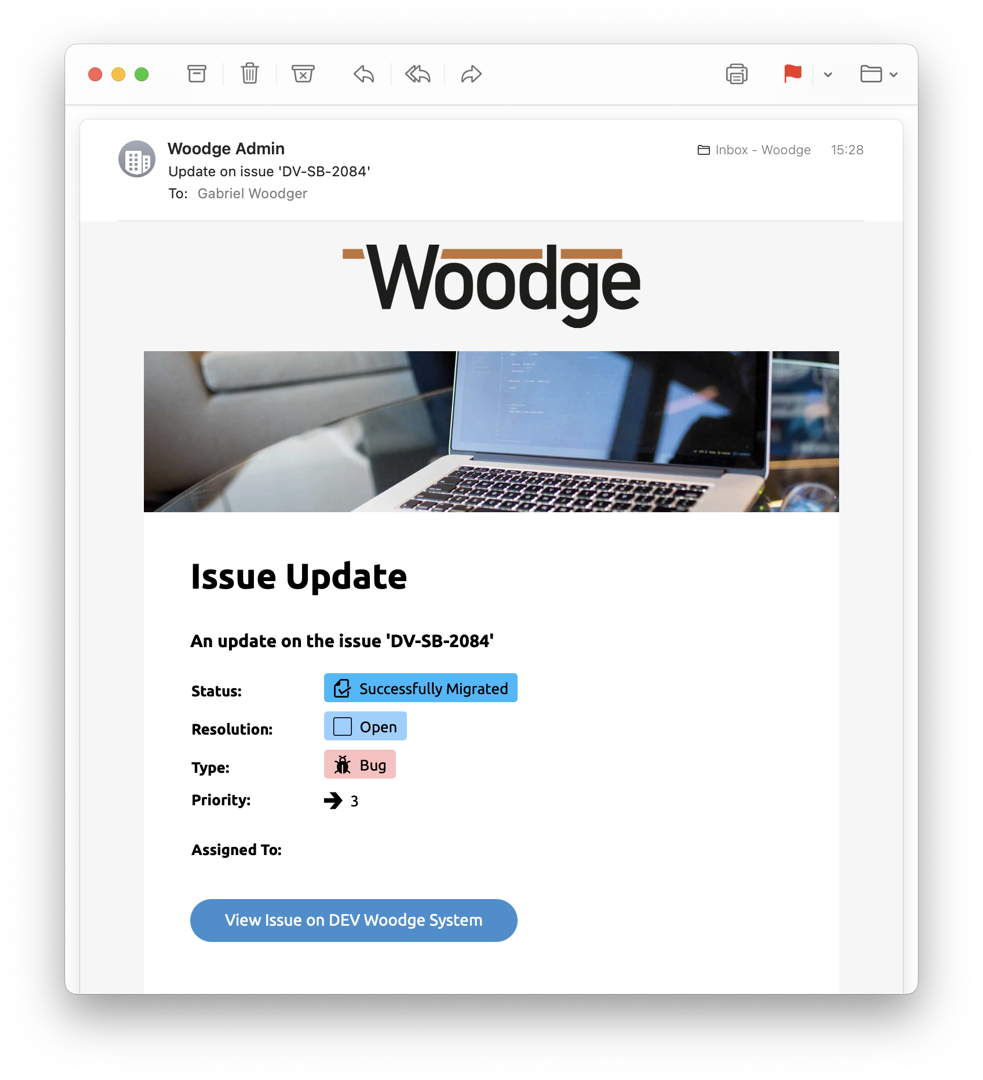
When sending an ‘Email Update’ for an issue the email now shows an icon and colour to highlight this status.
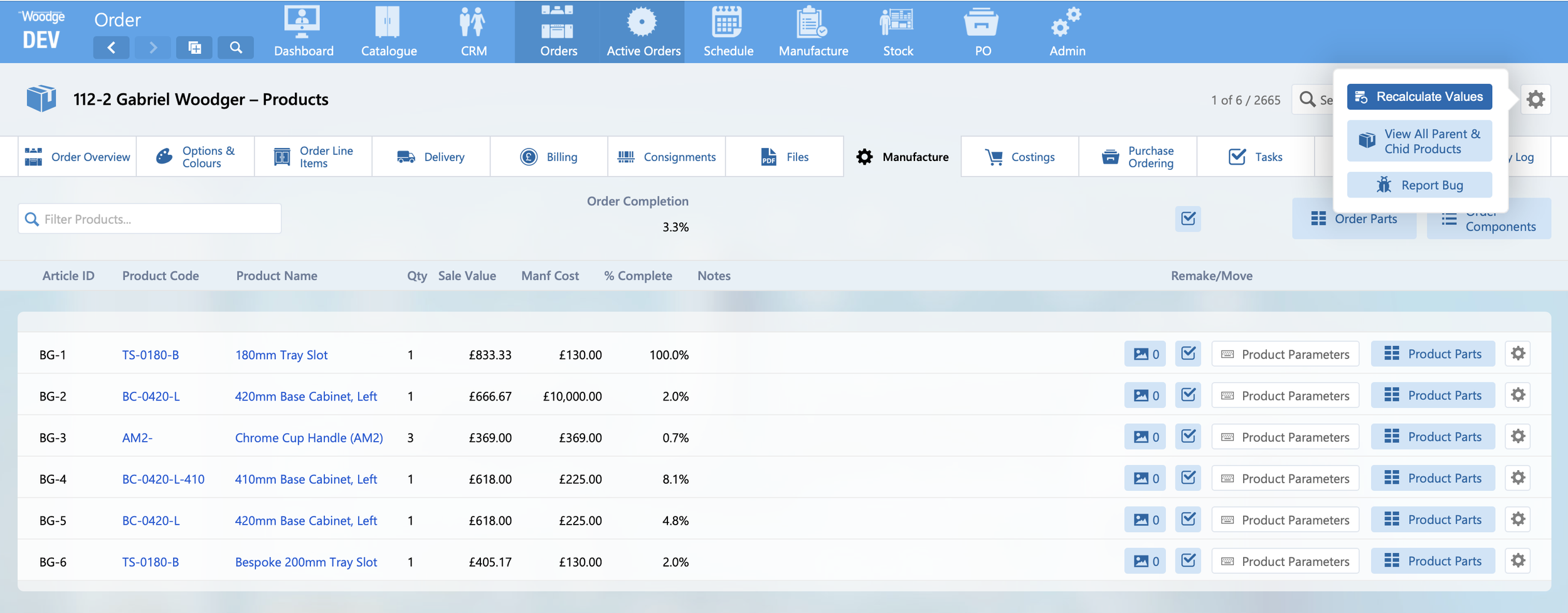
The functionality to recalculate the Manufacture Vales on an order has been reworked so that is changes are made to fixed on non fixed percentages are made the values are correctly updated. This will prevent Order incorrectly moving into the ‘Completed’ status when record values are updated.